Expense Reports provide a clear, high-level view of your firm’s financial performance through the following key reports: Balance Sheet – Displays assets, liabilities, and equity at a specific point in time. Profit & Loss (P&L) Statement – Shows income and expenses over a selected period. Trial Balance – Summarizes all general ledger account balances. Cash Flow Statement – Tracks cash inflows and outflows during a specified timeframe.
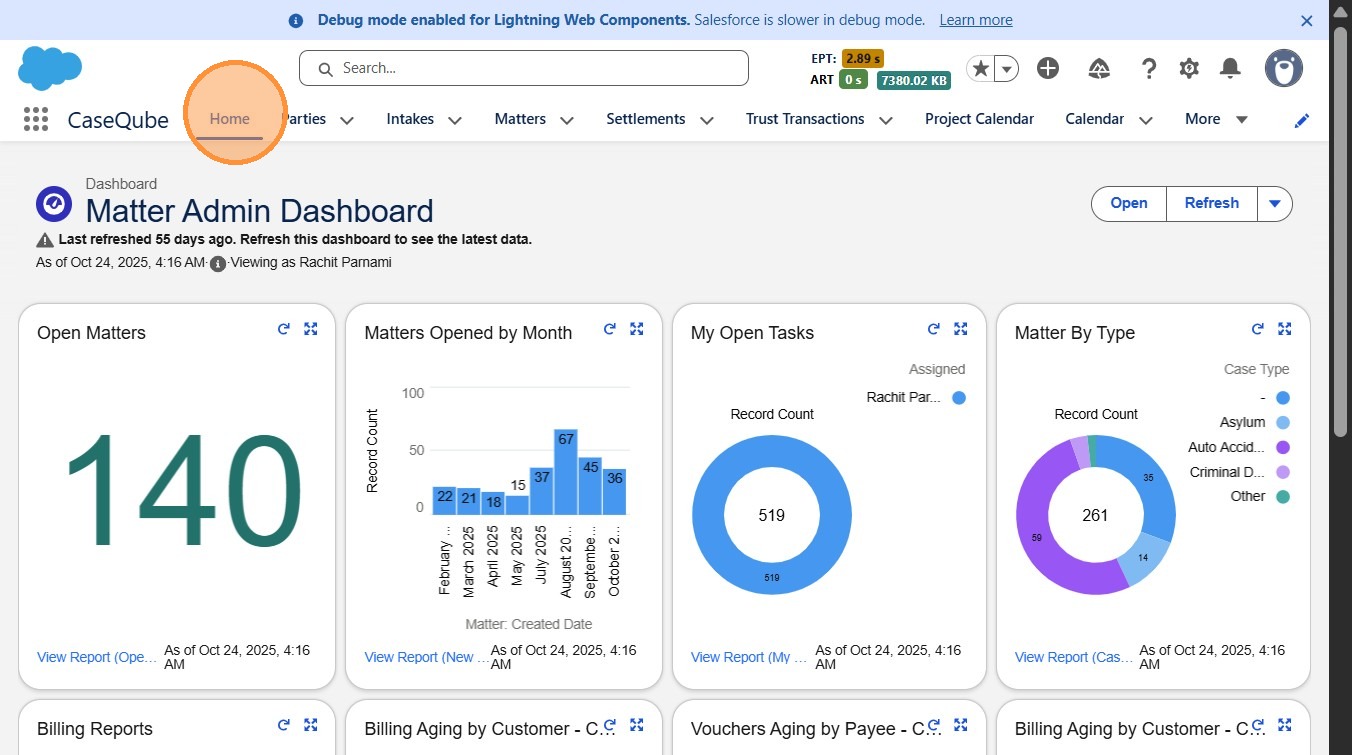
1. Step 1: Login To SalesForce
- Login to Salesforce Using Secure Credentials
 />
2. ### Step 2: Navigate to Financial Reports
- From the homepage, use the app launcher and open Financials
 />
3. Step 3: Accessing & Understanding The Report
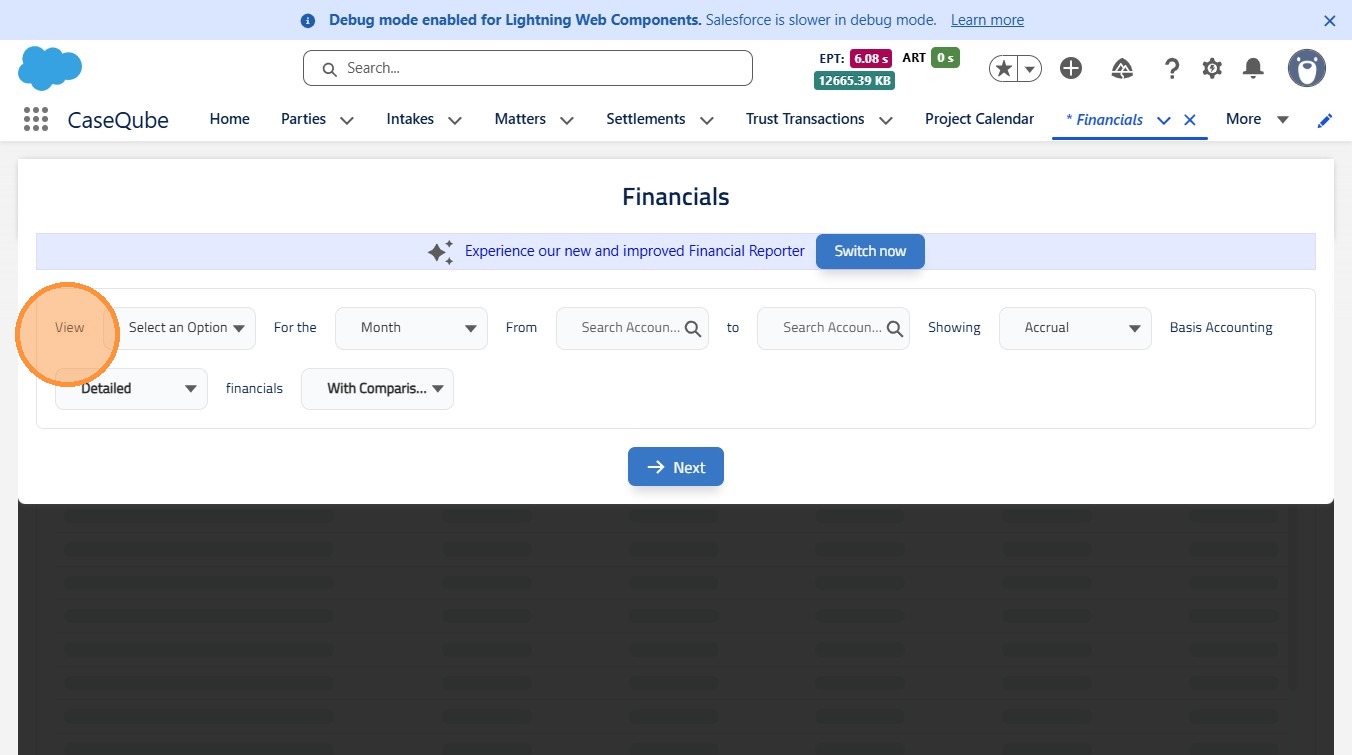
In the View field, choose the management report you want to generate, such as:
-
Balance Sheet
-
Profit & Loss (P&L)
-
Trial Balance
-
Cash Flow Statemen
 />
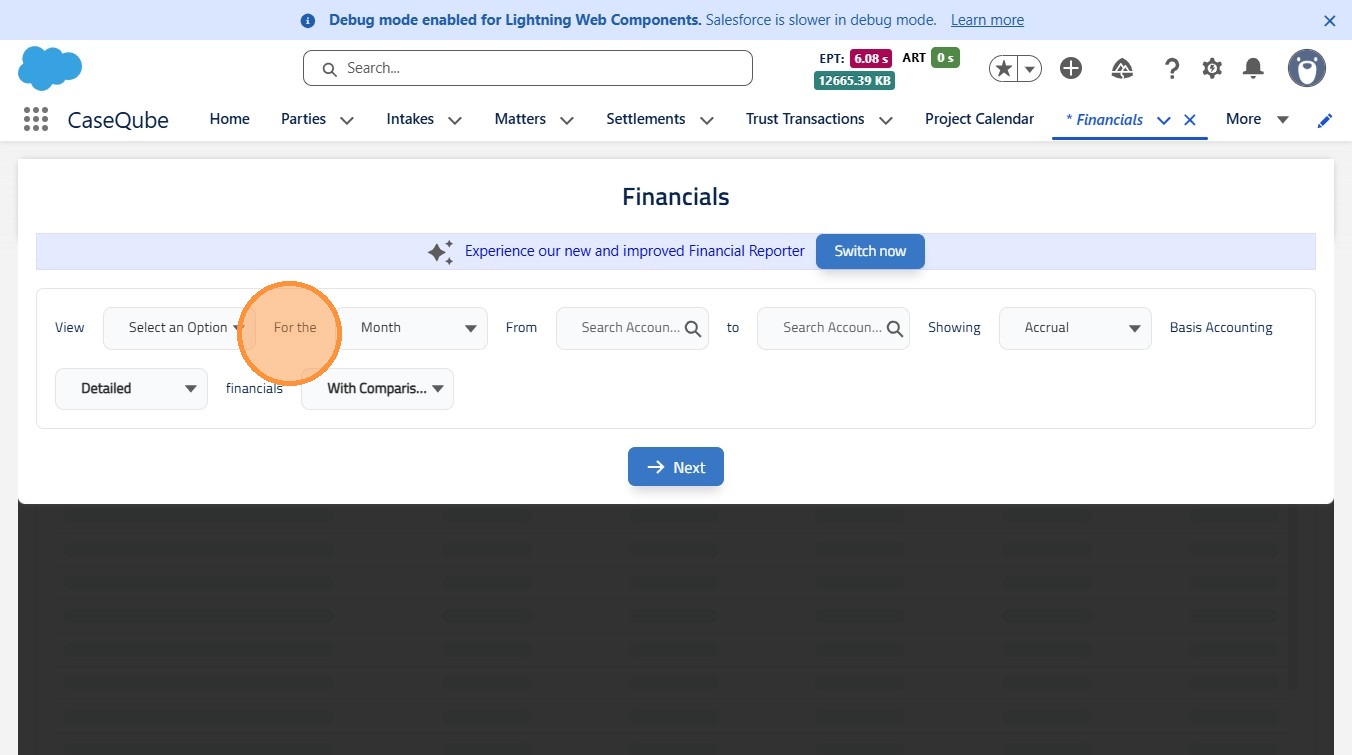
4. In the For the field, select how you want the report displayed (monthly, yearly, etc.).
 />
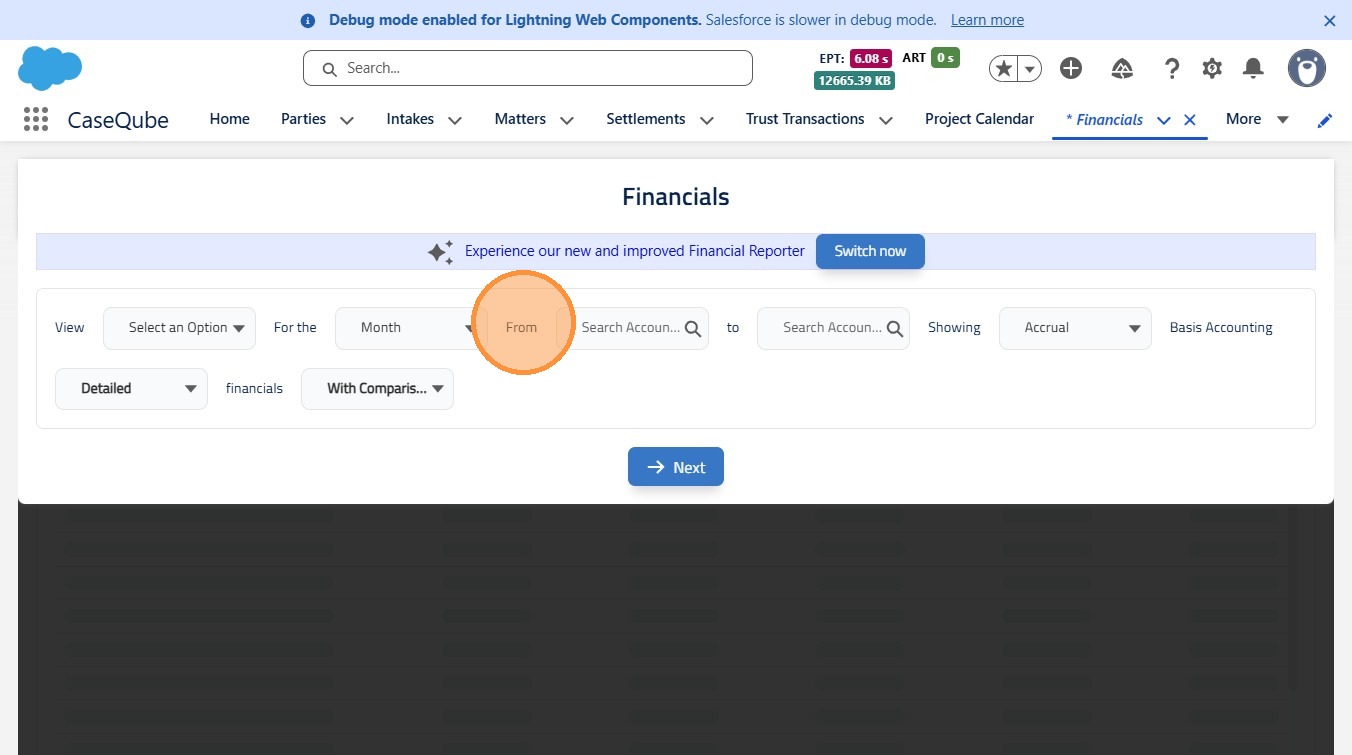
5. In the From field, select the starting date, month, or year for the report.
 />
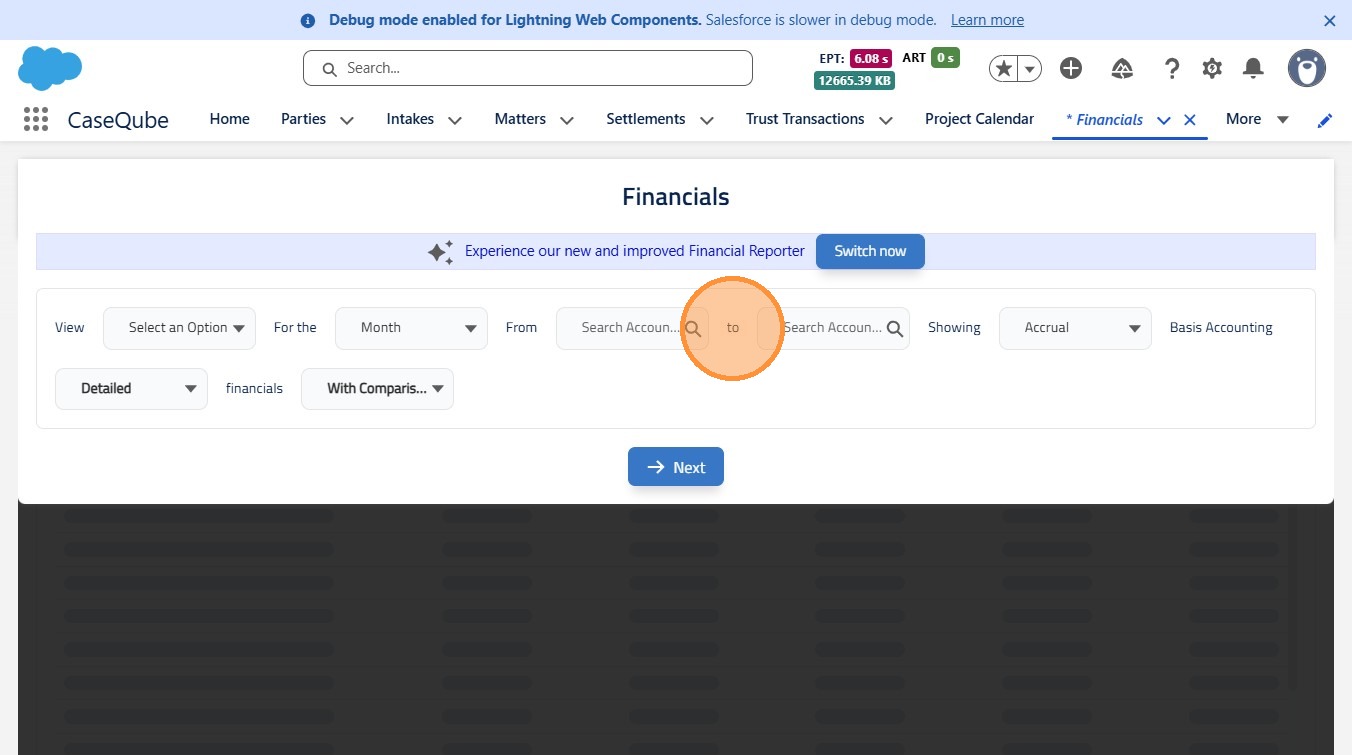
6. In the To field, select the ending date, month, or year for the report.
 />
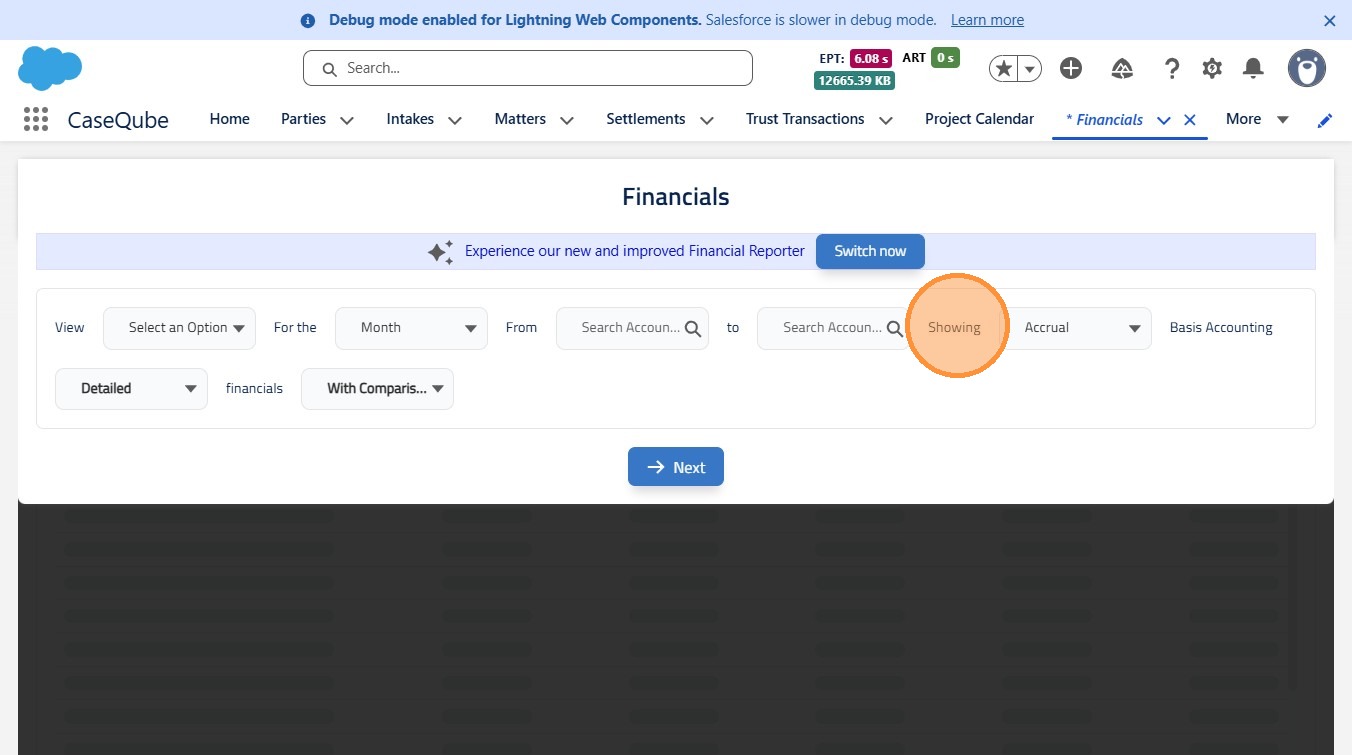
7. In the Showing field, choose whether to view the report on an Accrual or Cash basis.
 />
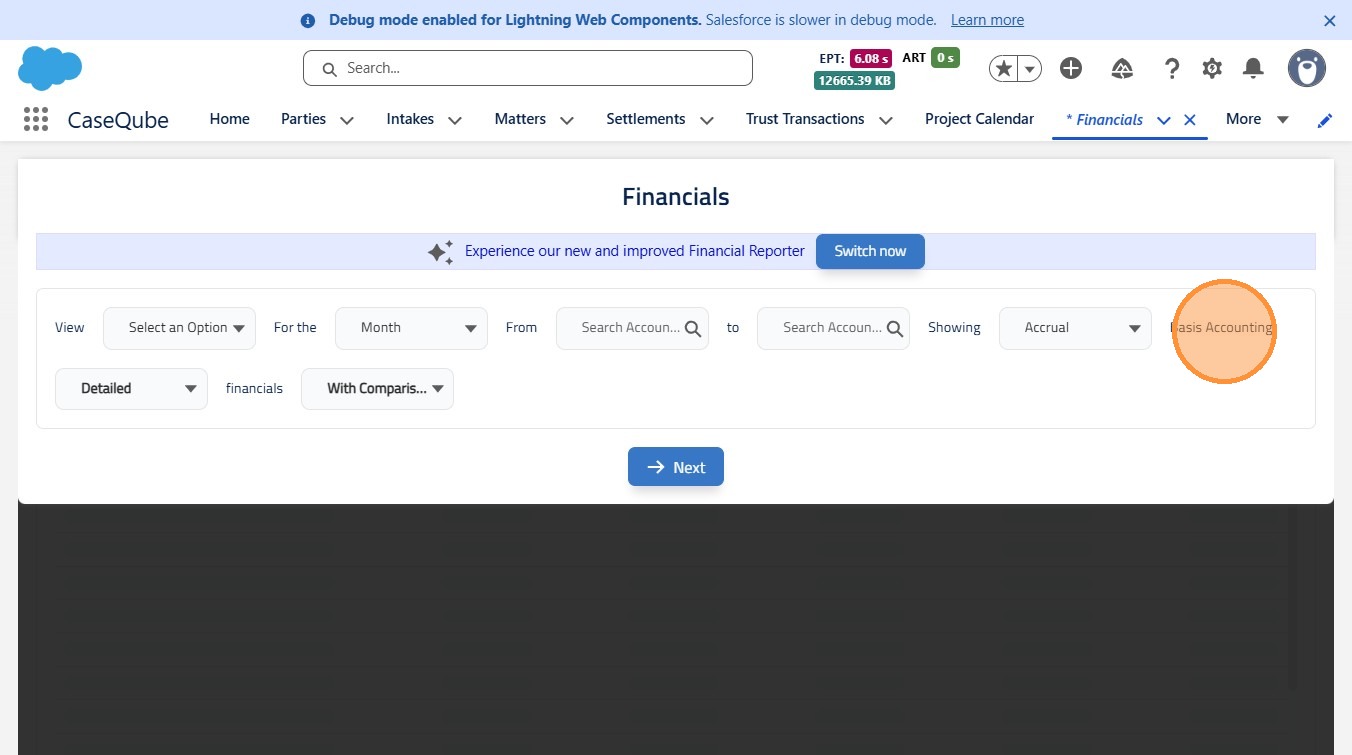
8. ?
 />
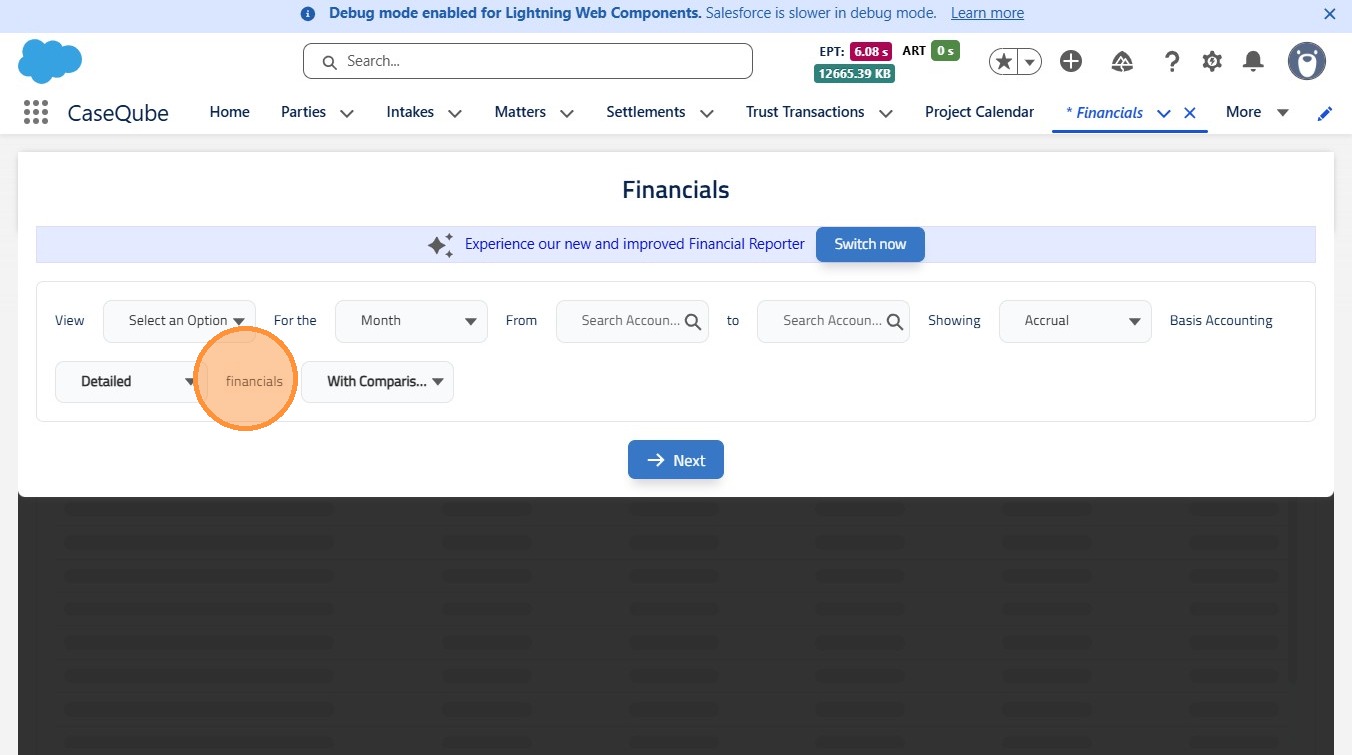
9. In the Financials field, select whether to compare the report to the prior year’s corresponding period.
 />
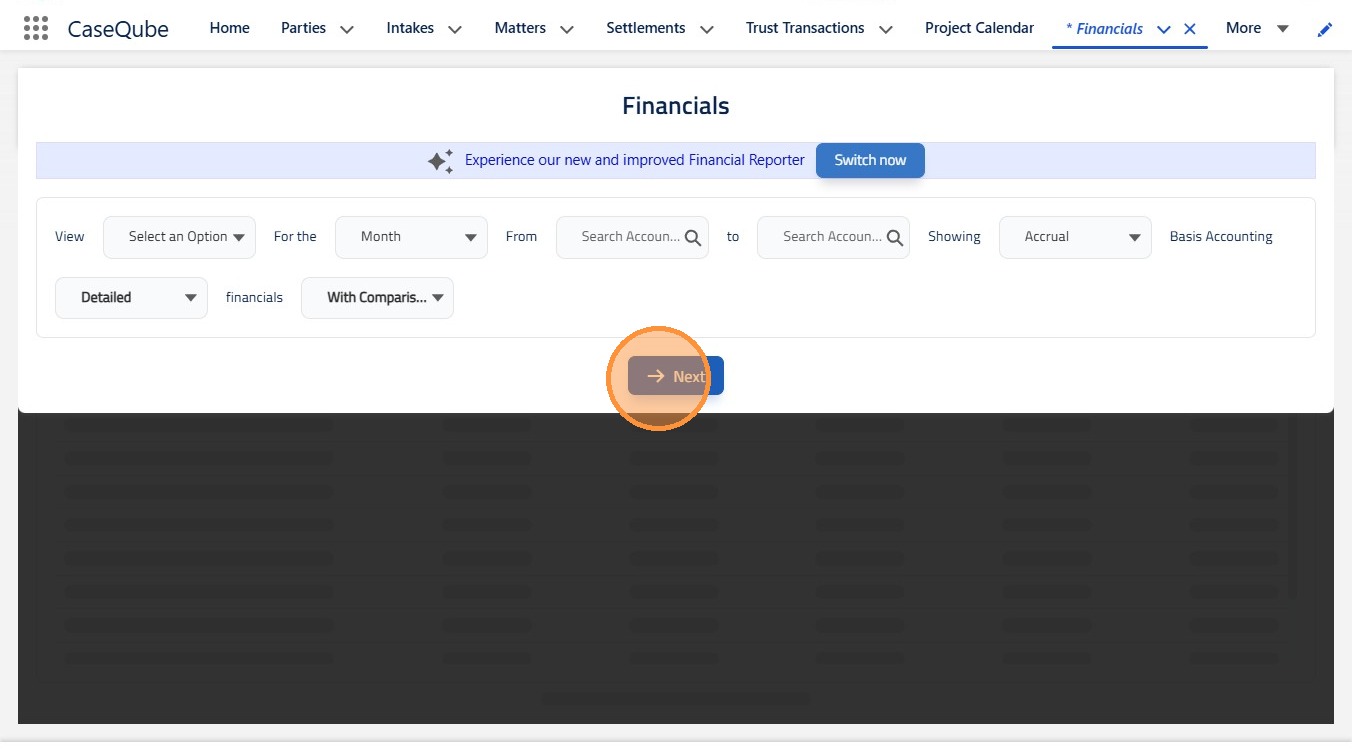
10. Click Next to generate the expense report based on your selected criteria. Use available filters to customize the report, such as excluding zero-balance accounts, including inactive GL accounts, or applying accounting class filters
 />