Learn how to efficiently set up a new accounting period within the Salesforce Accounting module. This guide provides a clear walkthrough of the required fields and navigation steps to ensure your financial records are properly organized.
1. Step 1: Initiate Accoutning Period Screen
- Log In
- Access LawAccounting/CaseQube using your secured credentials.
- Navigate to Accounting Set Up
- Using the App launcher (nine-dot icon), open the Accounting Set Up Screen
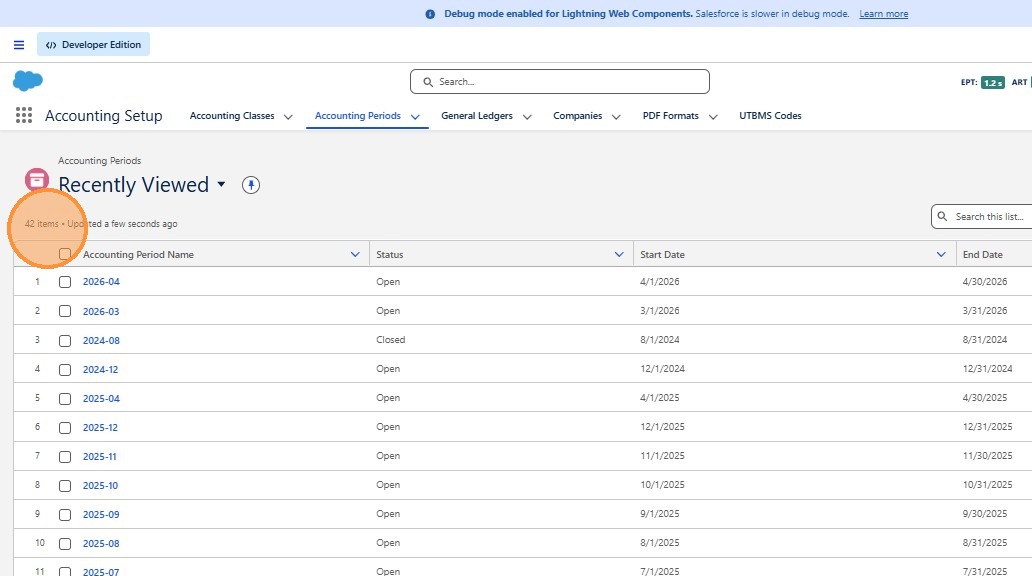
- Open the Accounting Period Screen
- Click Accounting Period Tab
 />
2. Click "42 items •"
 />
3. Step 2: Creating A New Accounting Period
- Click New
- Complete the New Accounting Period screen:
- Accounting Period Name
- Start Date
- End Date
- Status: Open or Closed
- Once finished click Save
Closing periods is important for audit control. Once a month has been reconciled, the firm should close the period to prevent attorneys from accidentally entering transactions into a finalized month.
Important rule: You cannot open or close a period unless the previous period is already in the correct state. For example, you cannot open August unless September, October, November, and December are already open.
 />
4. Step 3: Review Details
- Summary panel shows:
- Total billings
- Applied receipts
- Vouchers & voucher payments
- Cleared vs. uncleared items
 />