This guide demonstrates how to locate a specific document within Salesforce, edit its text, and download the modified file. Follow these steps to manage your documents effectively.
1. Navigate to https://lawaccounting3-dev-ed.develop.my.salesforce.com/
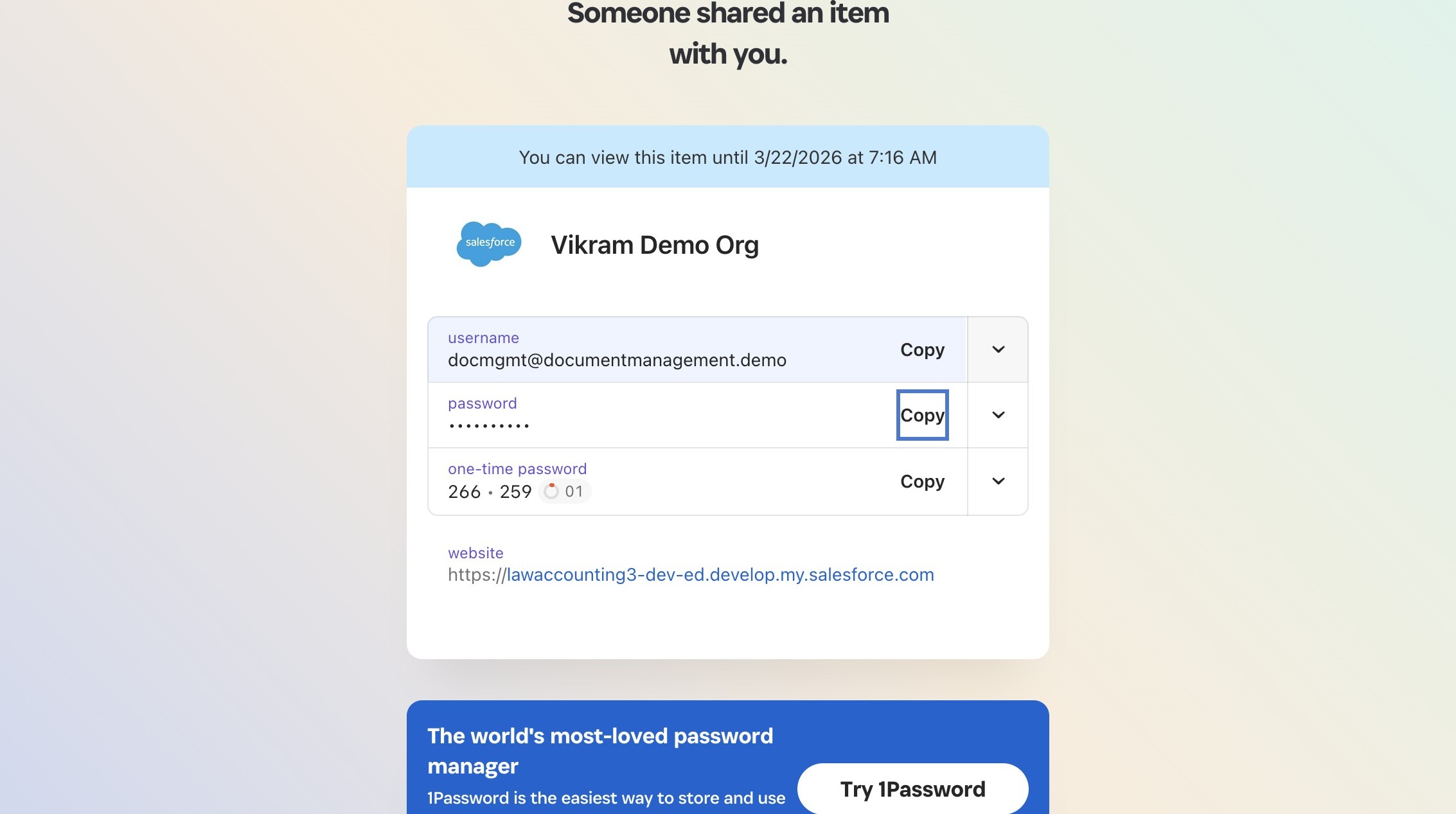 />
2. Switch to tab View your shared item | 1Password"
3. Click "Copy"
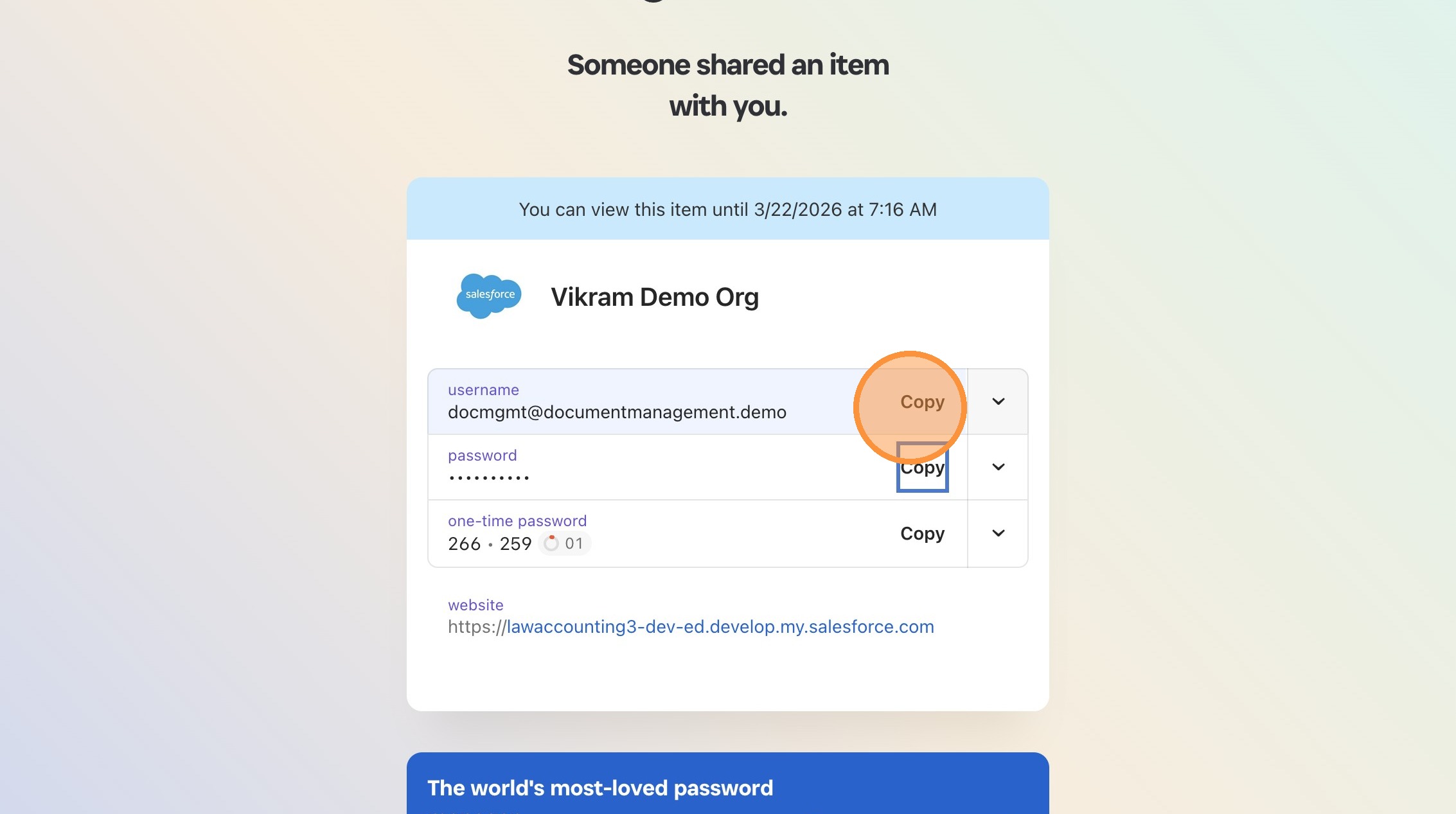 />
4. Switch to tab Login | Salesforce"
5. Press [[cmd]] + [[v]]
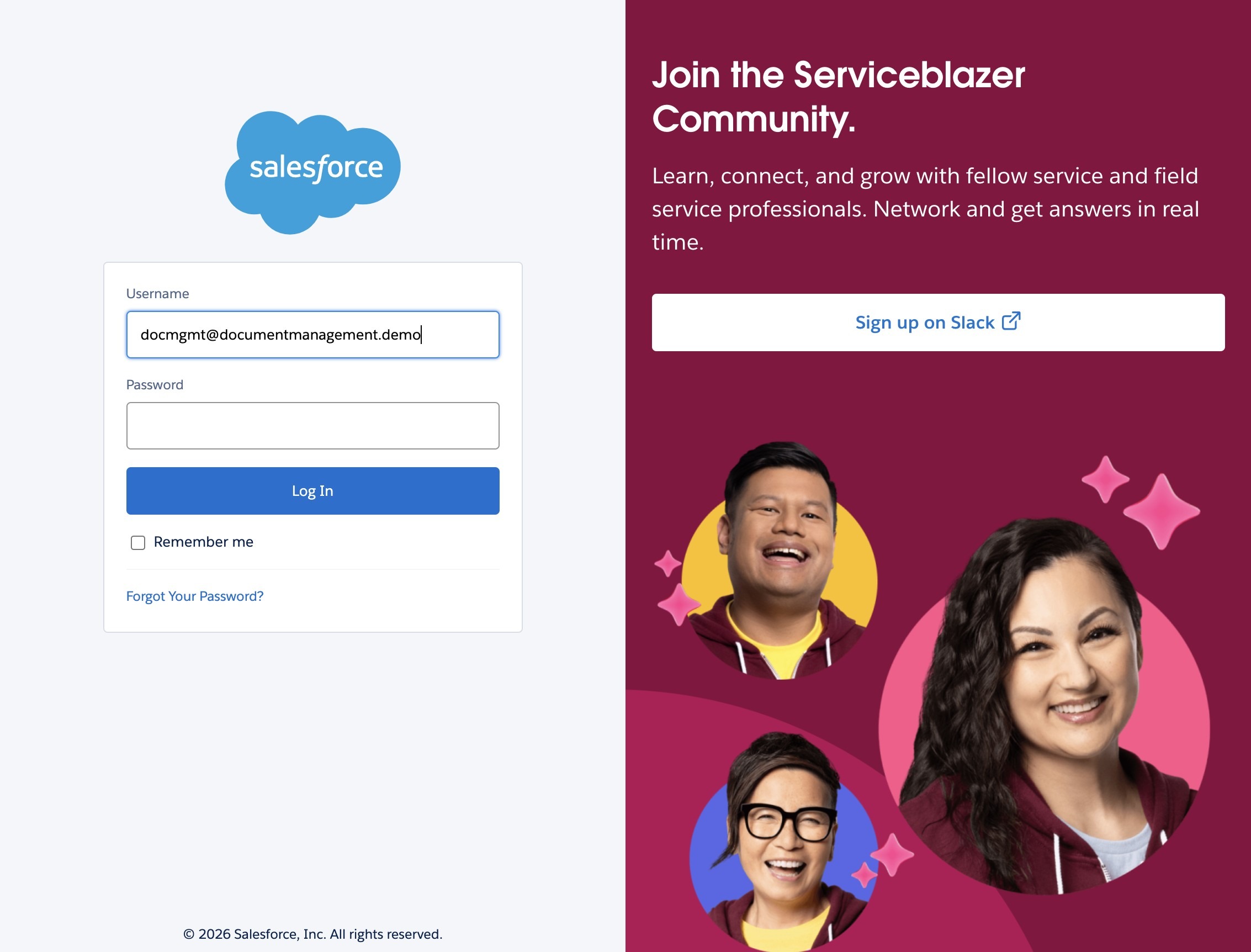 />
6. Click "Copy"
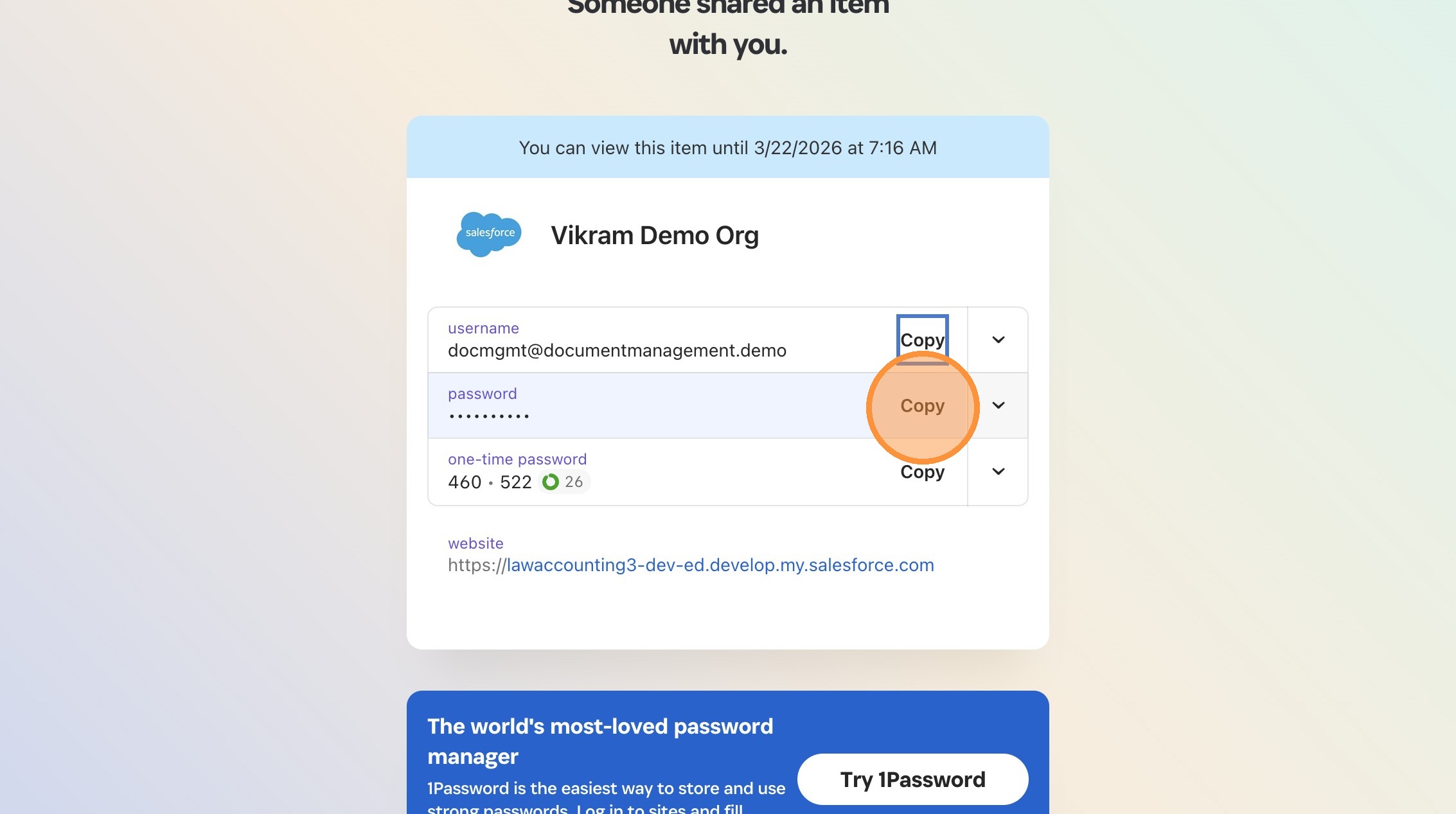 />
7. Switch to tab Login | Salesforce"
8. Click the "Password" field.
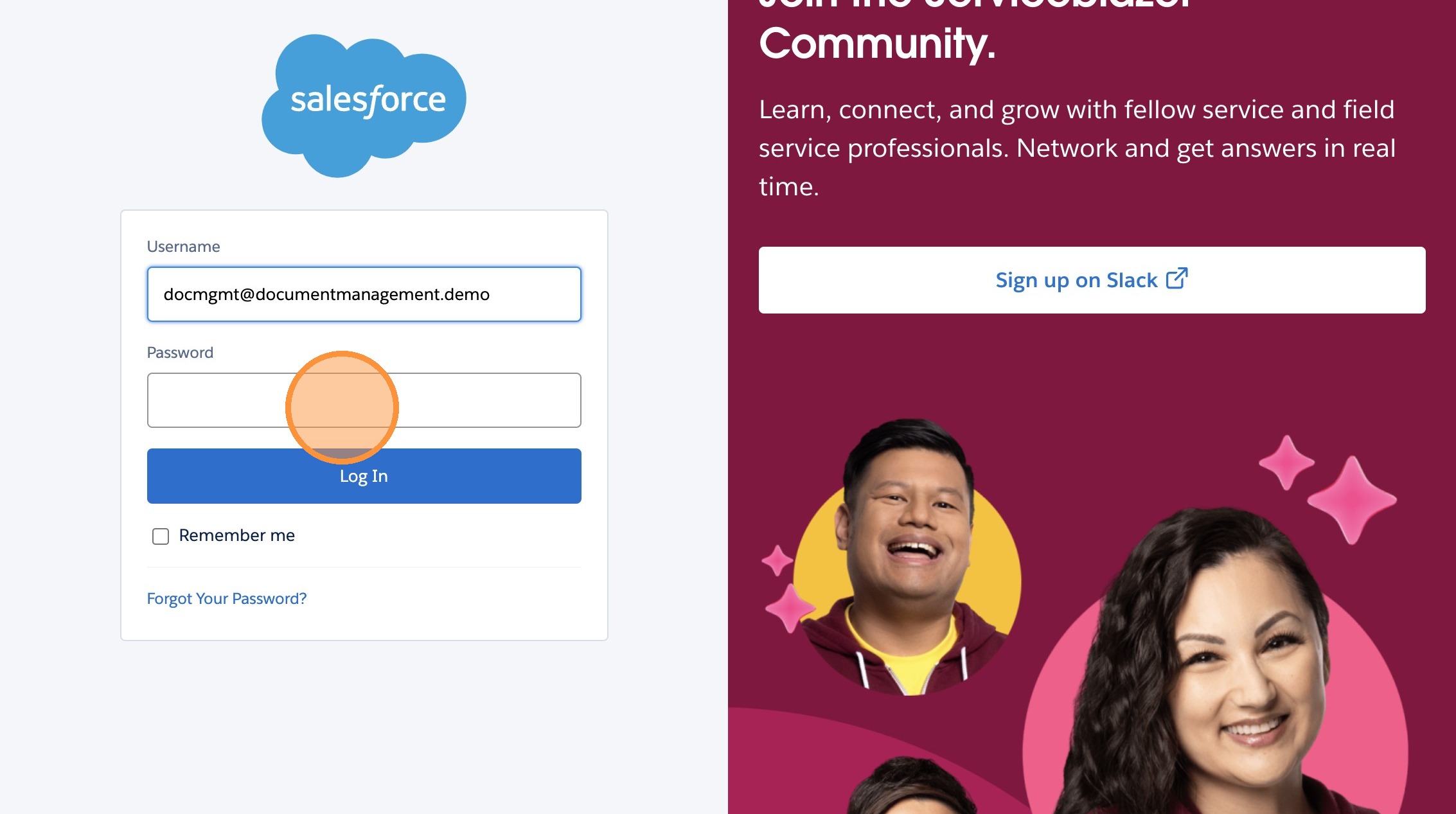 />
9. Click "Submit"
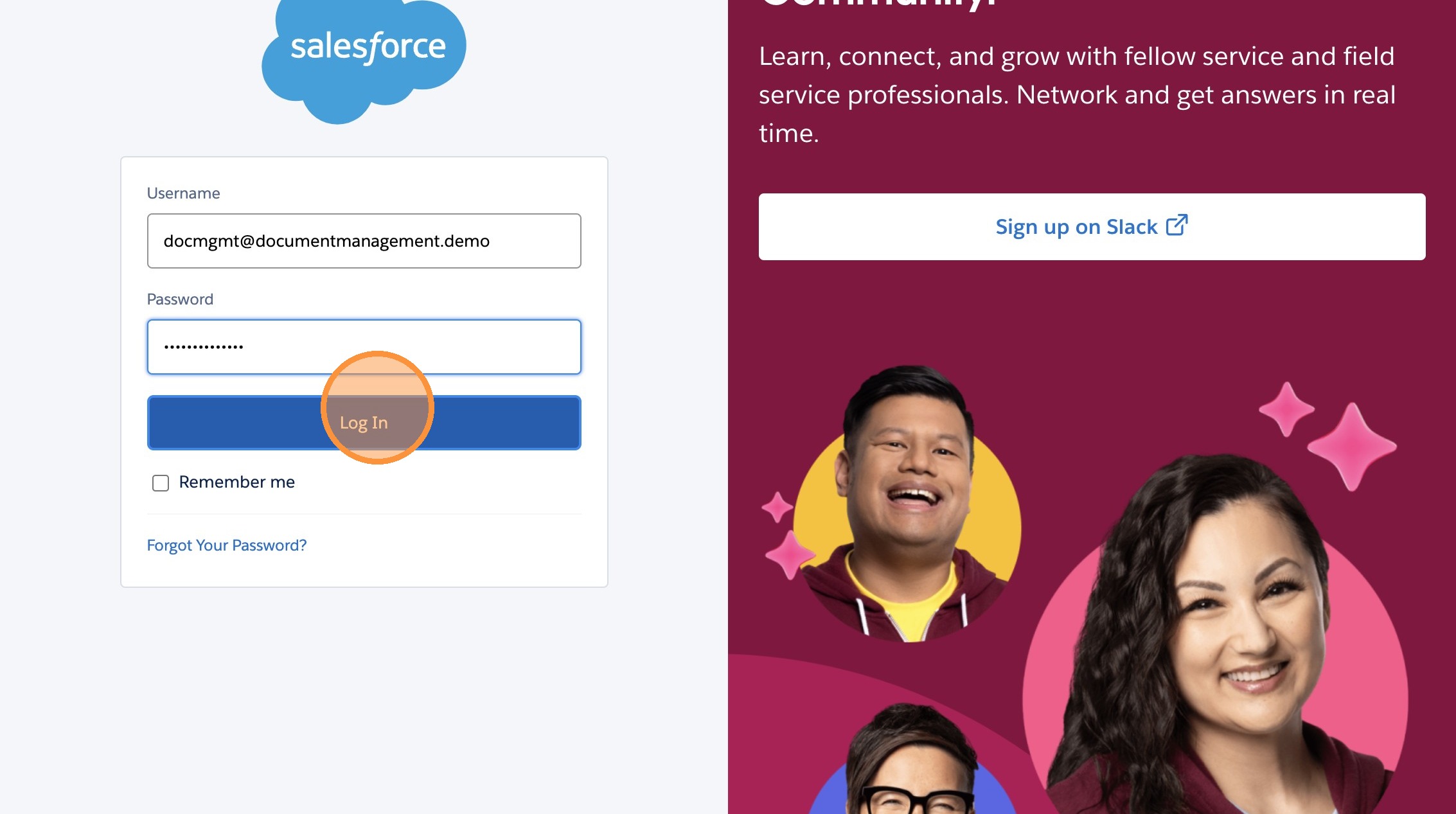 />
10. Click "App Launcher"
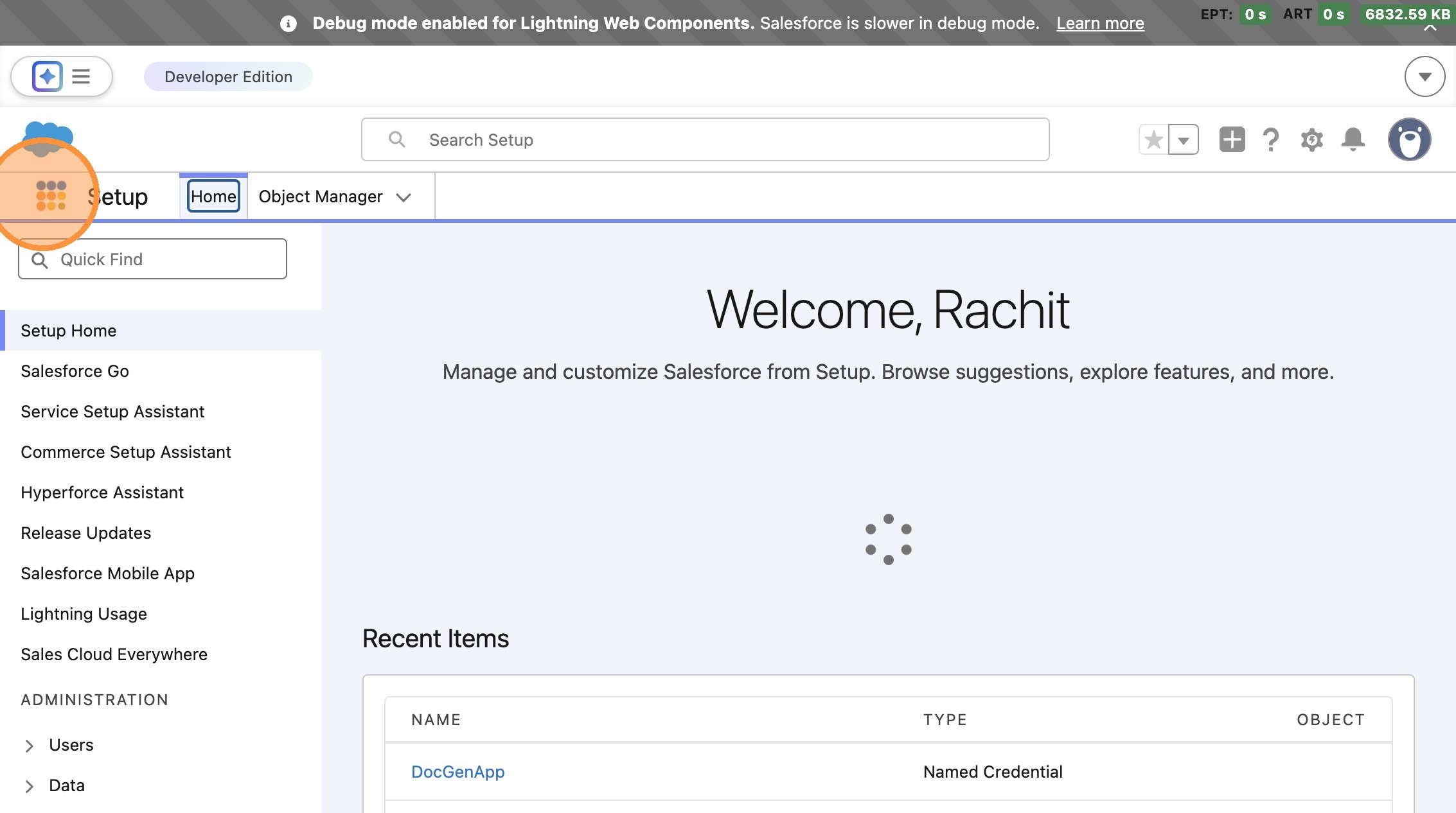 />
11. Click "Matter Management"
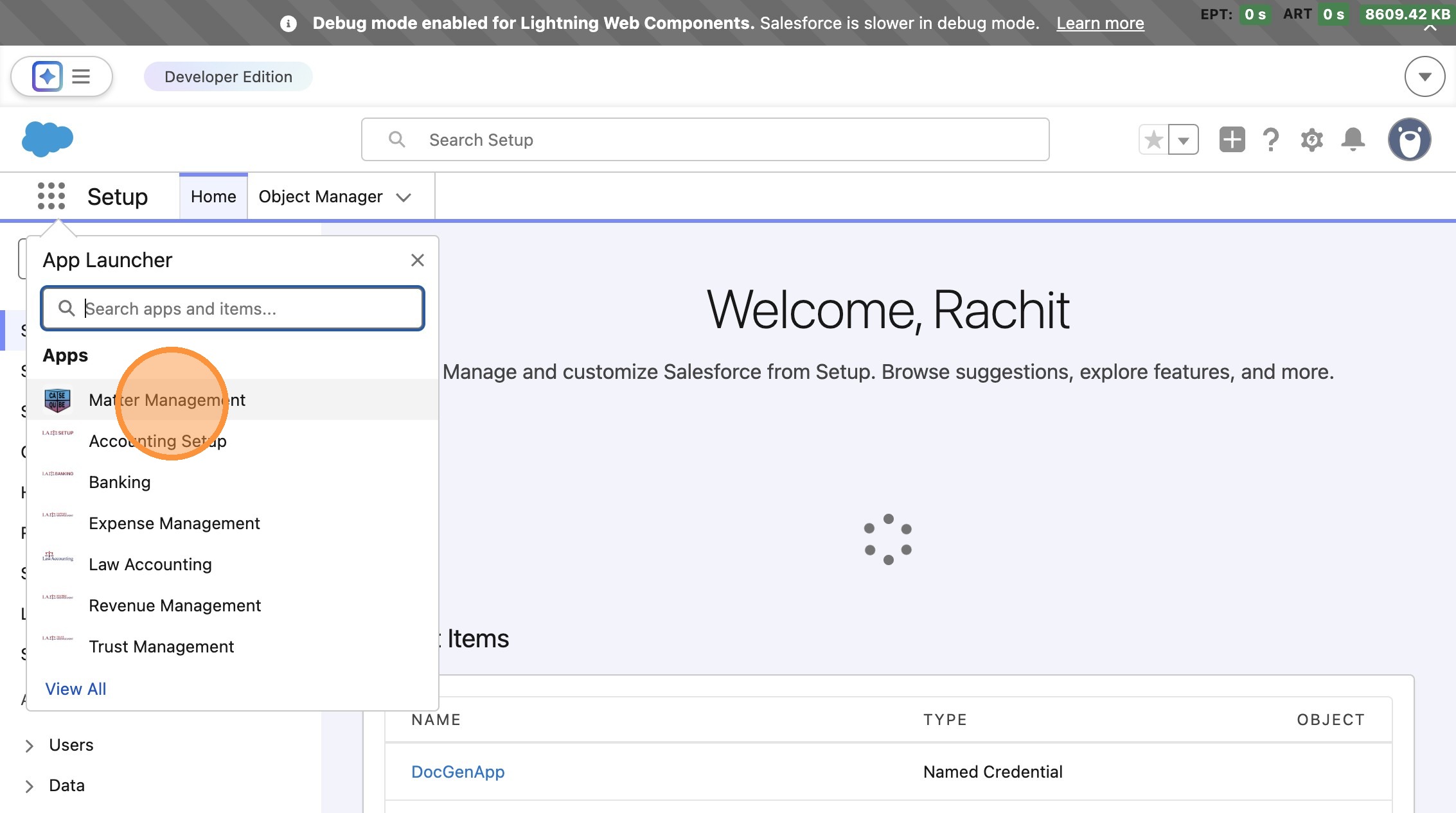 />
12. Click "Matters"
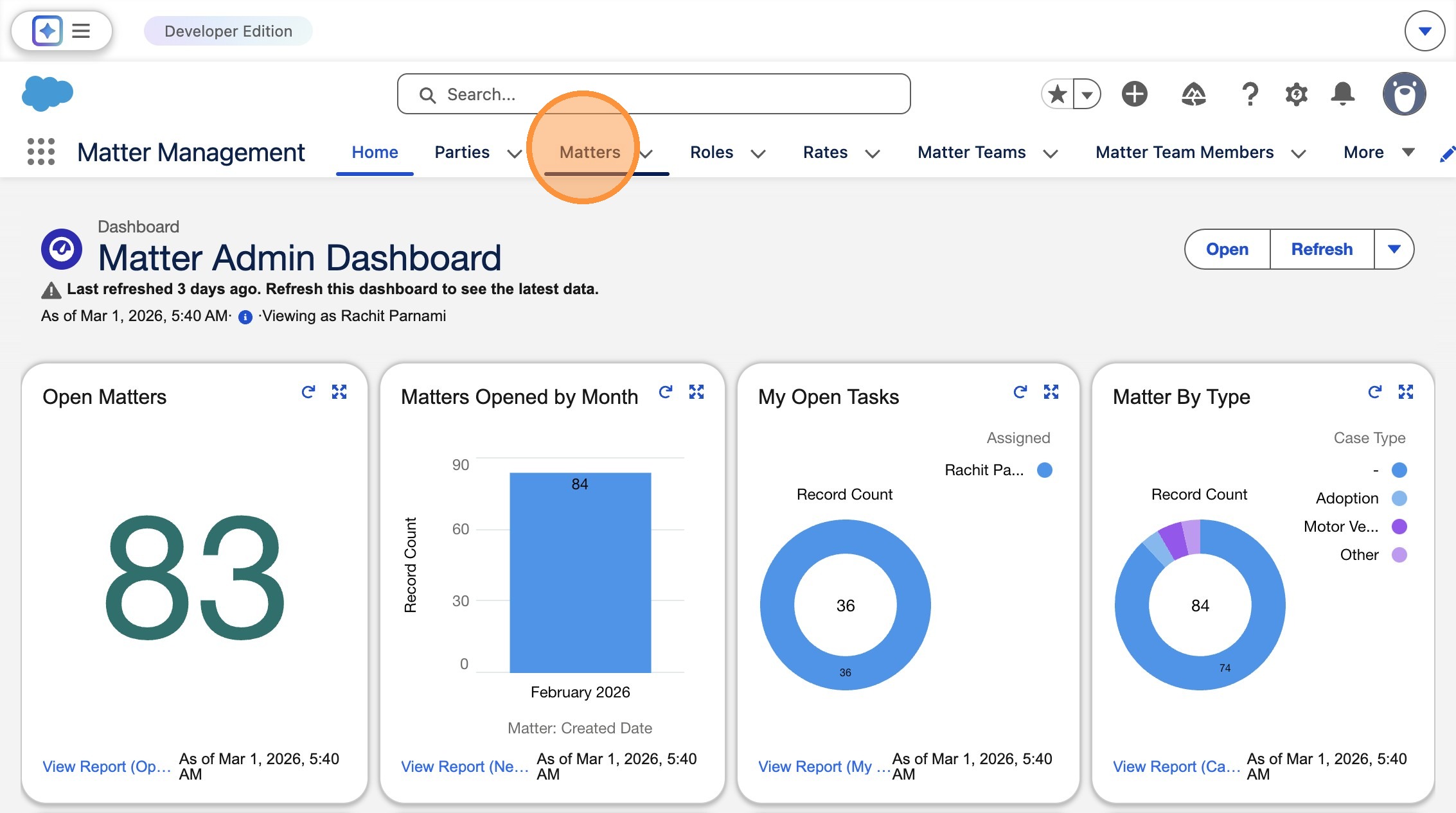 />
13. Click "Test Richa"
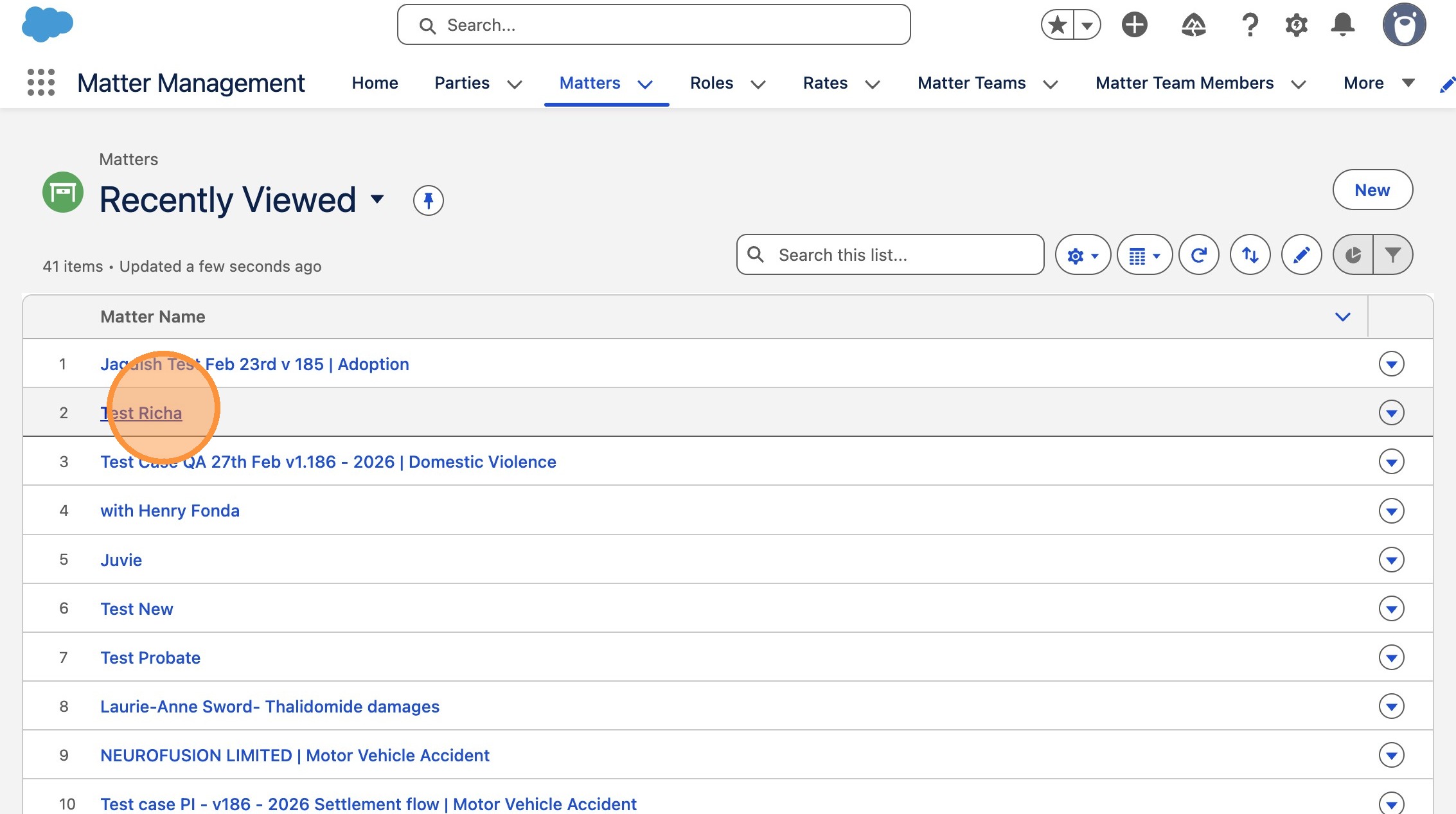 />
14. Click "MoreTabs"
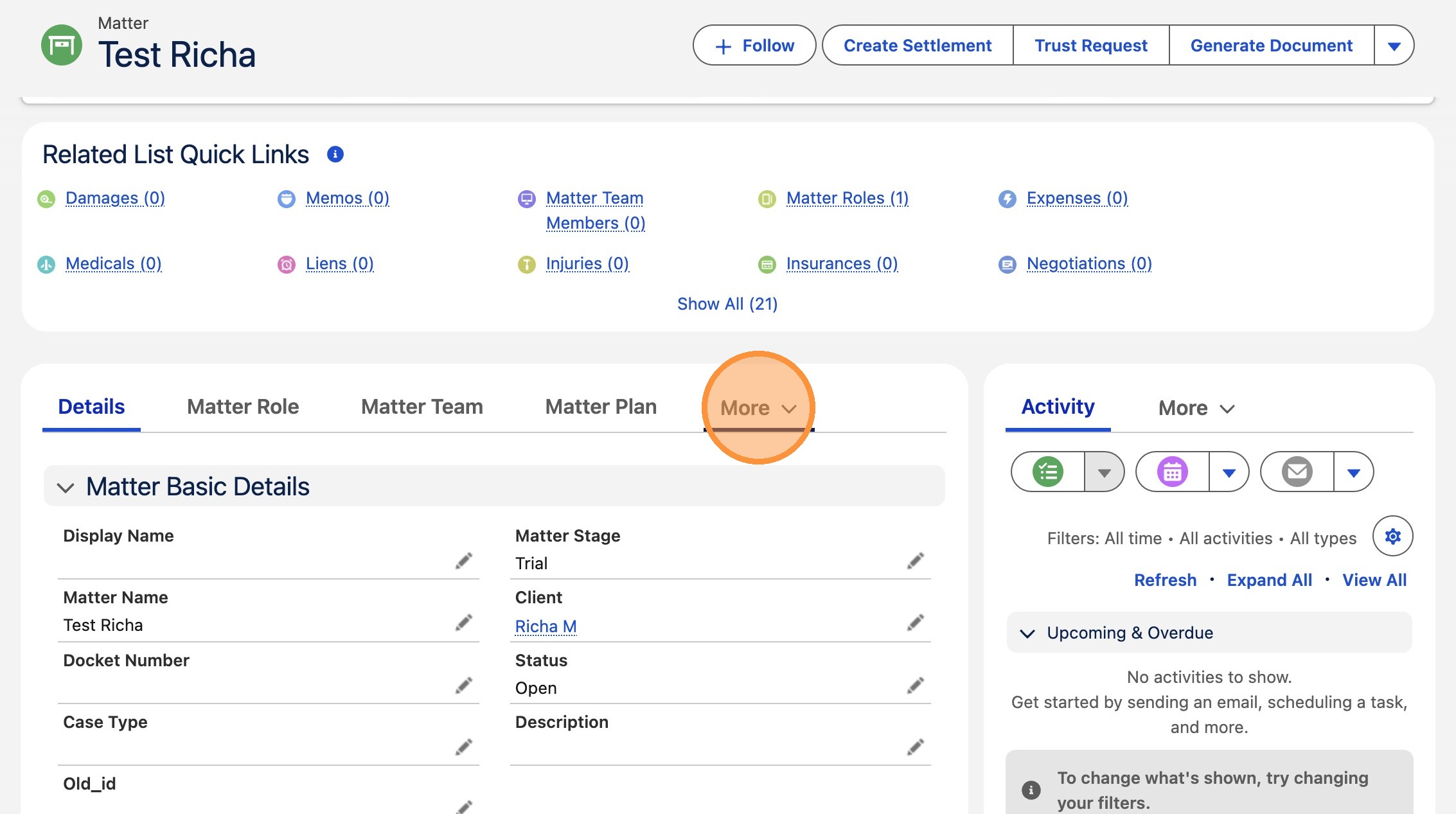 />
15. Click "Document"
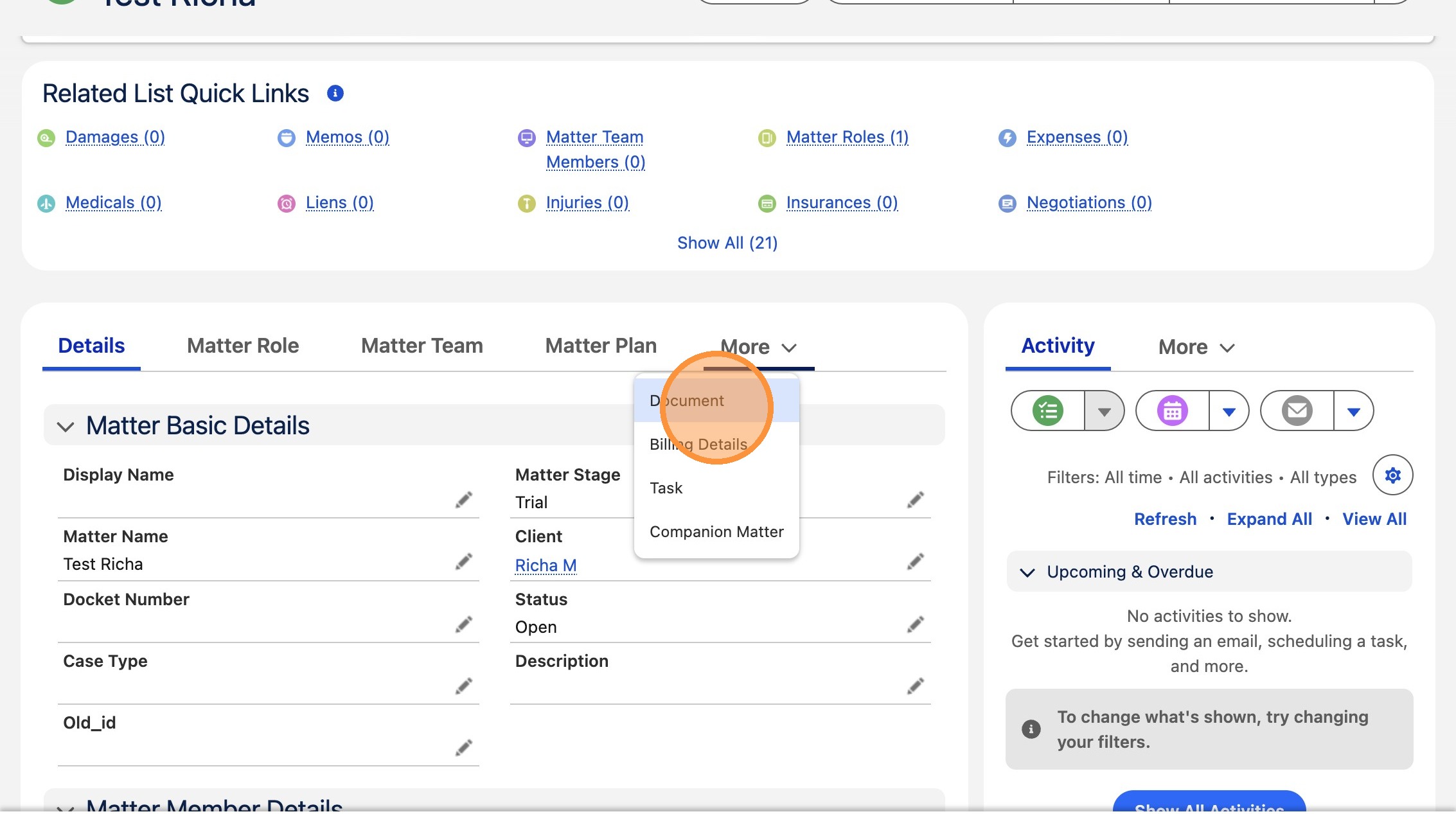 />
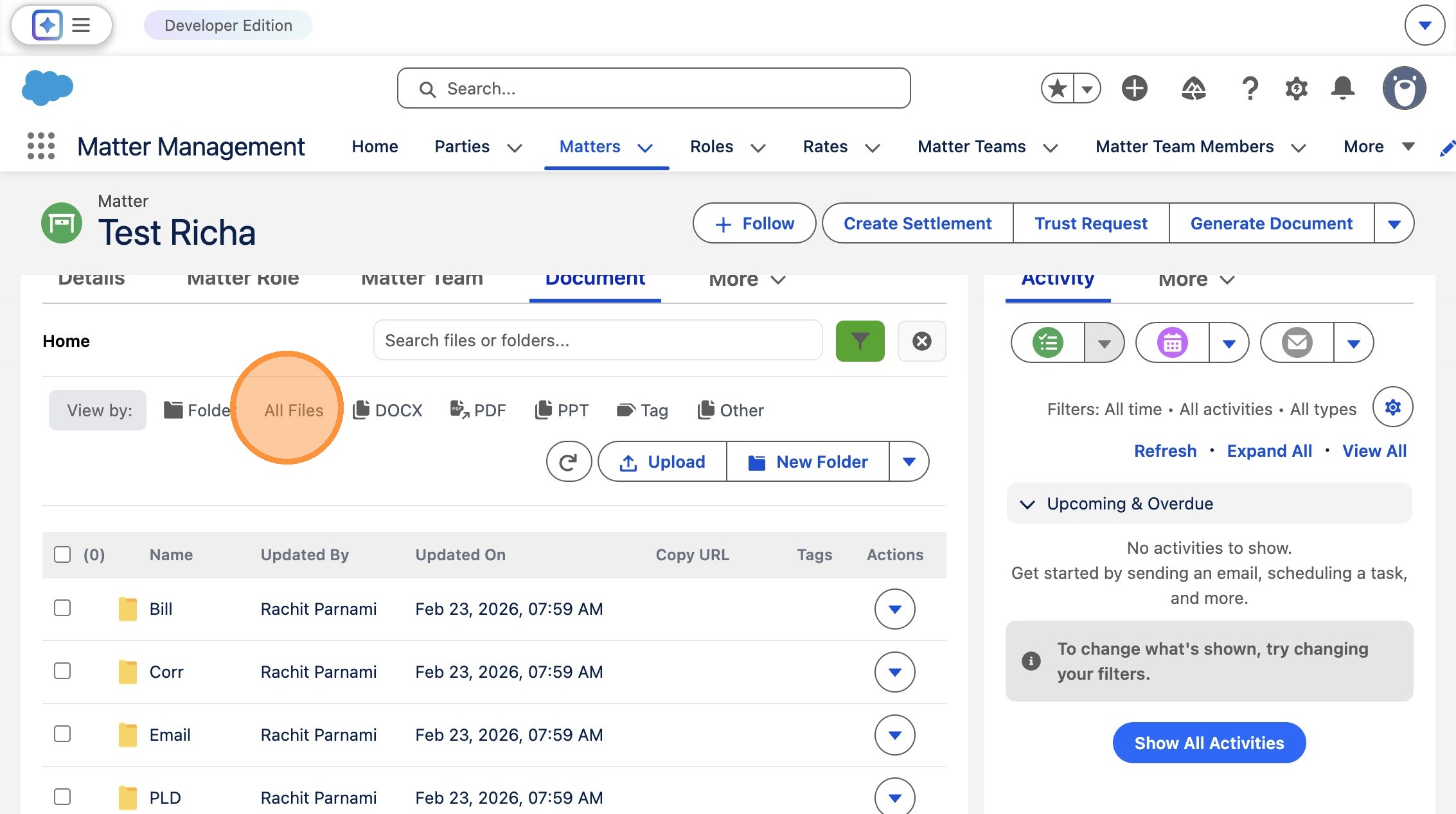
16. Click "All Files"
 />
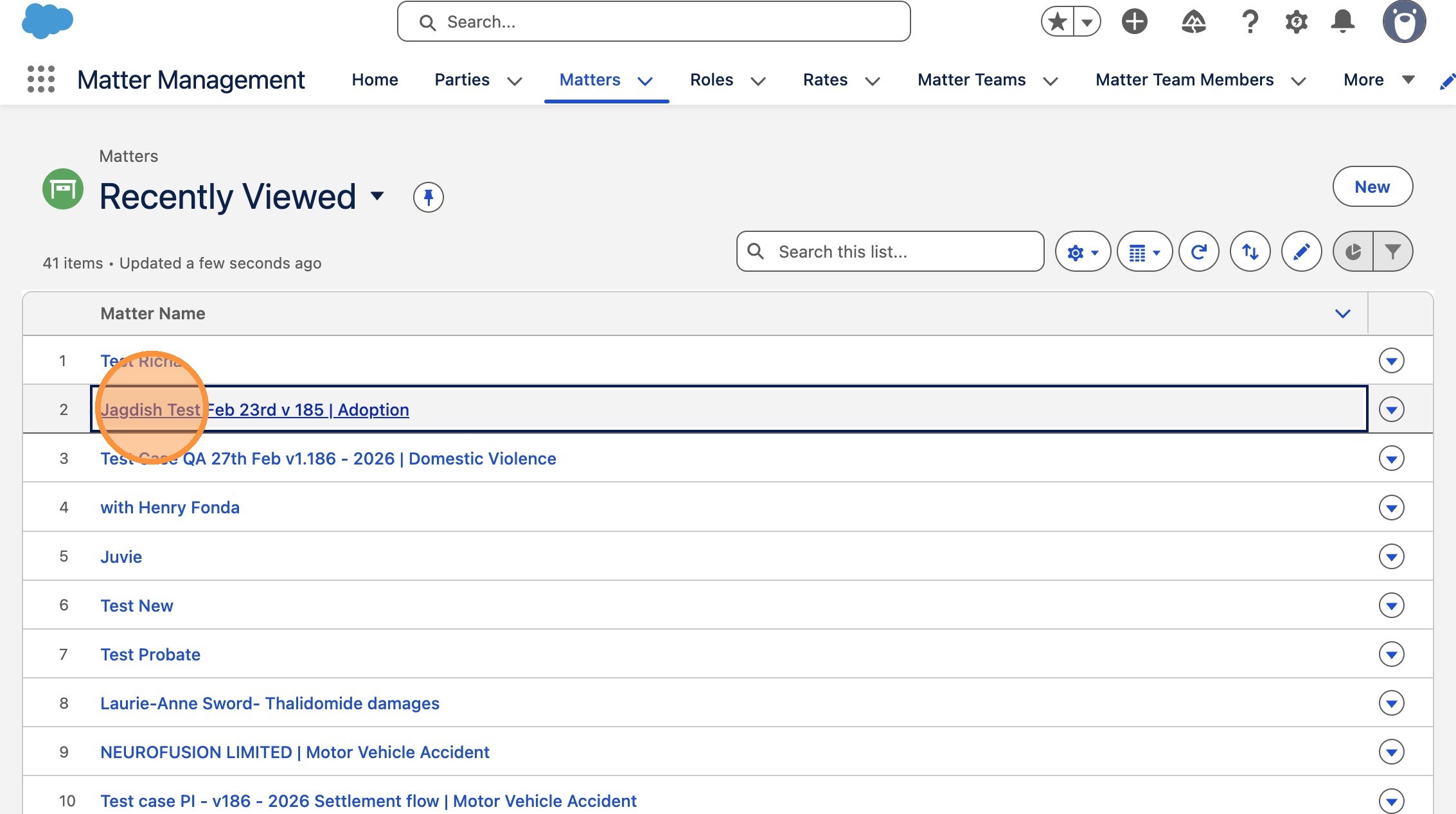
17. Click "Jagdish Test Feb 23rd v 185 | Adoption"
 />
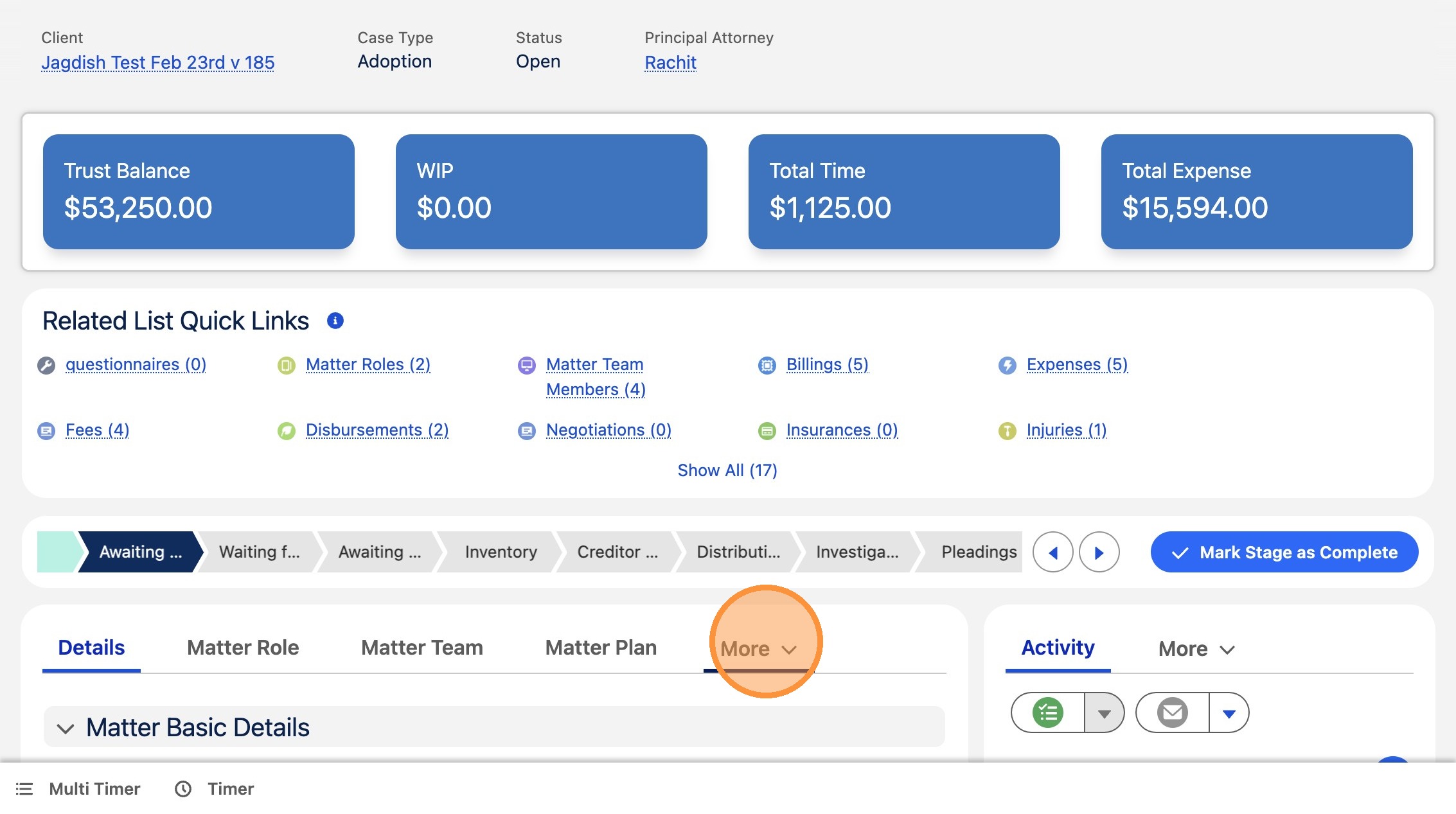
18. Click "MoreTabs"
 />
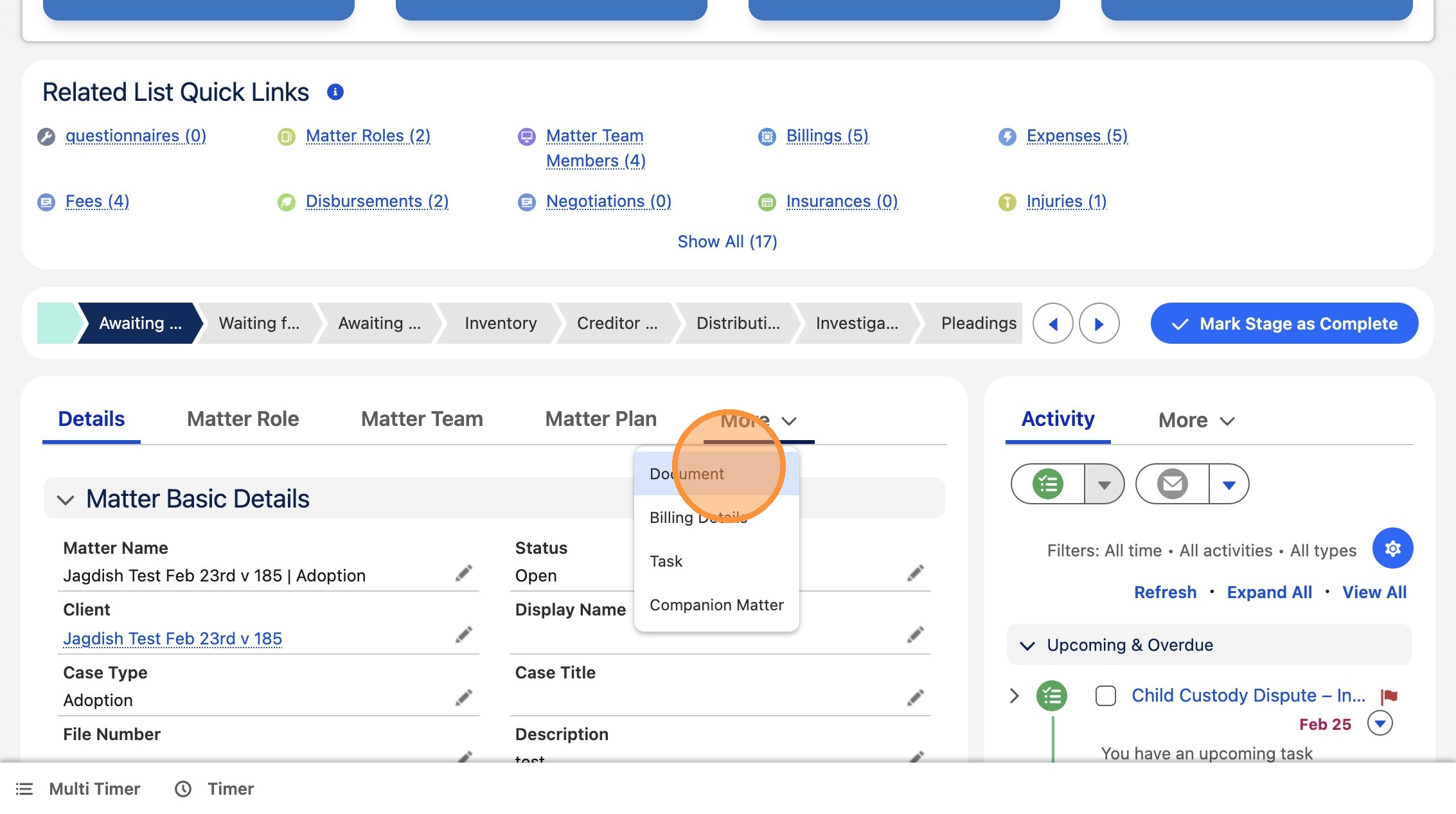
19. Click "Document"
 />
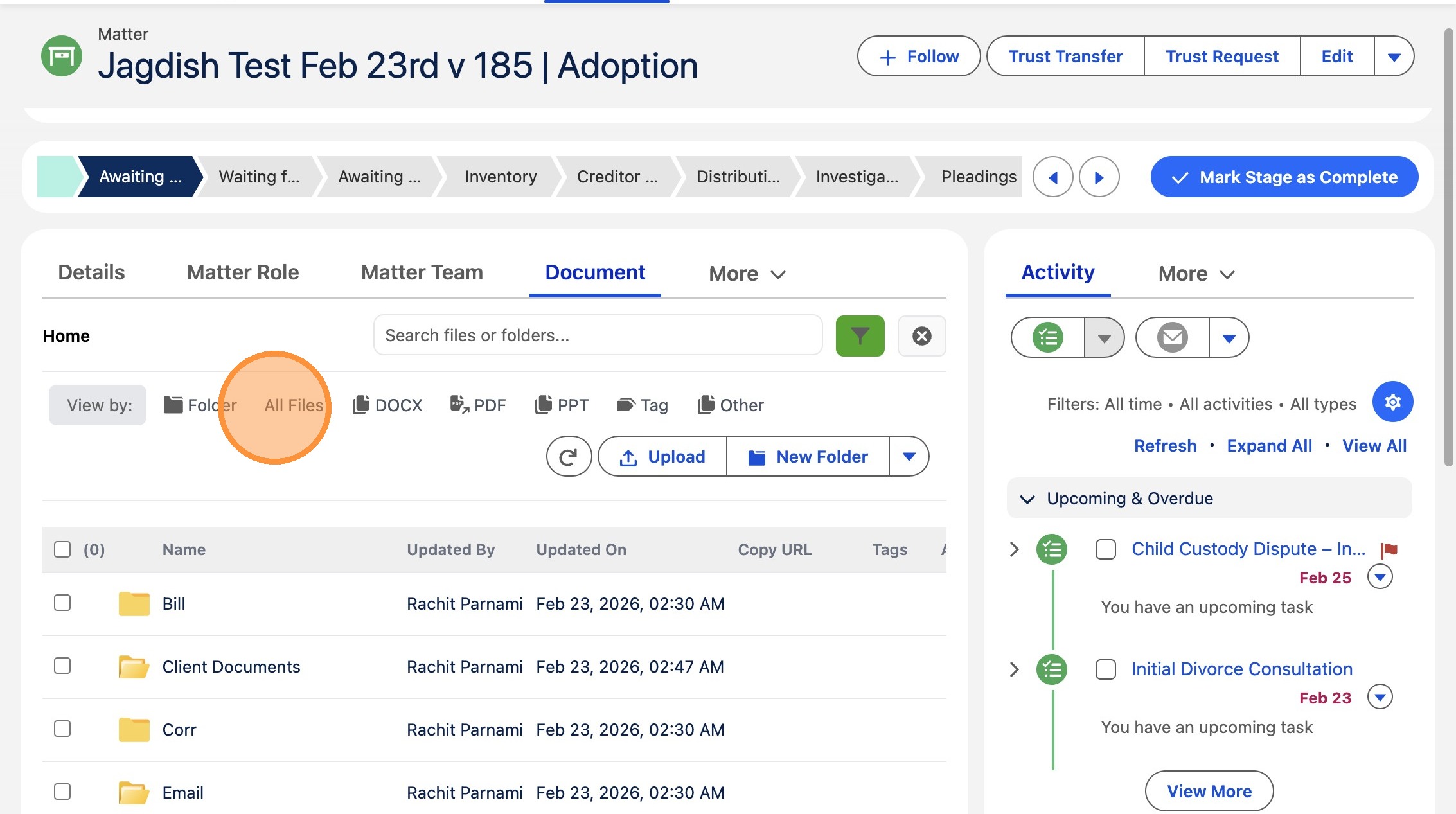
20. Click "All Files"
 />
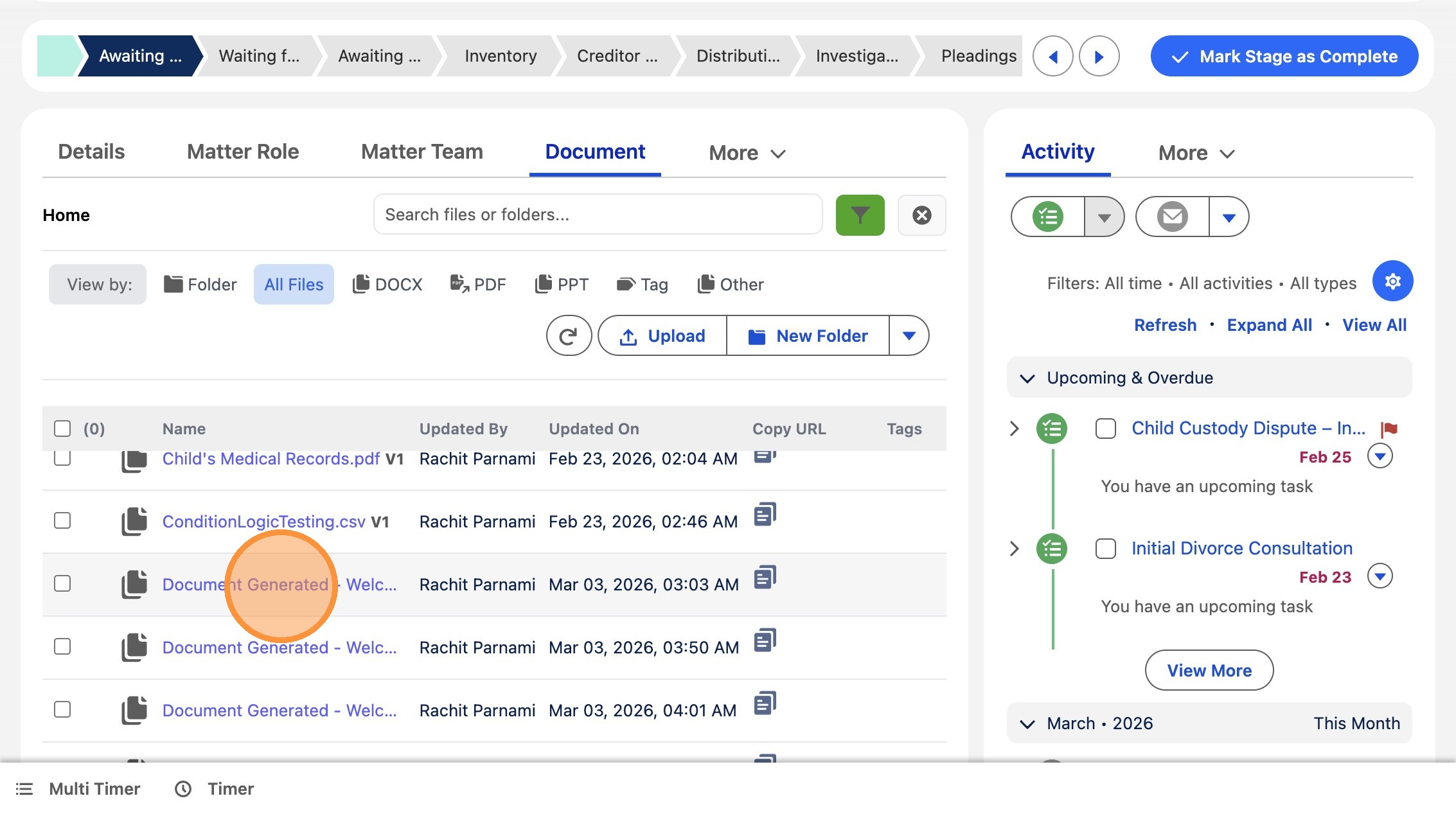
21. Click "Document Generated - Welcome Letter.pdf(2026-03-03 11:02:59).eml V1"
 />
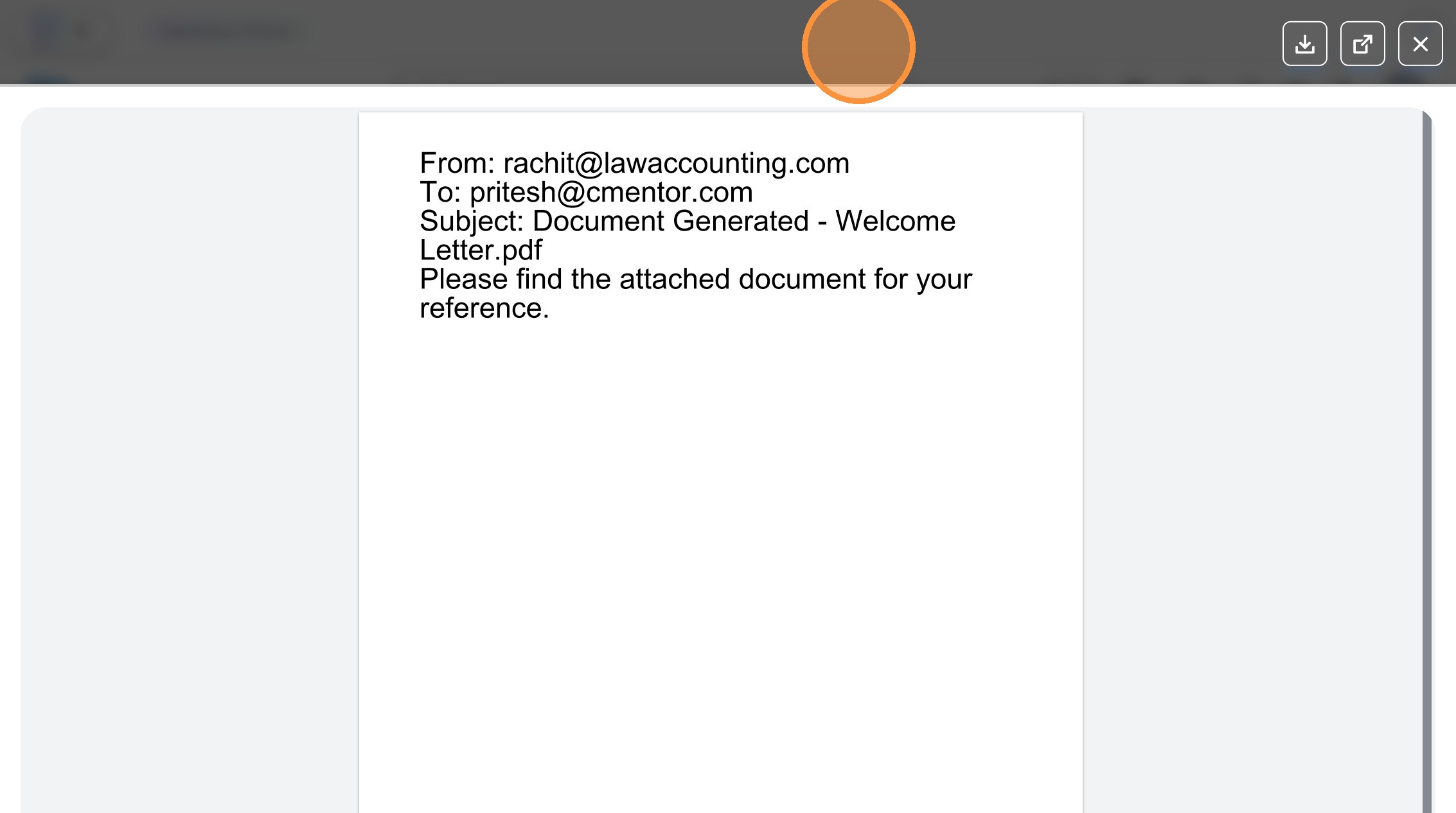
22. Click here.
 />
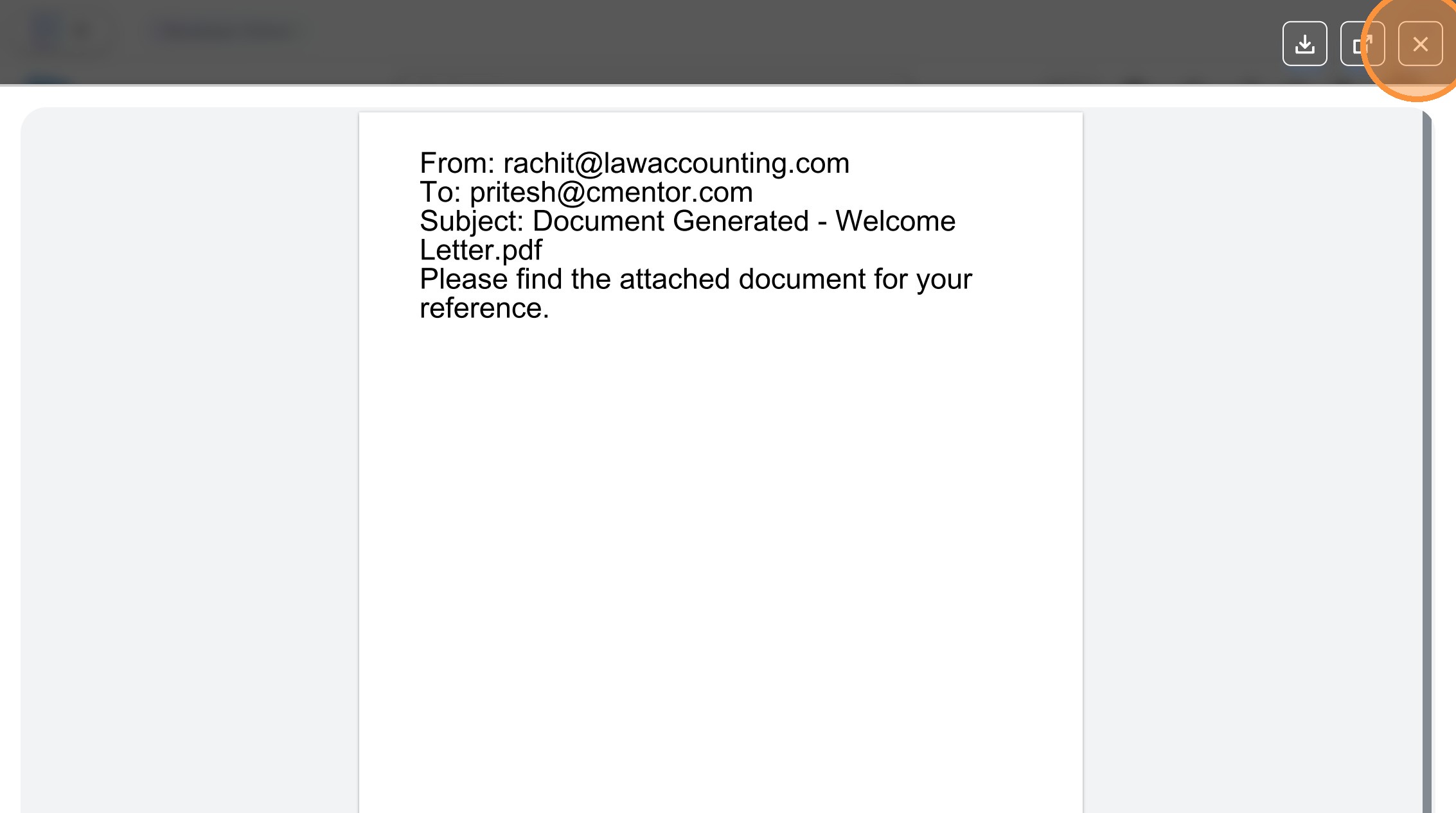
23. Click this icon.
 />
24. Click "Document Generated - Welcome Letter.pdf(2026-03-03 11:50:38).eml V1"
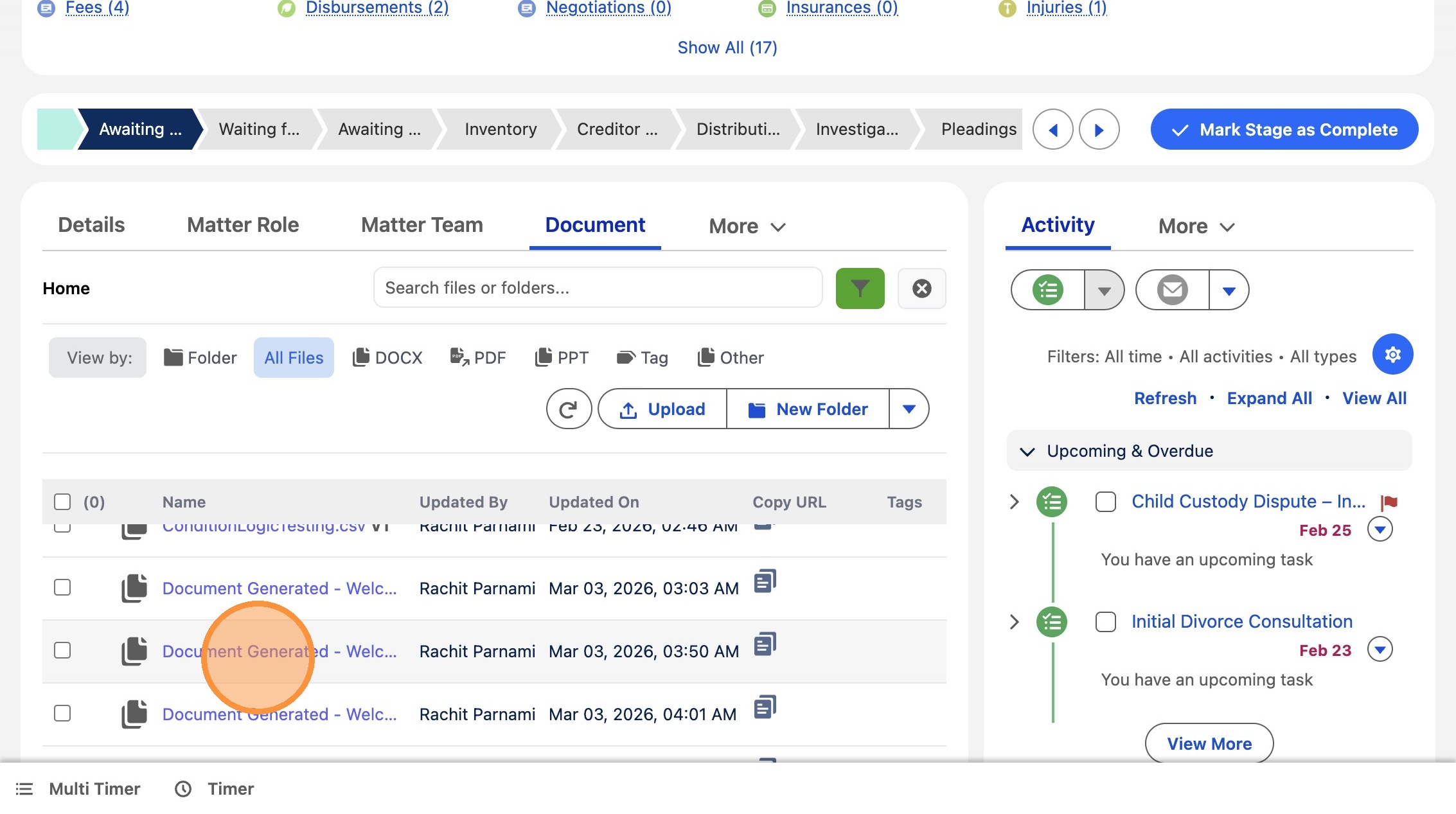 />
25. Click this icon.
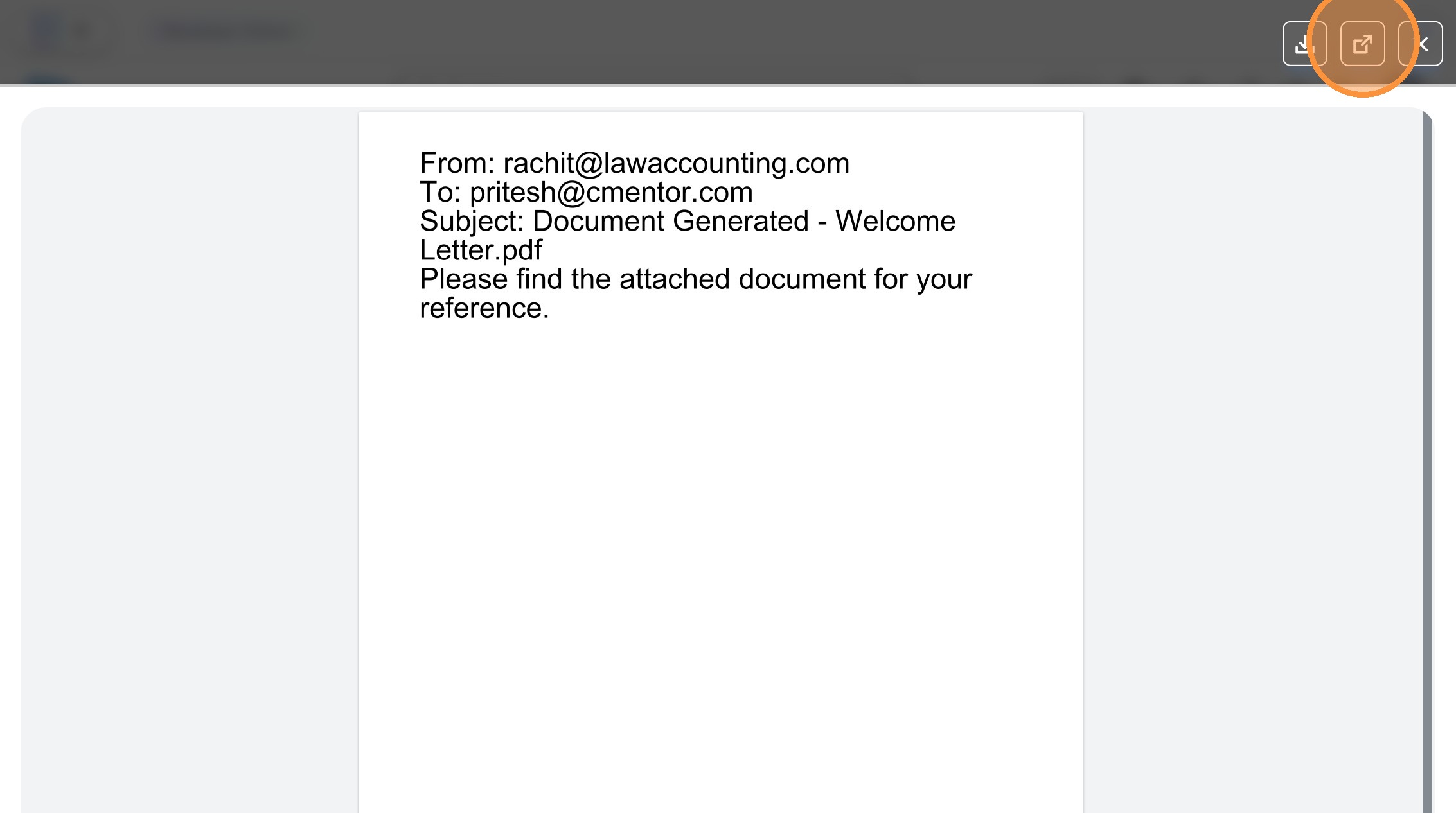 />
26. Click this icon.
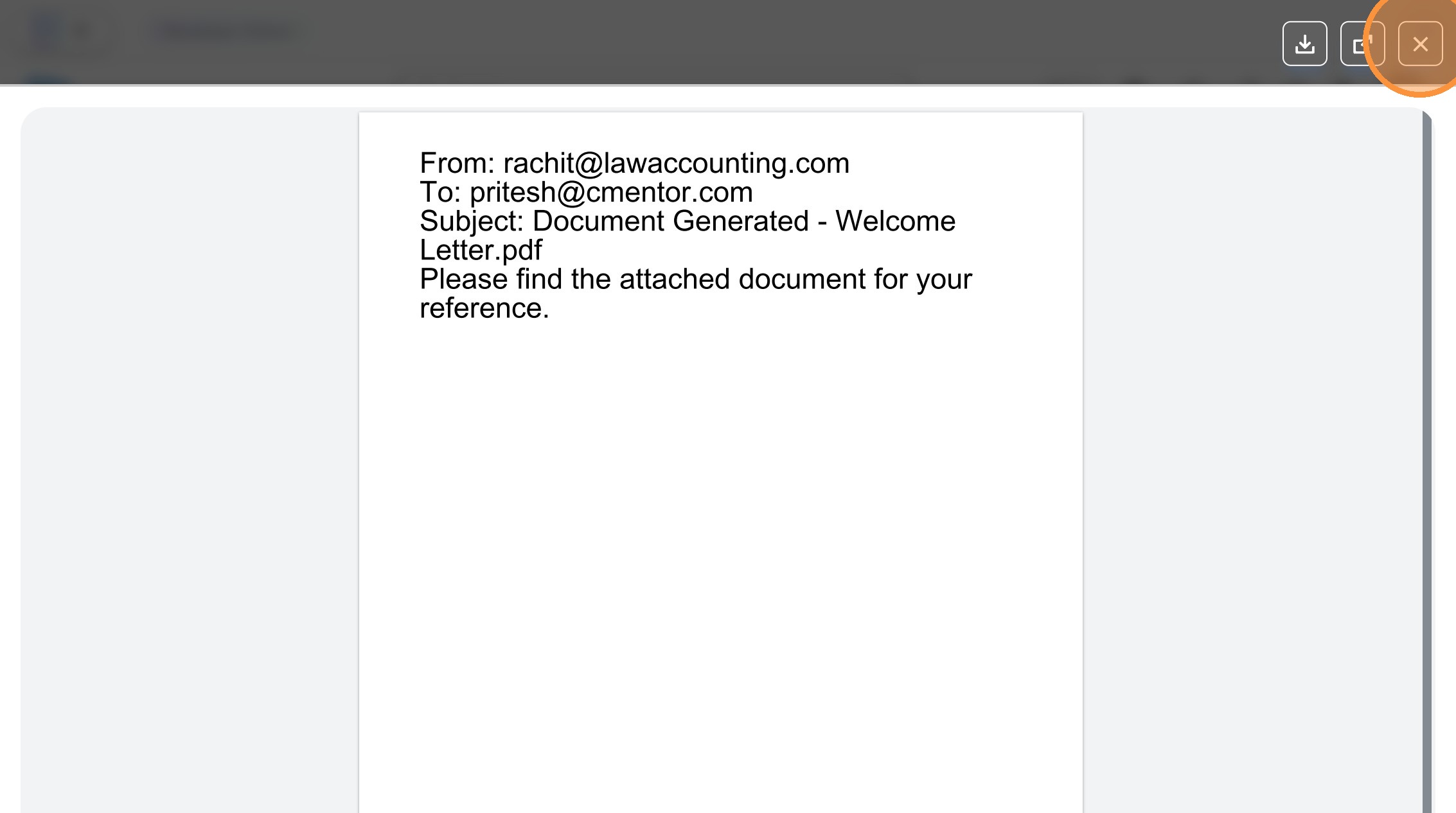 />
27. Click "Welcome Letter.pdf.pdf V1"
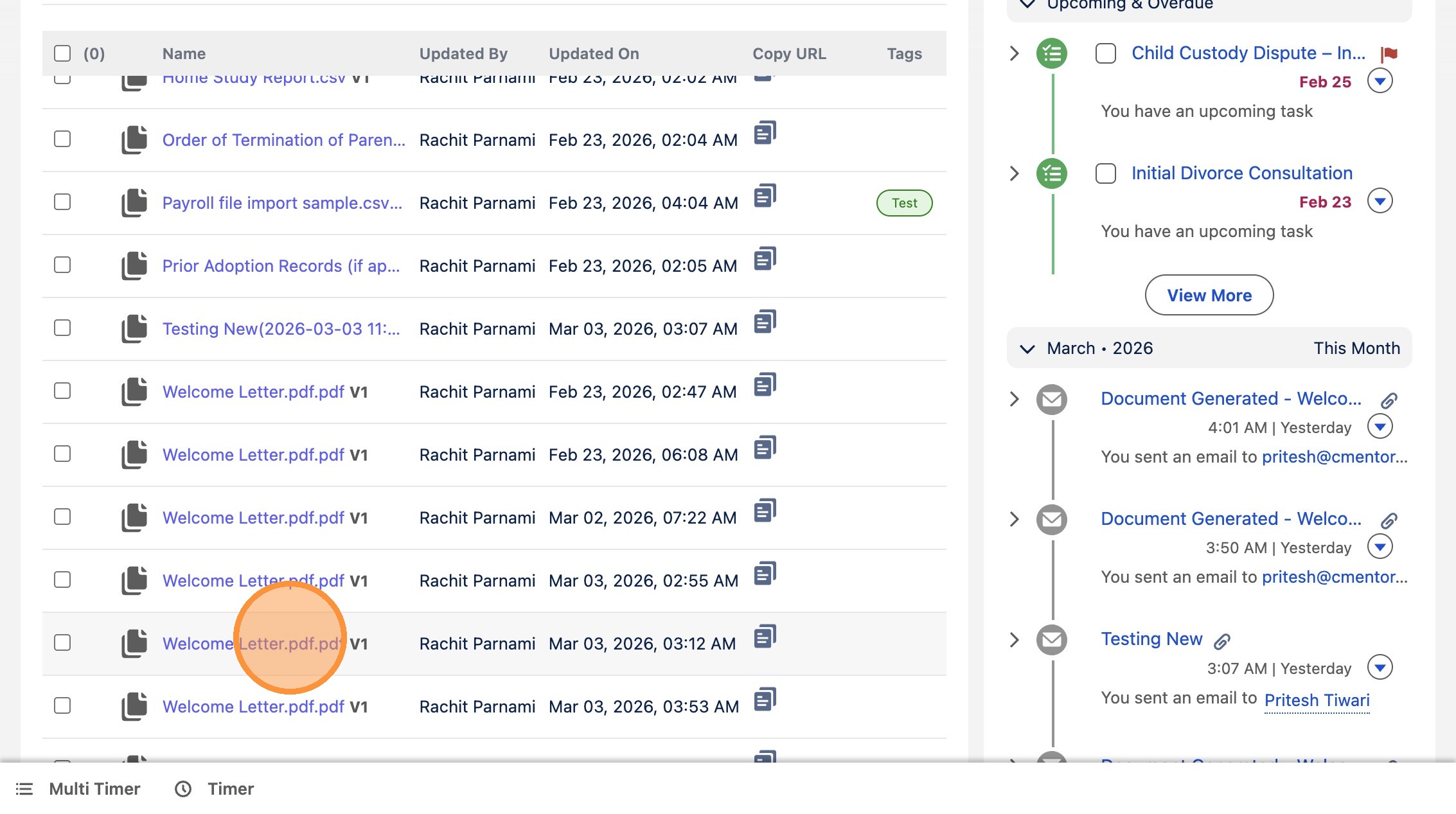 />
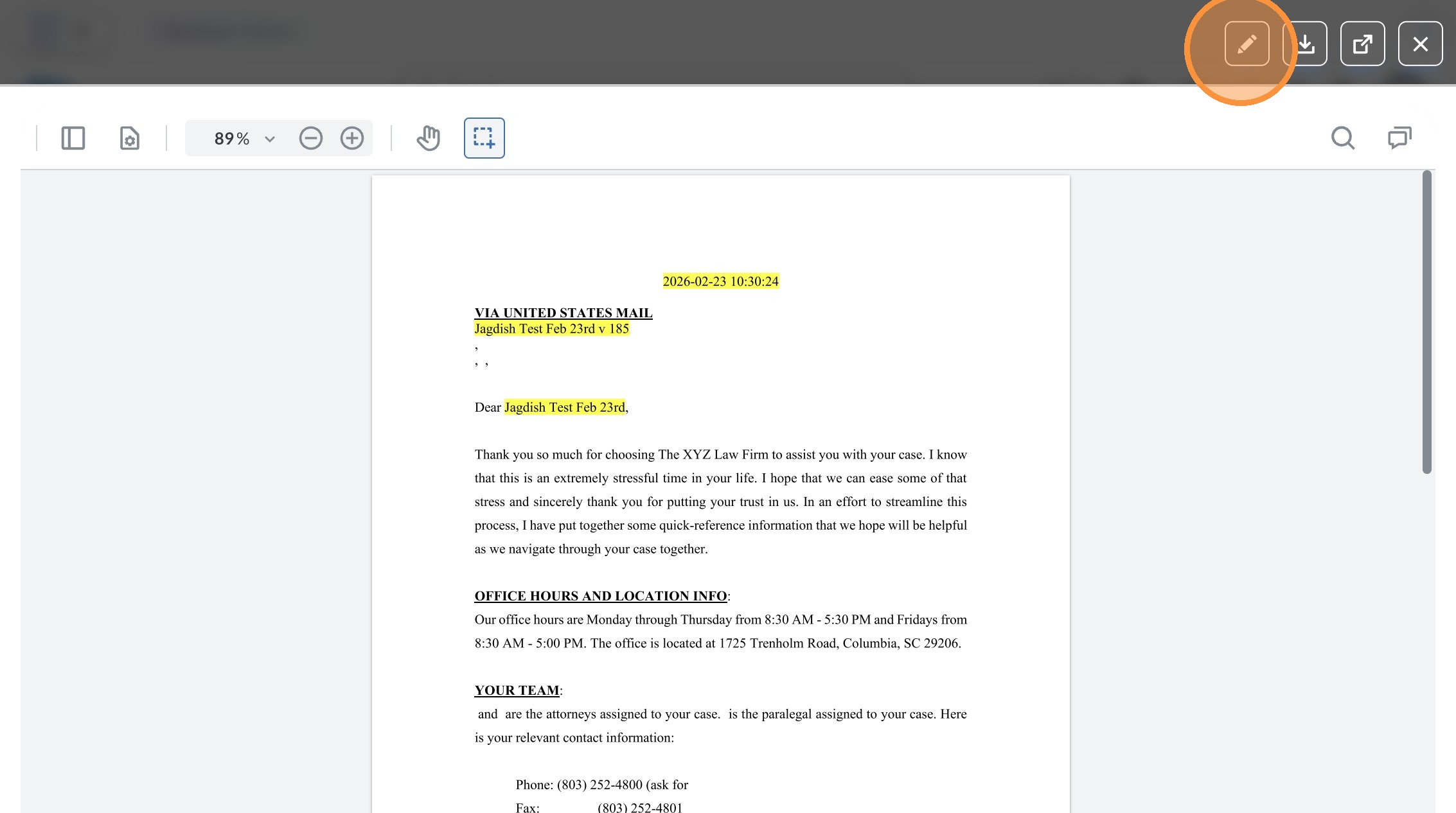
28. Click this icon.
 />
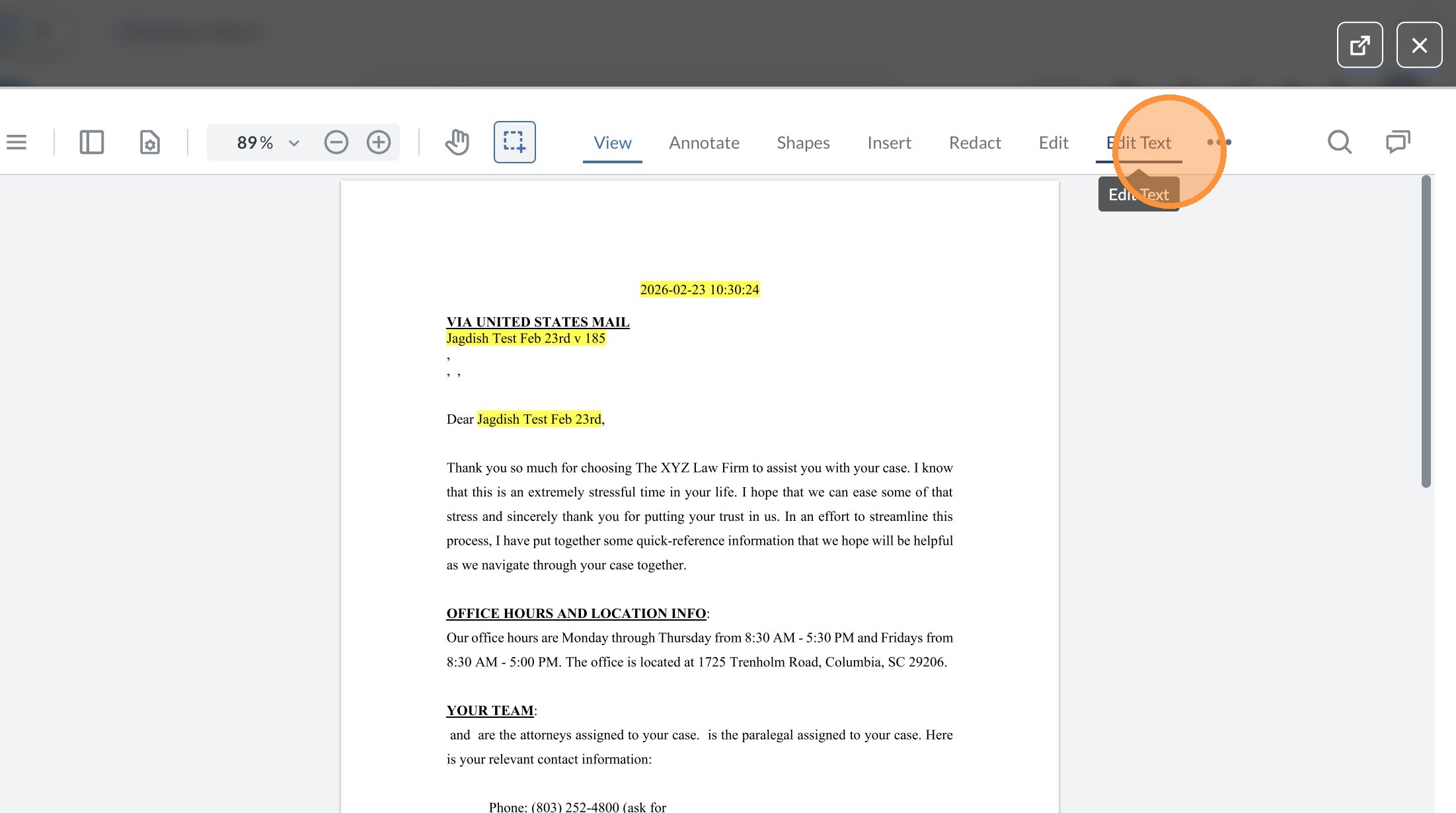
29. Click "Edit Text"
 />
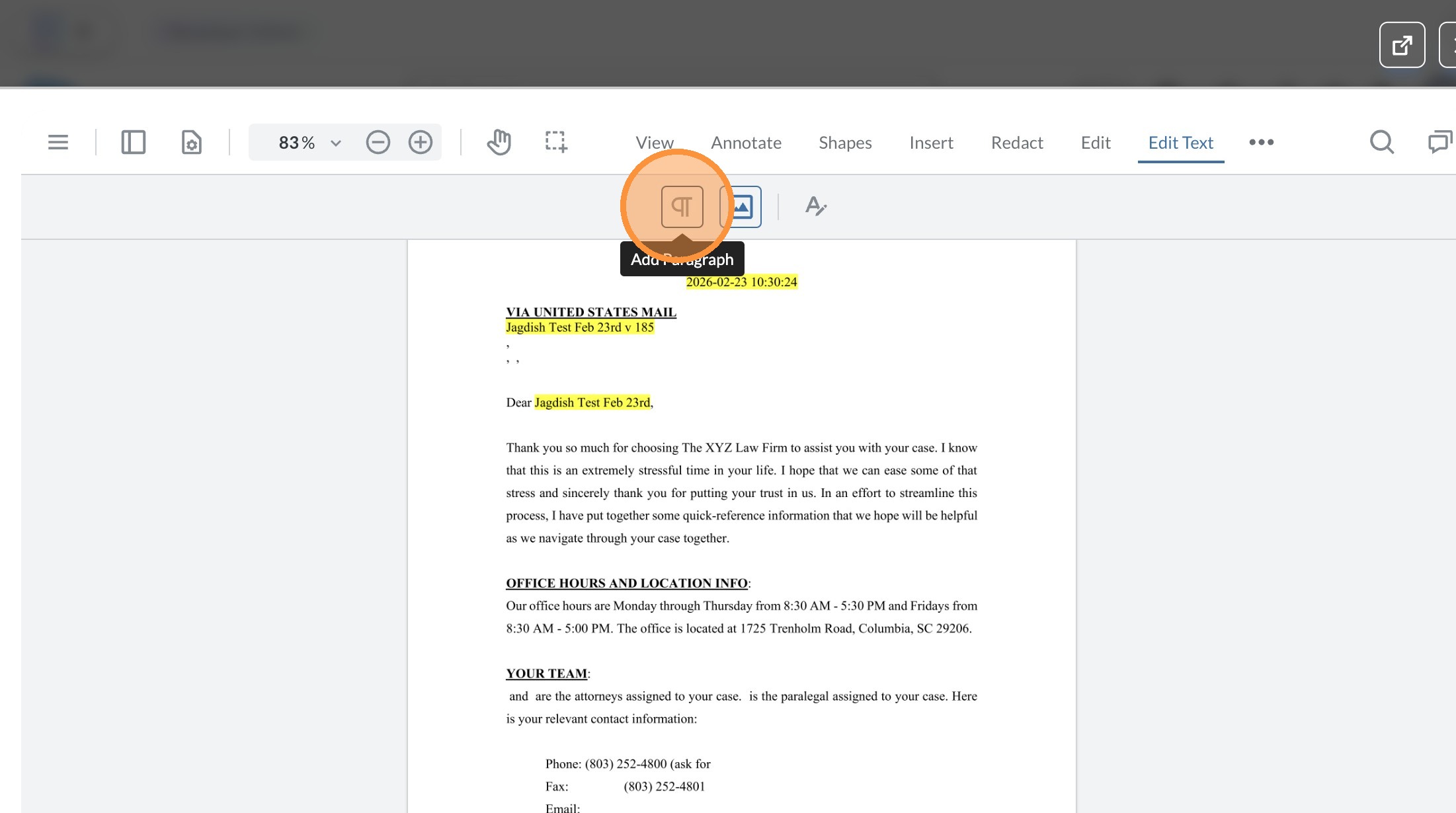
30. Click this button.
 />
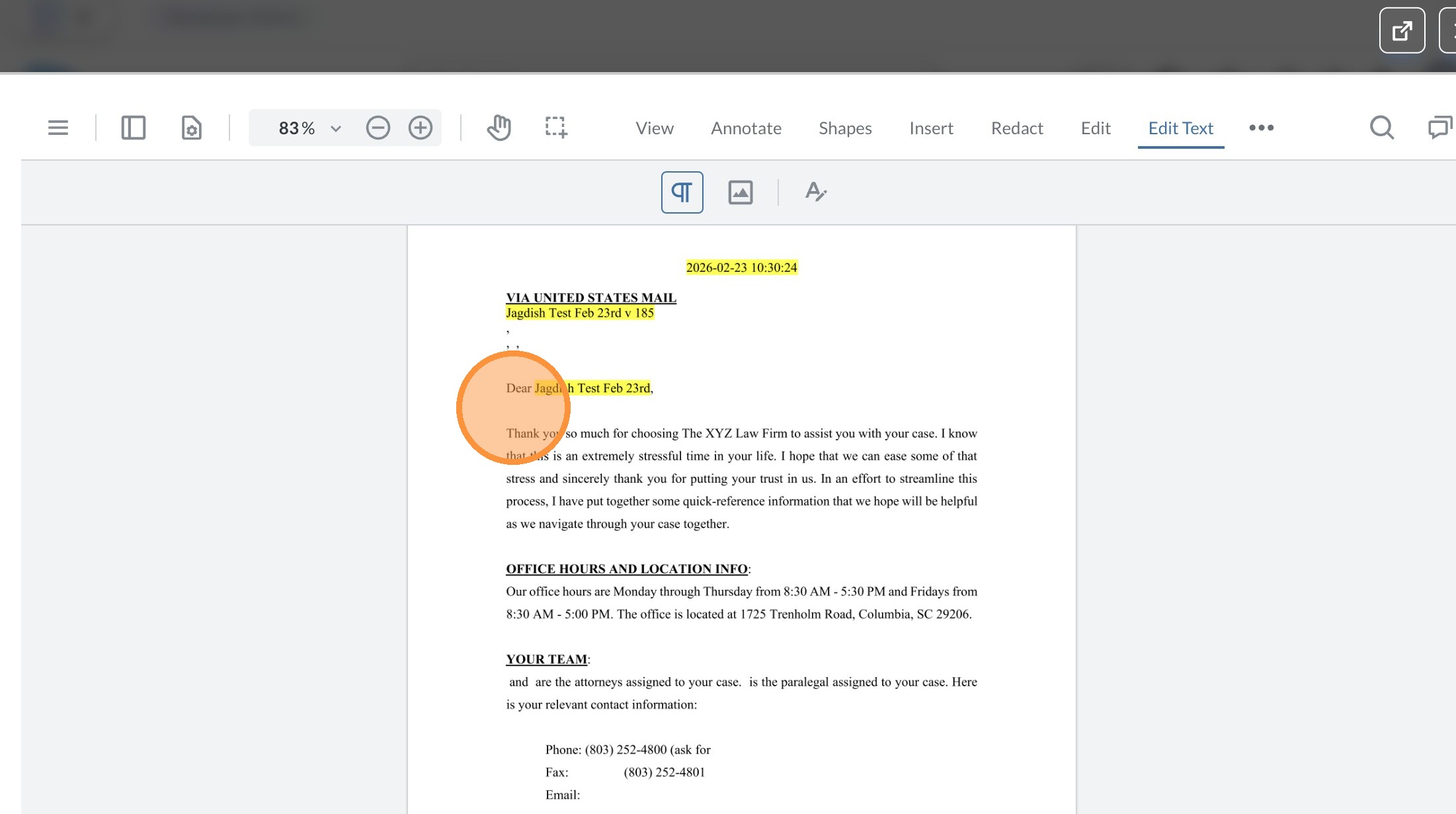
31. Click "Page 1"
 />
32. Click "Page 1"
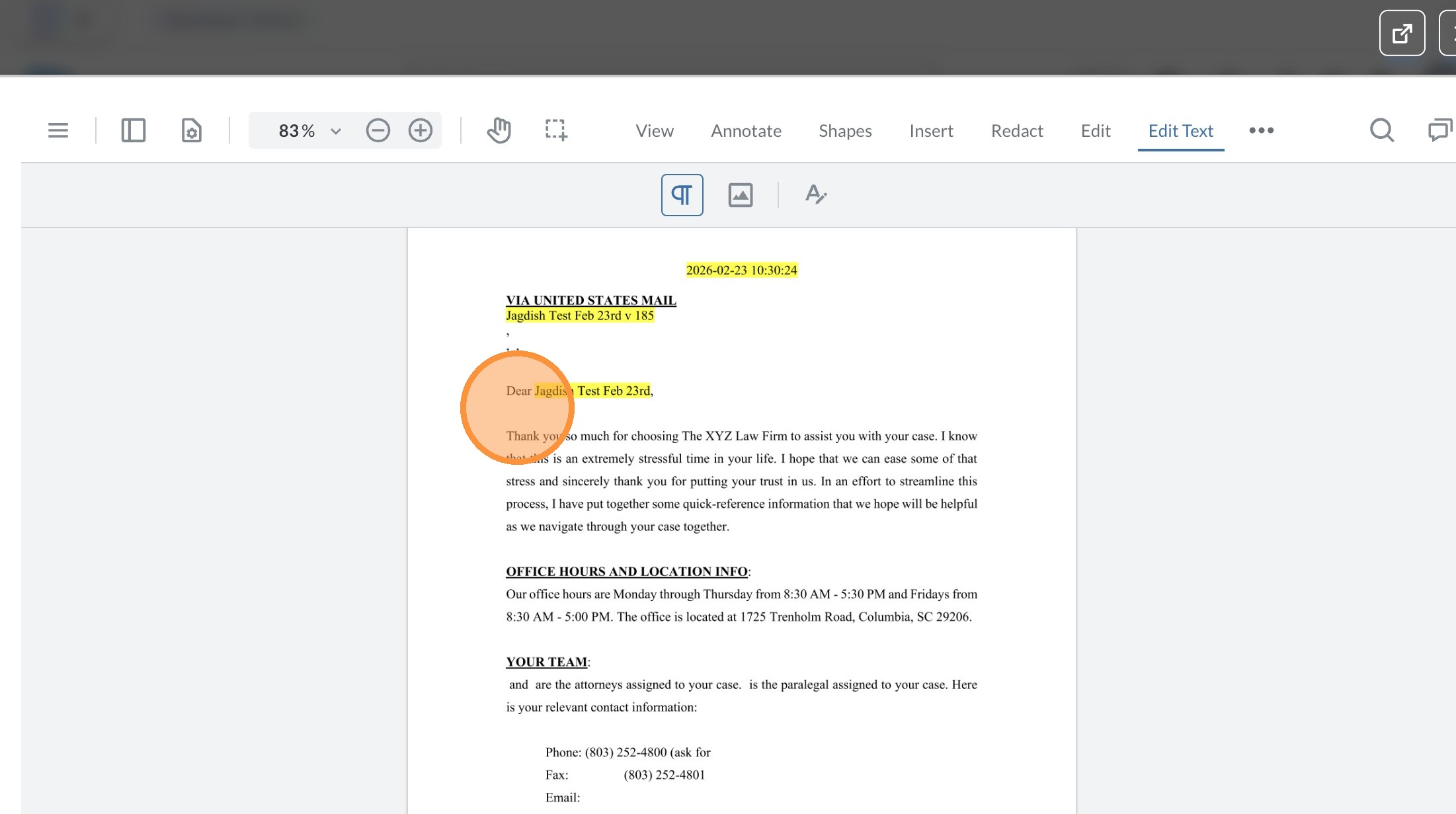 />
33. Click this button.
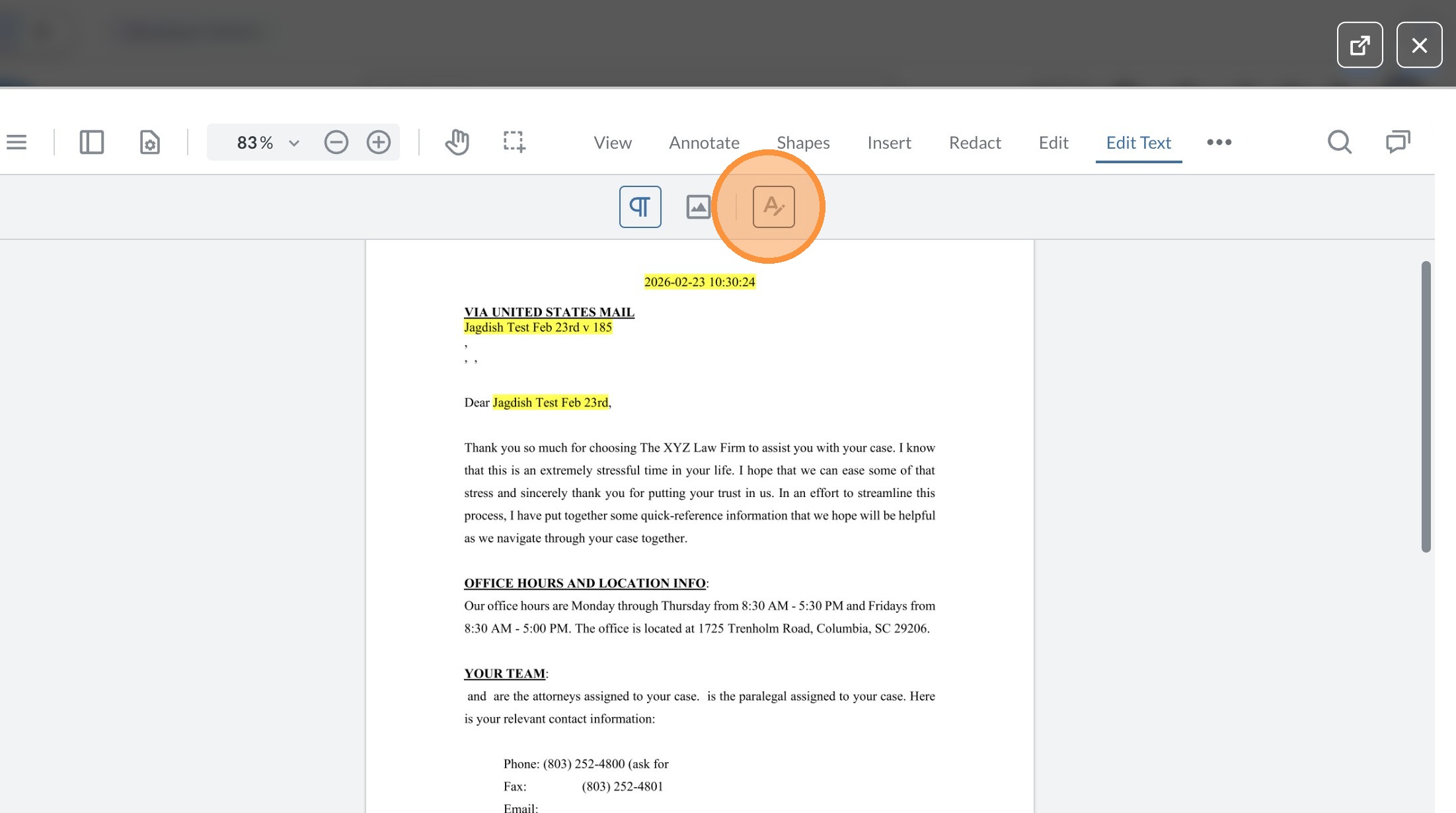 />
34. Click "Page 1"
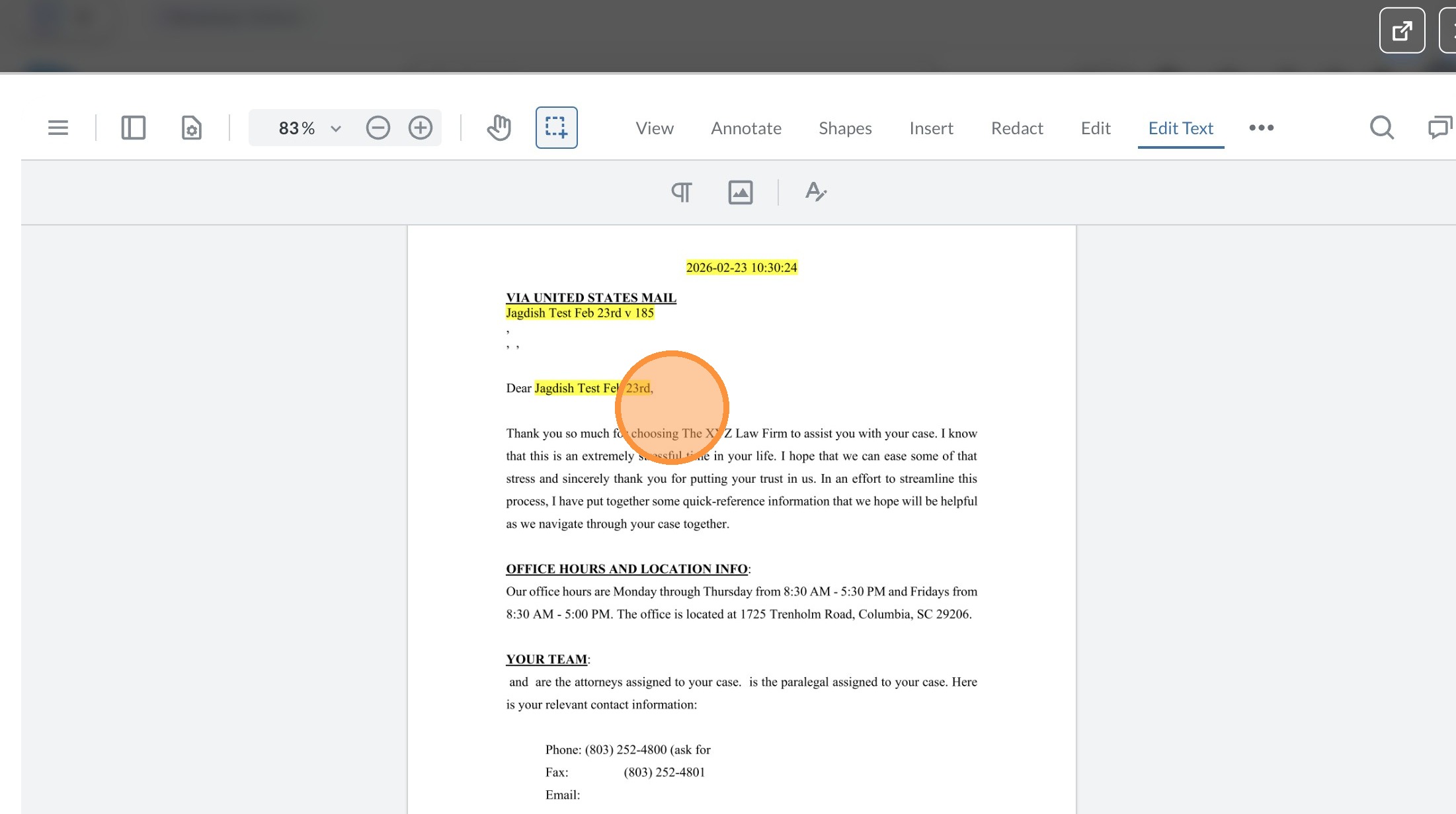 />
35. Click "Page 1"
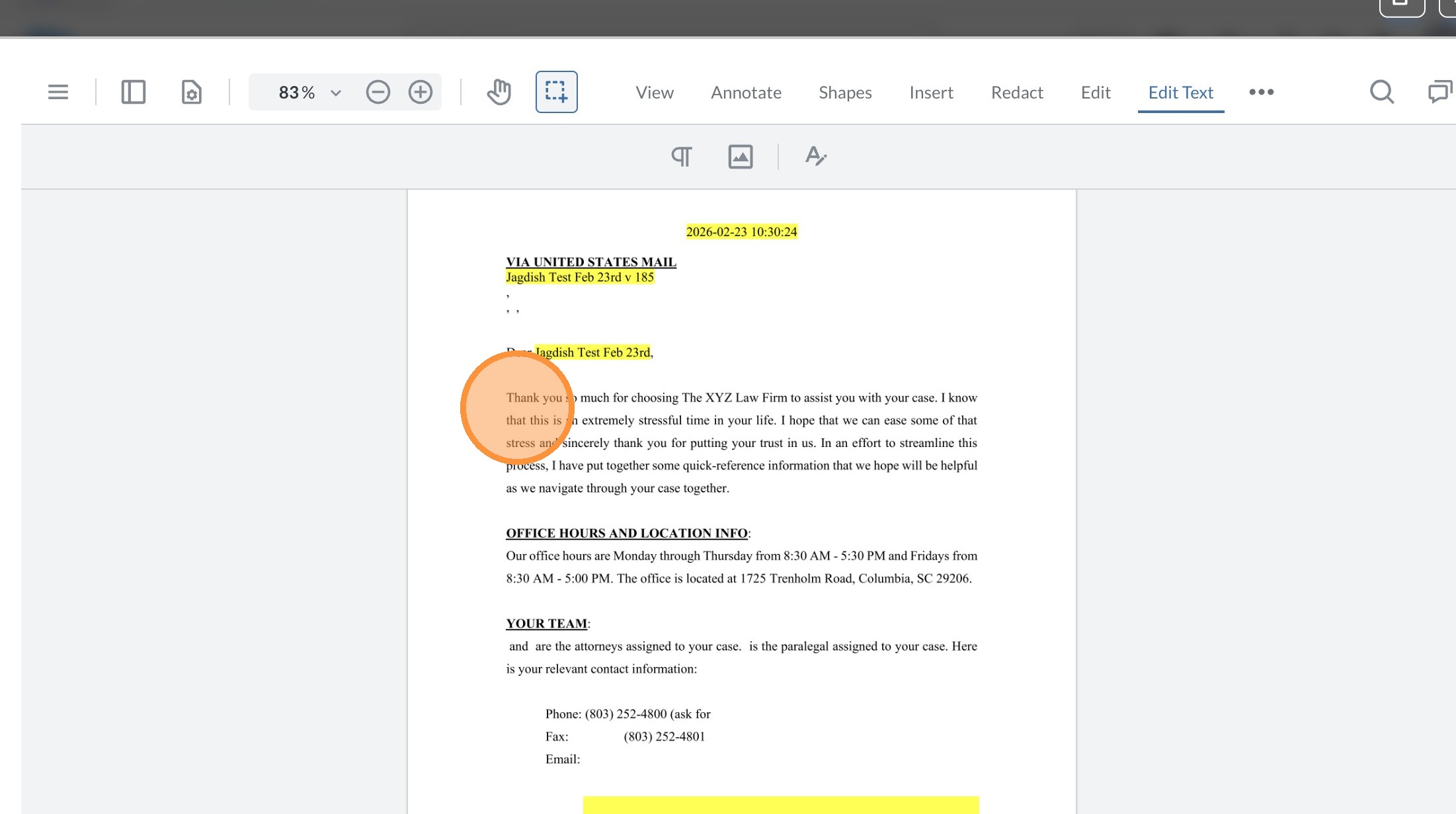 />
36. Click this button.
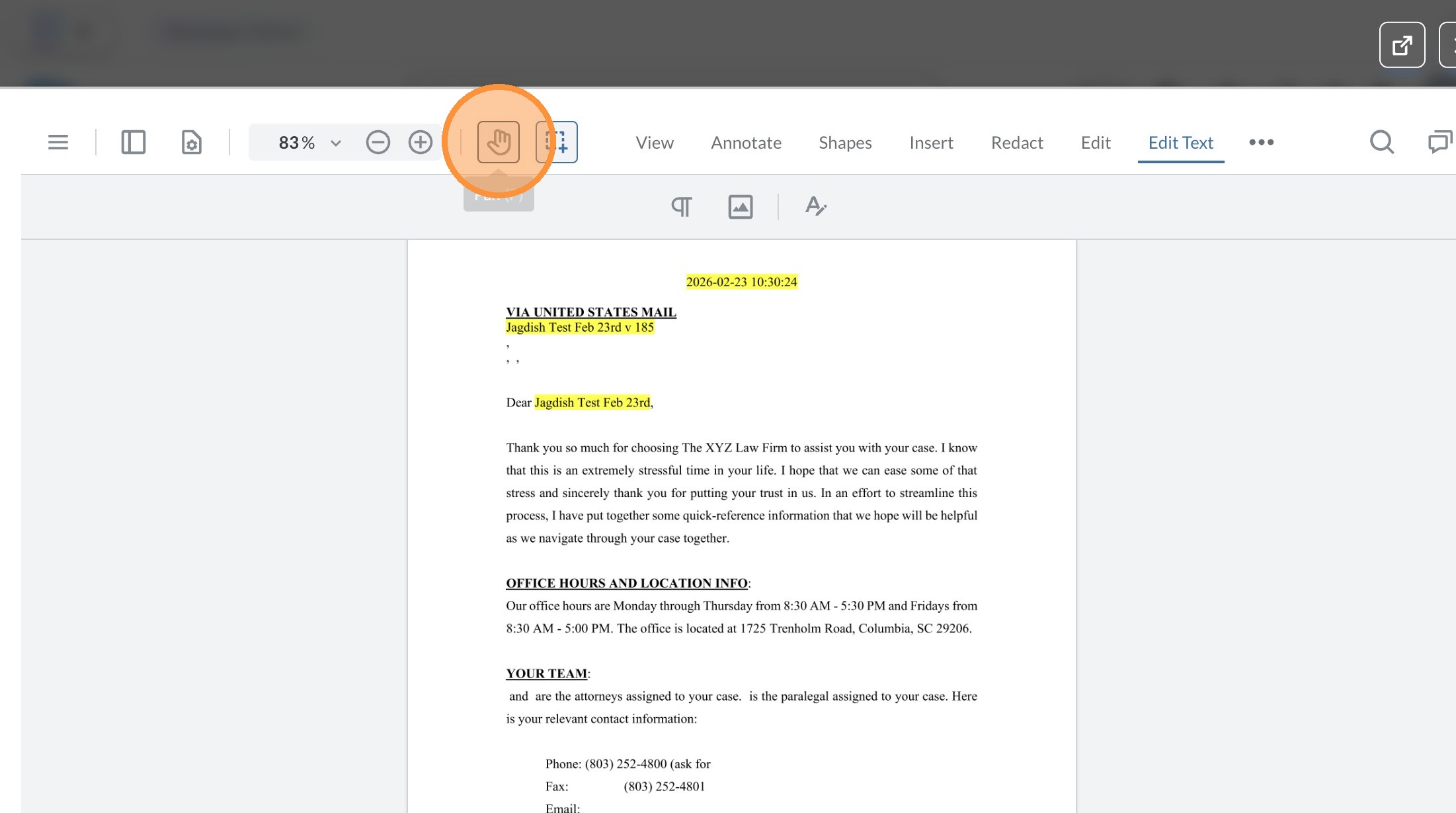 />
37. Click "Page 1"
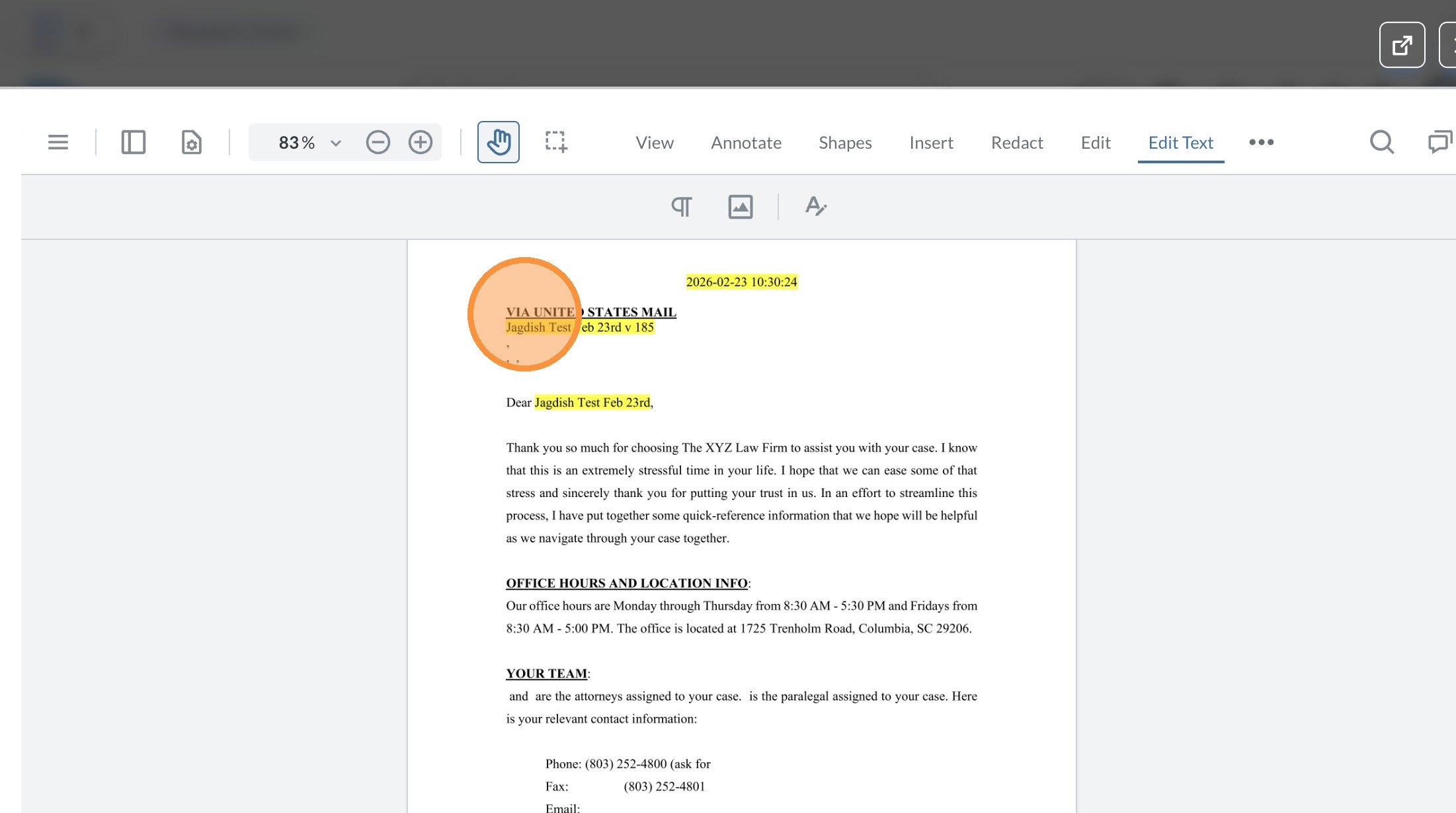 />
38. Right-click "Page 1"
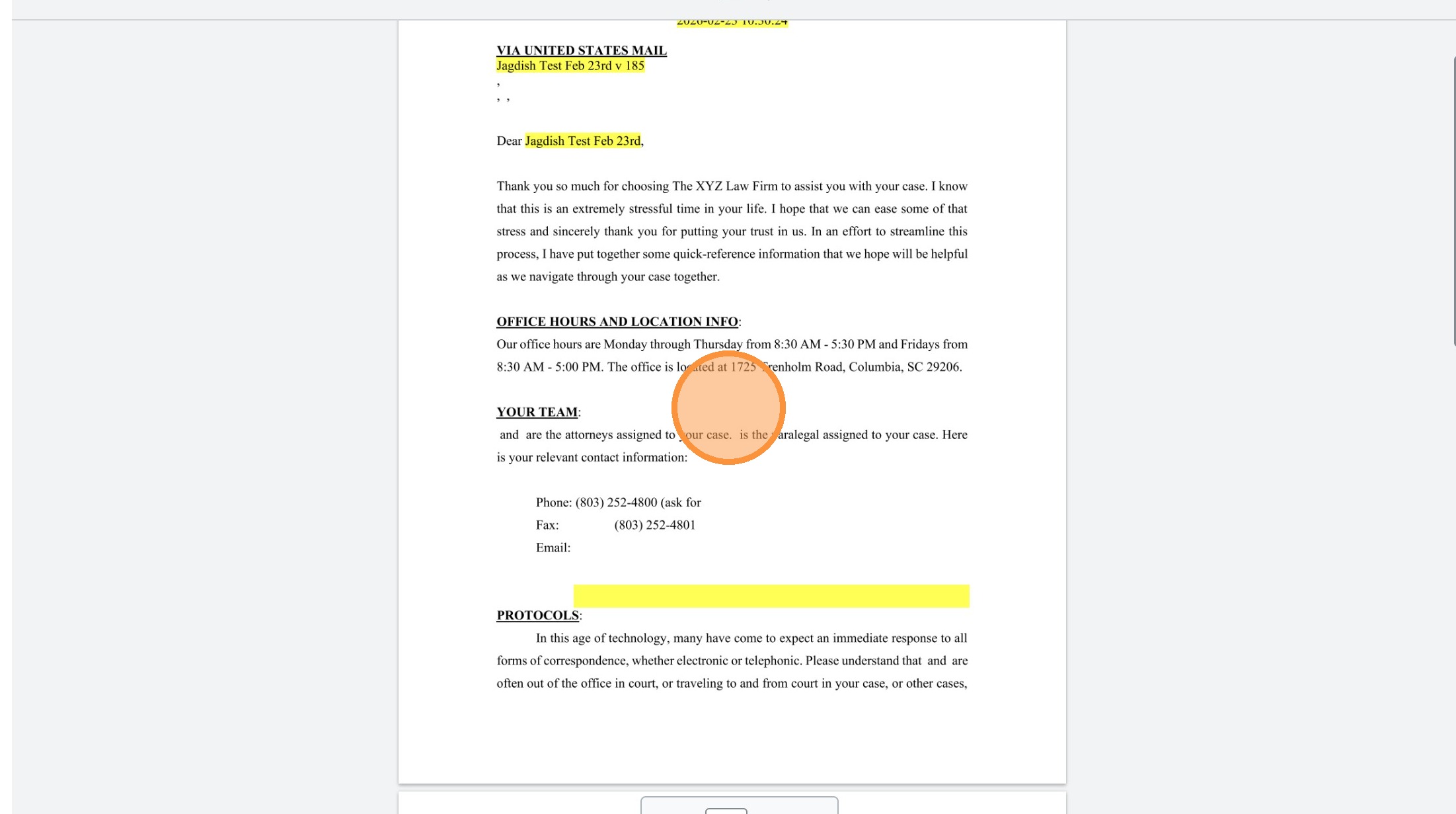 />
39. Click "Page 1"
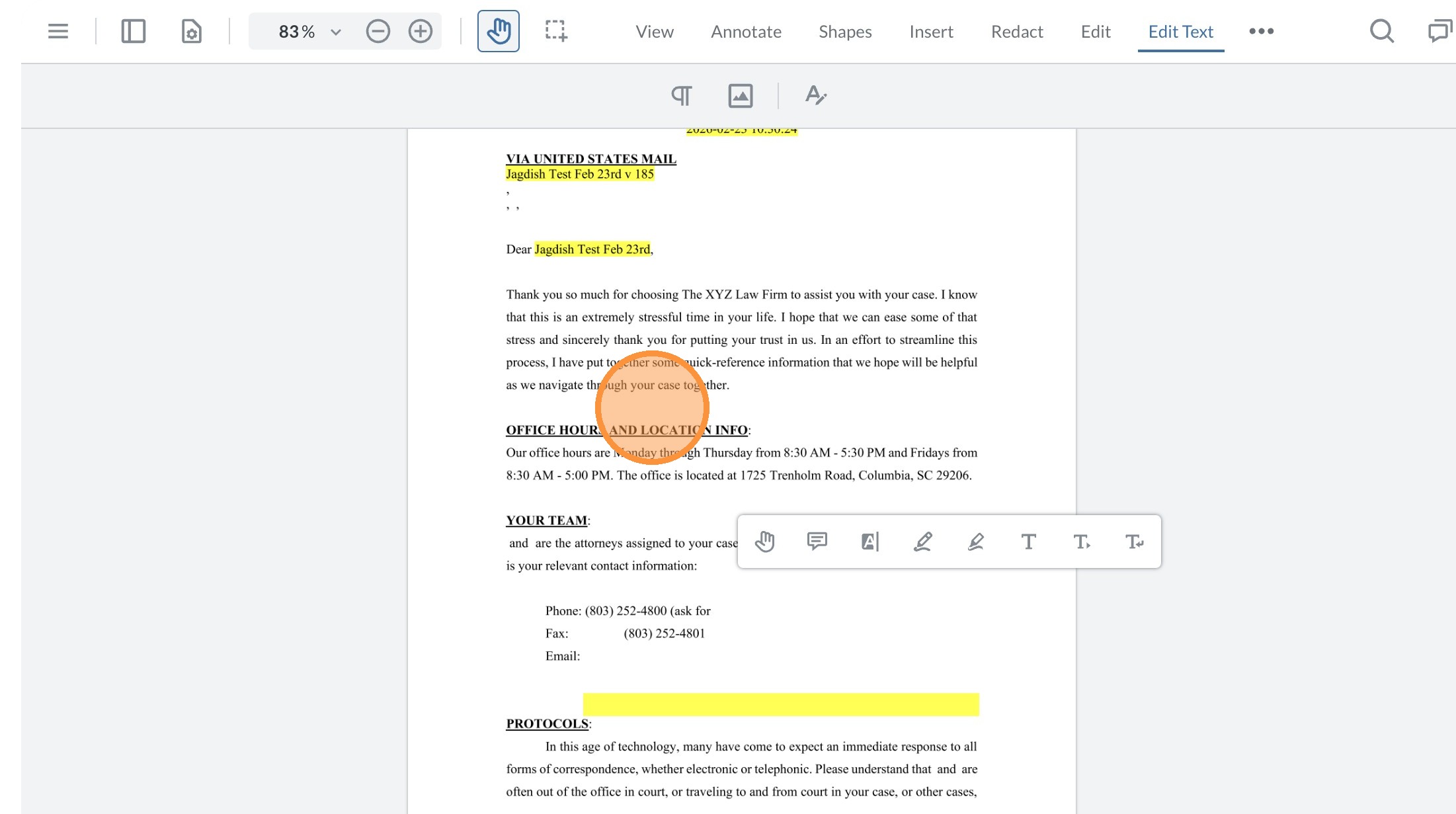 />
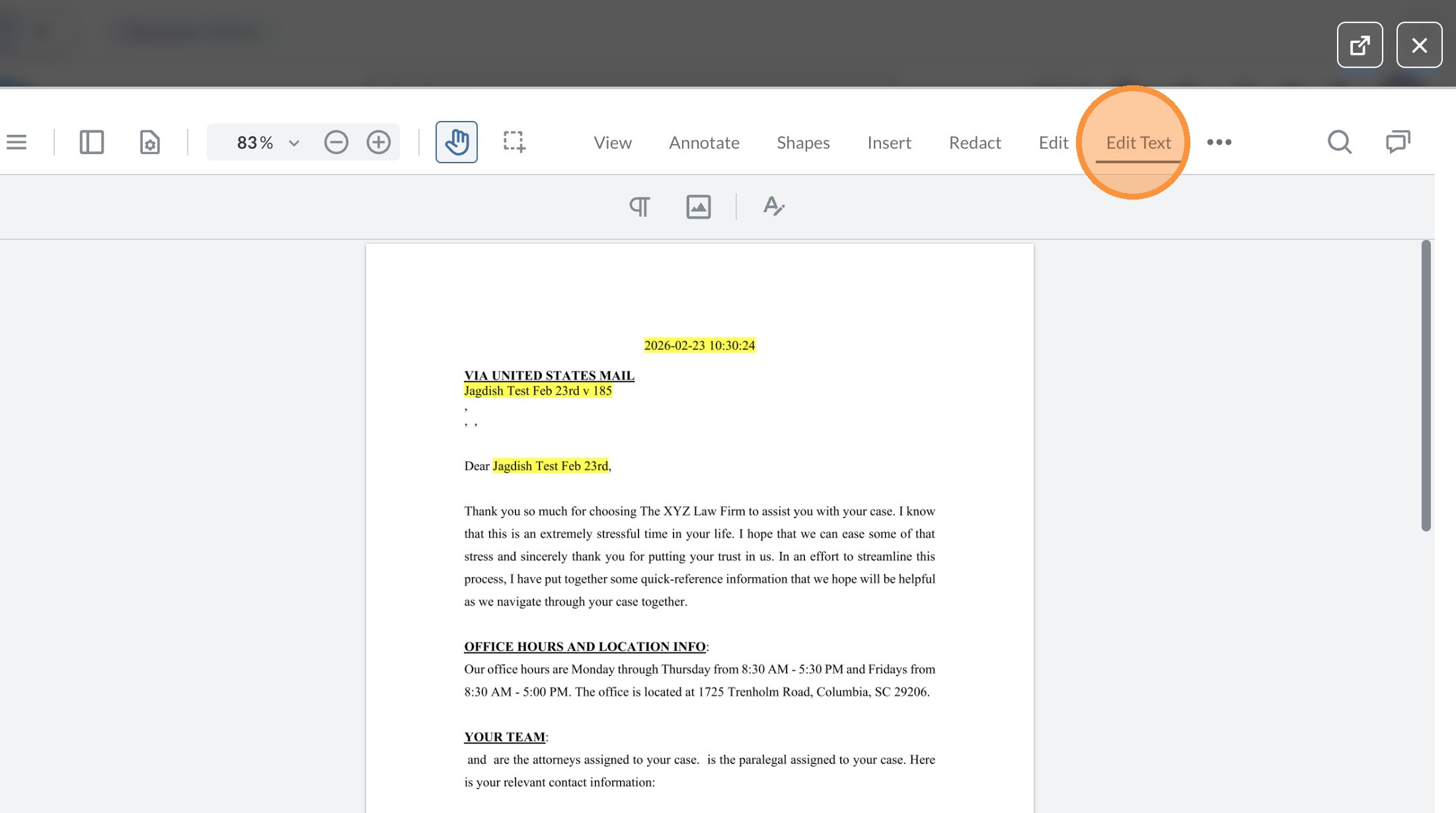
40. Click "Edit Text"
 />
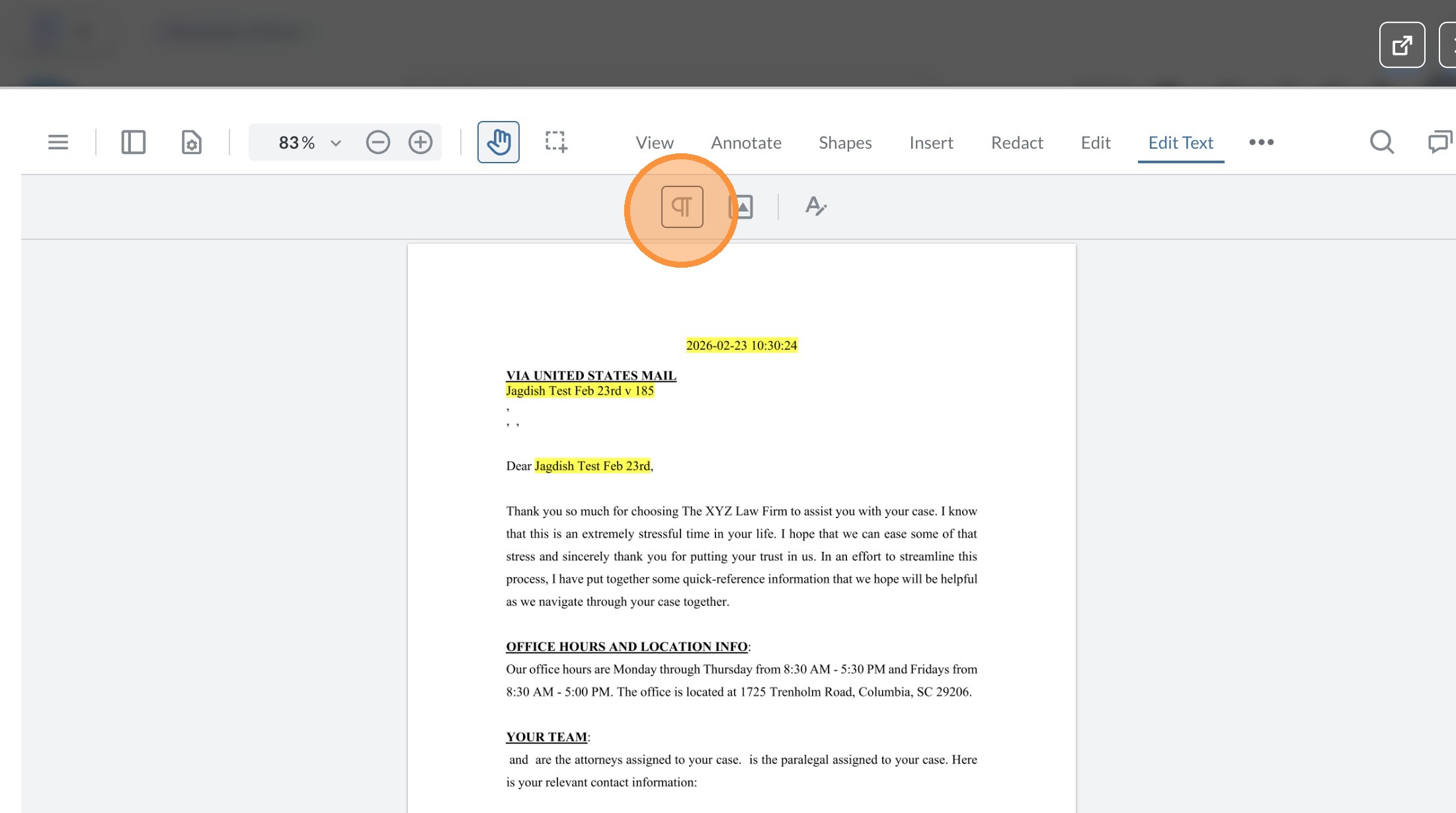
41. Click this button.
 />
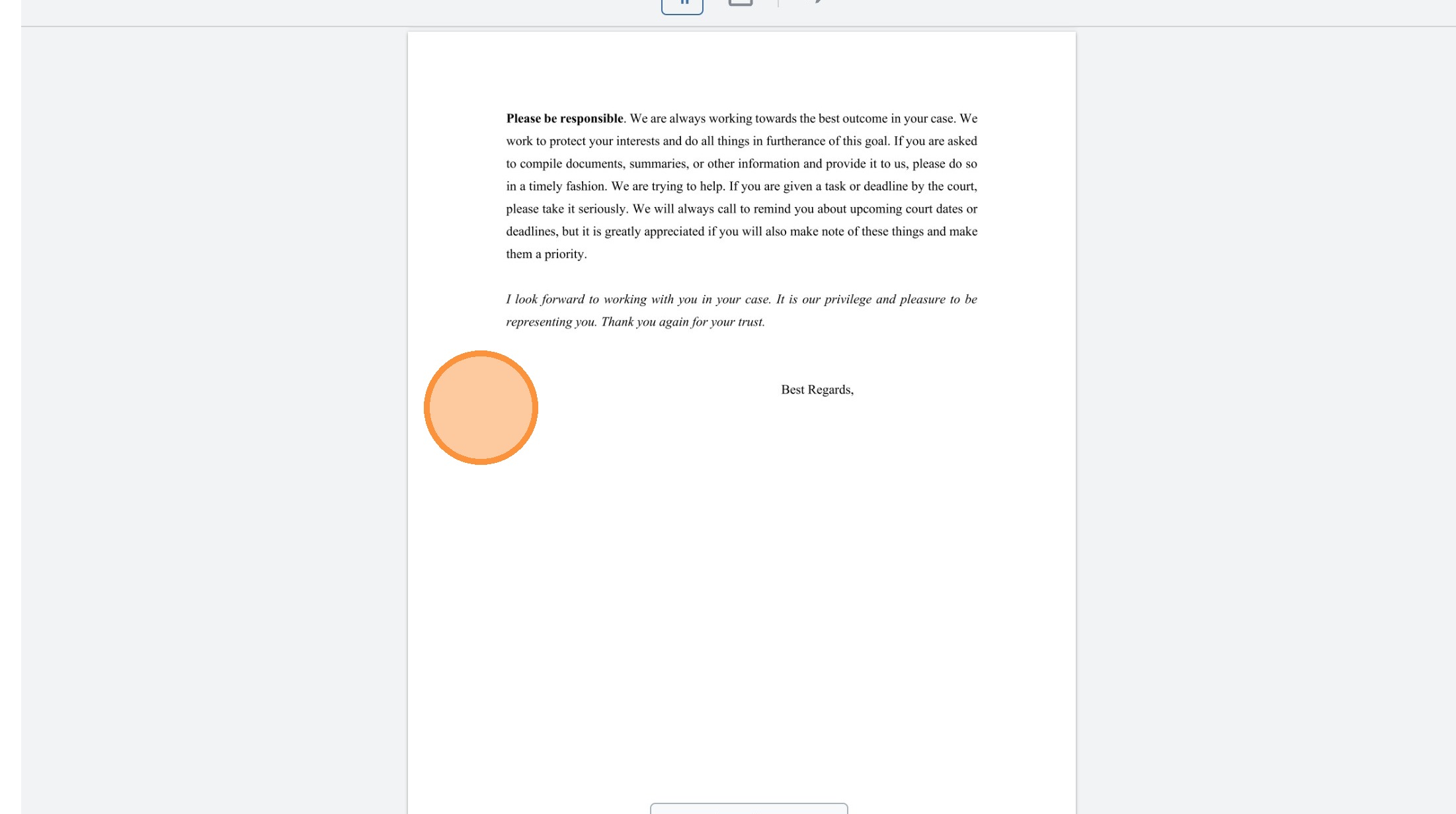
42. Click "Page 3"
 />
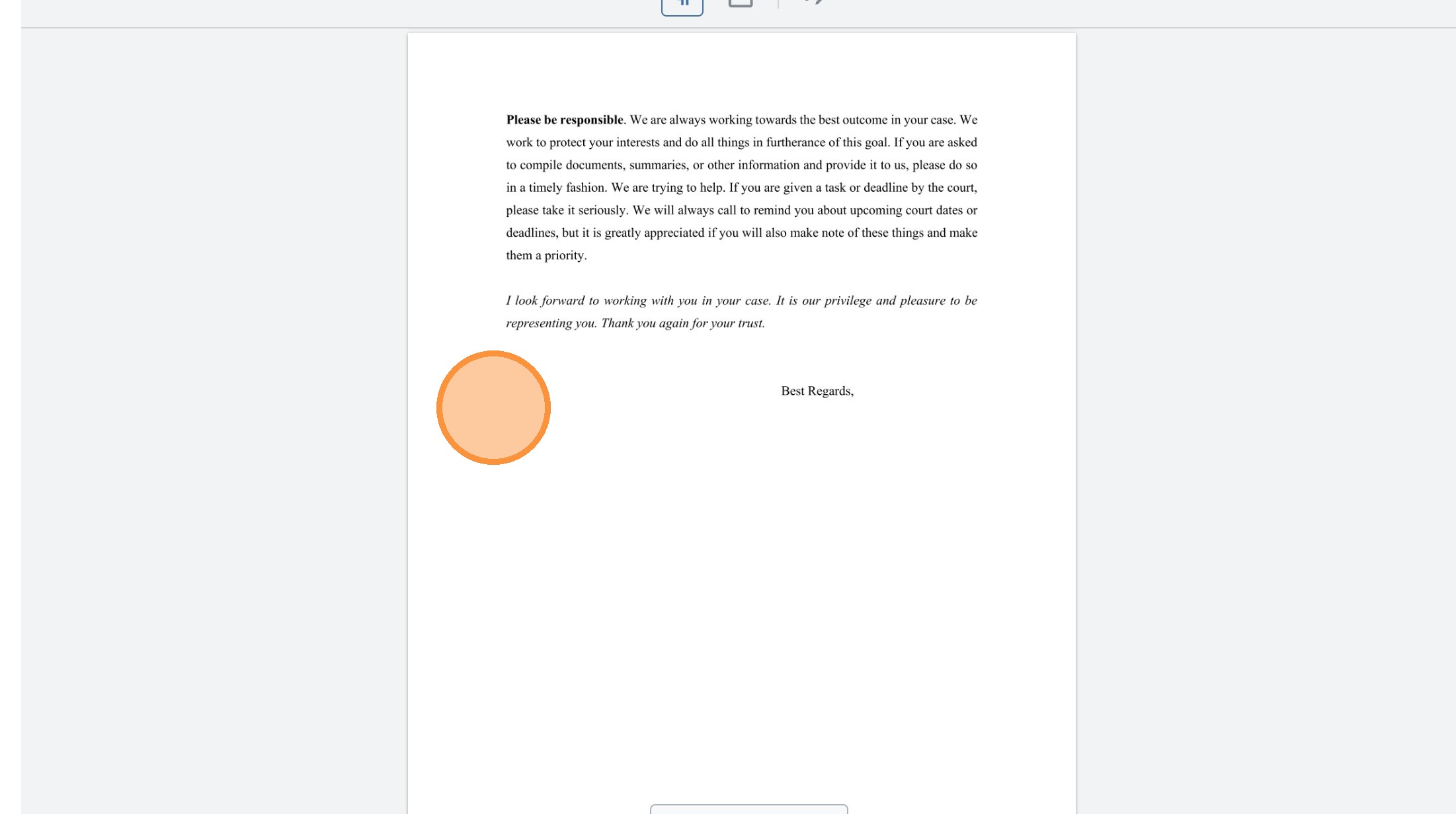
43. Double-click "Page 3"
 />
44. Click this button.
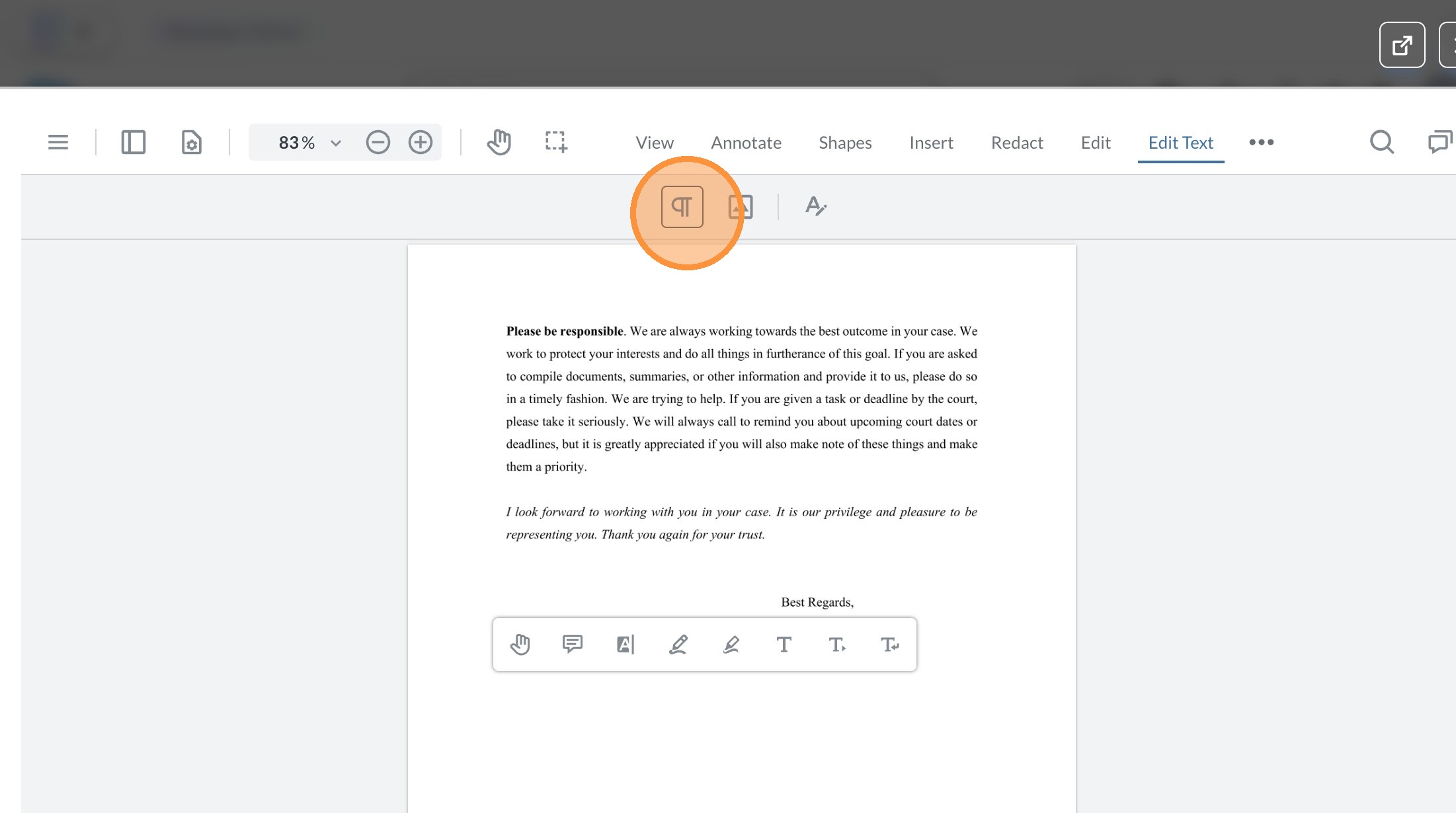 />
45. Right-click this button.
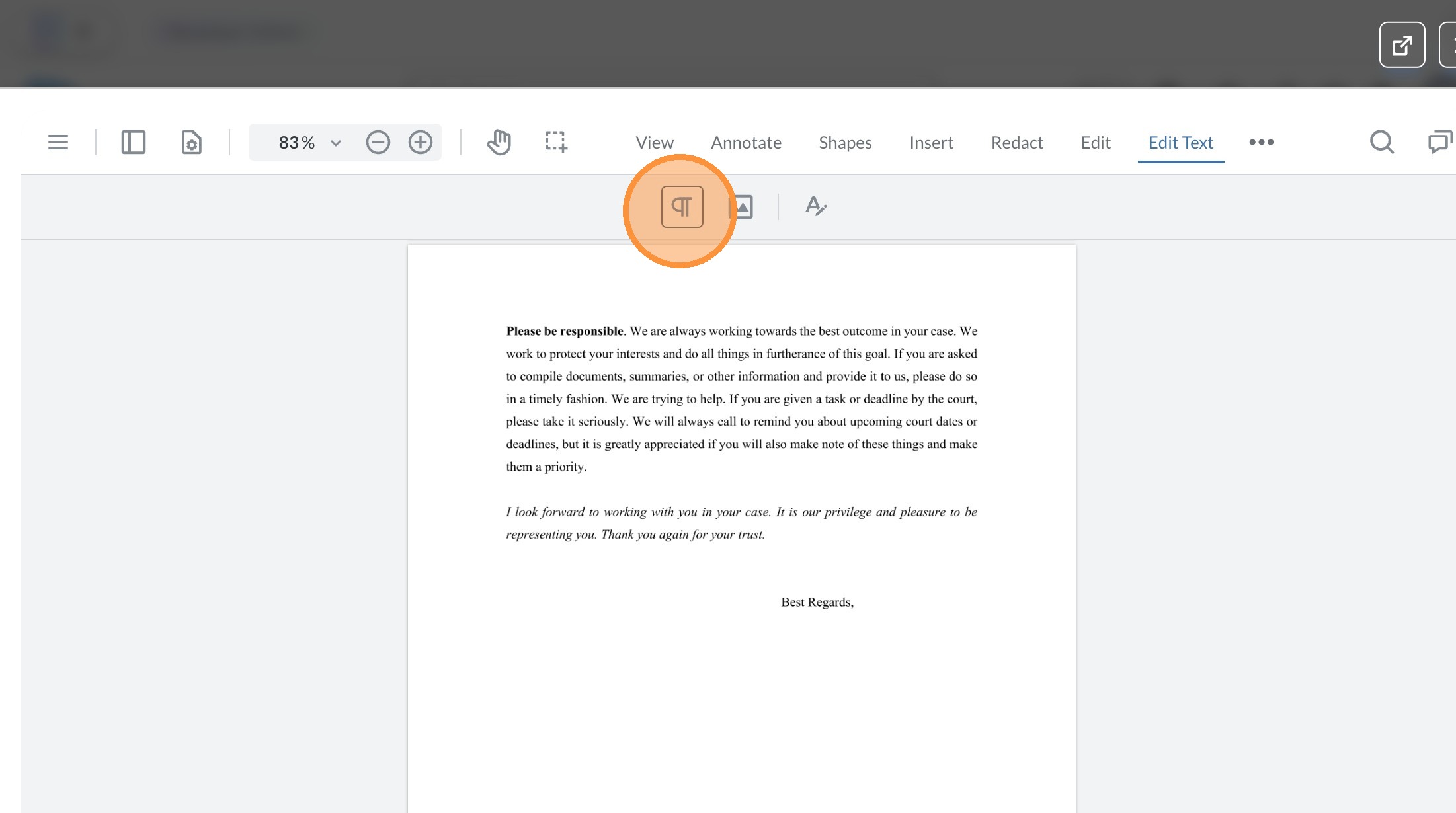 />
46. Click this button.
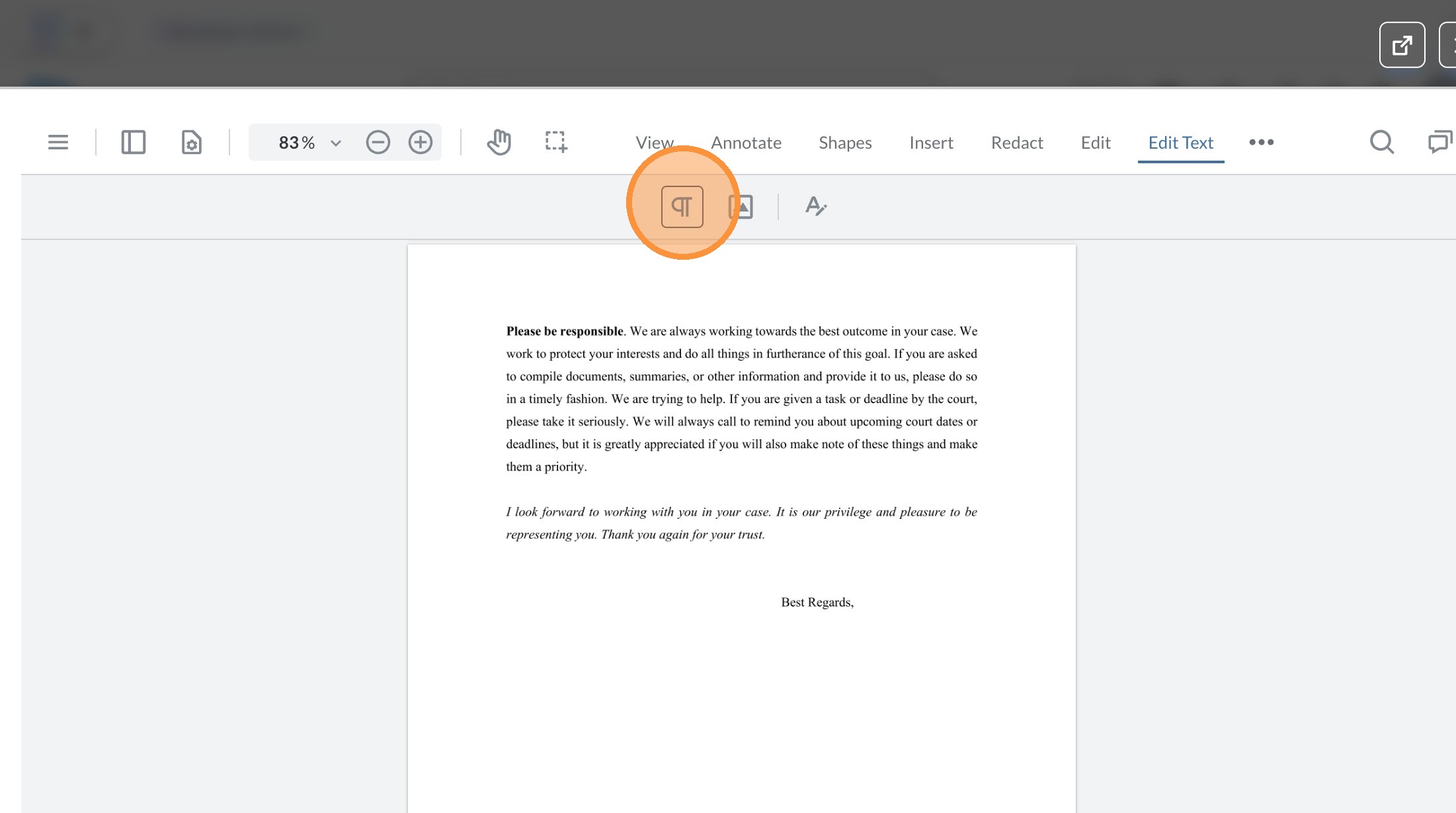 />
47. Click this button.
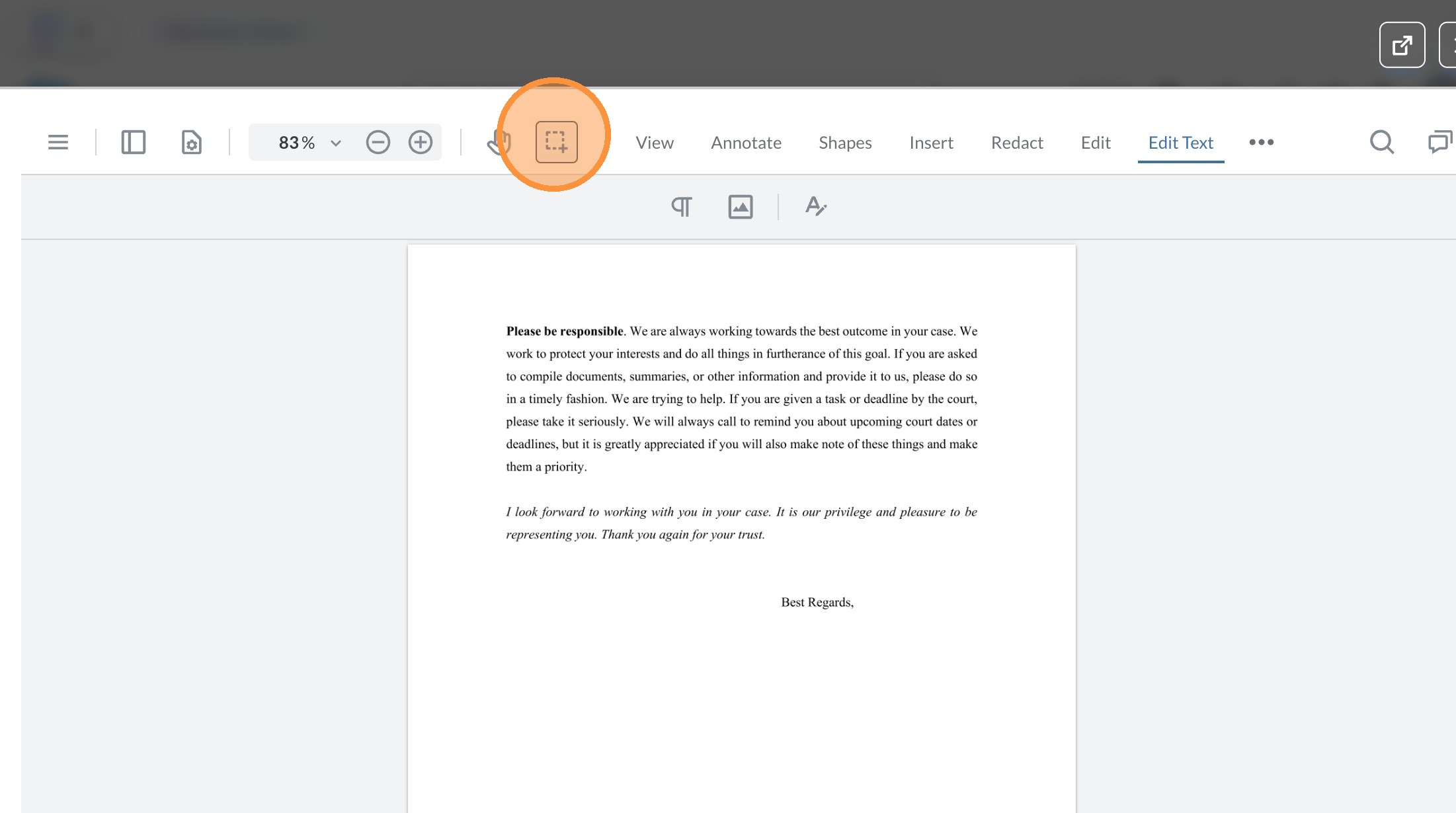 />
48. Click "Page 3"
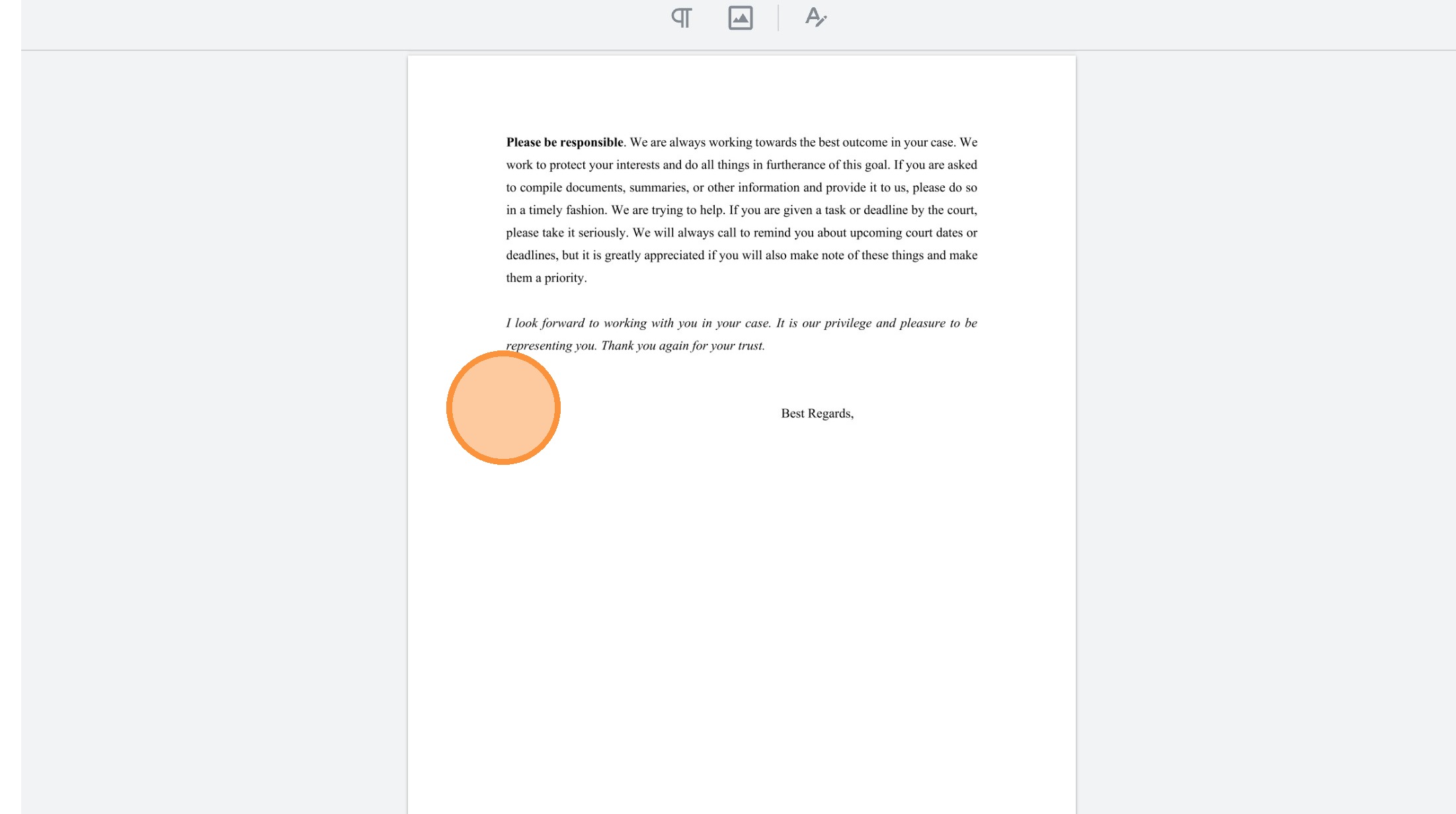 />
49. Type "c vxc"
50. Click "Page 3"
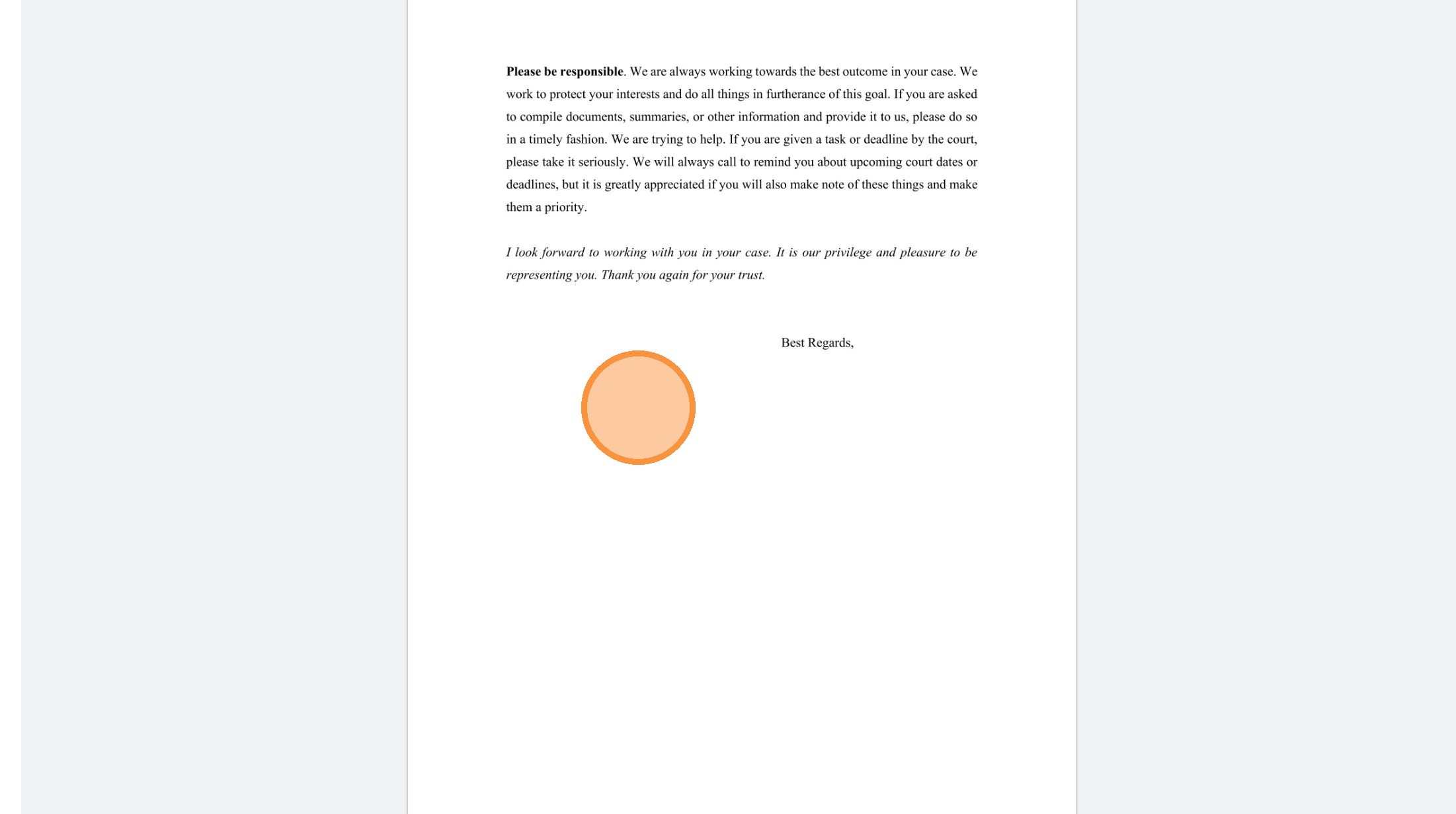 />
51. Type "zxc xvc"
52. Click "Page 3"
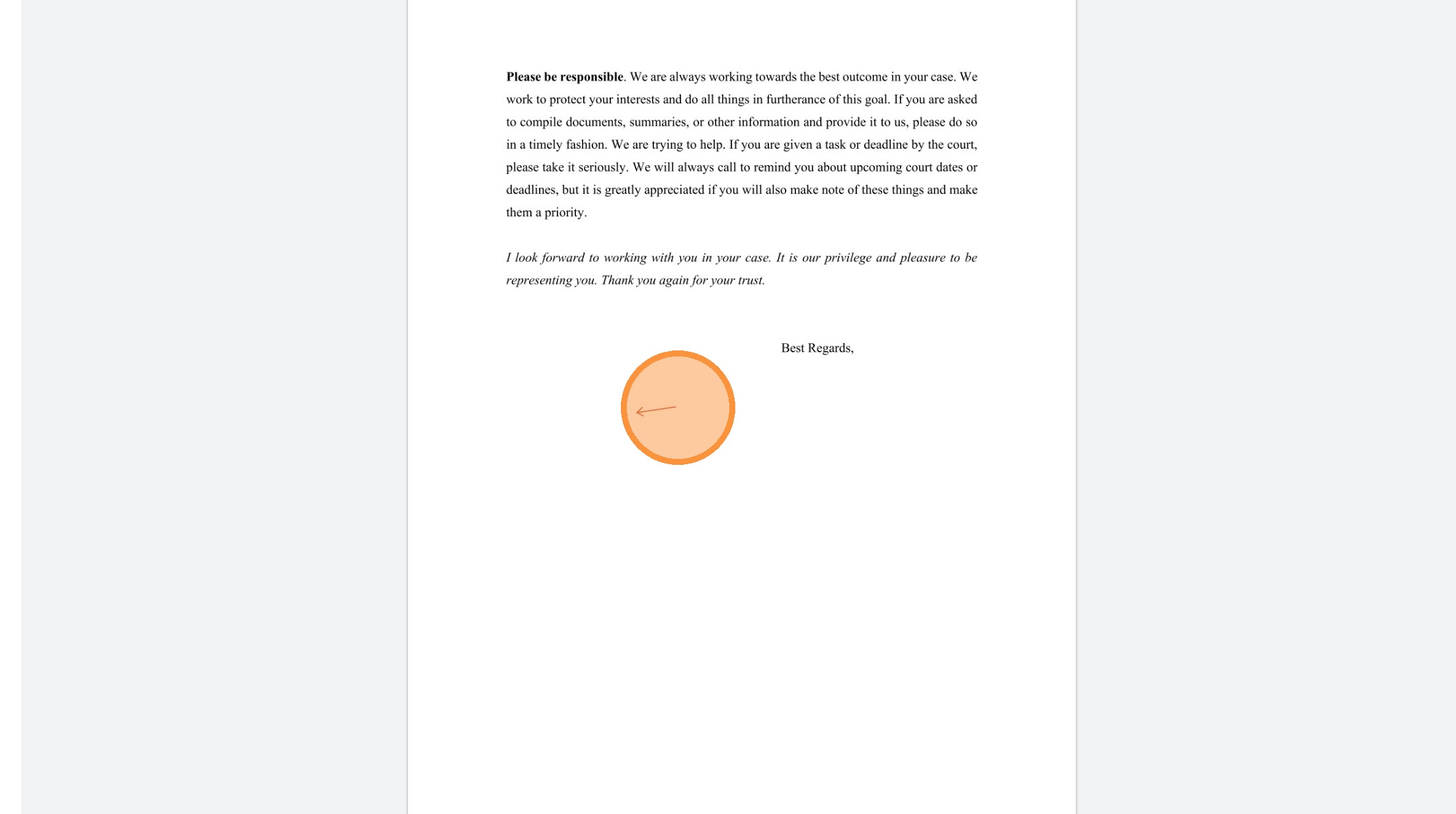 />
53. Click "Insert text here"
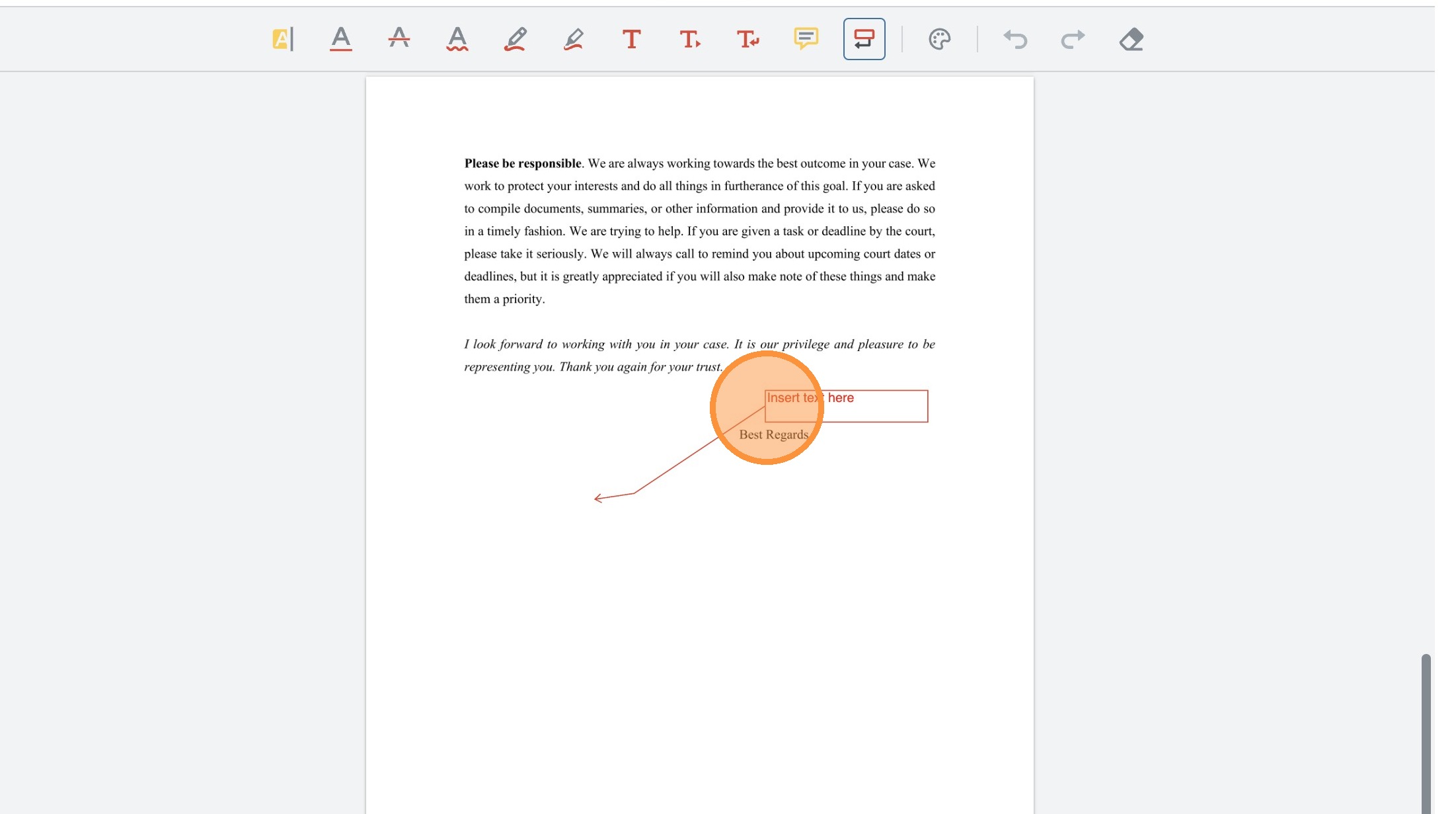 />
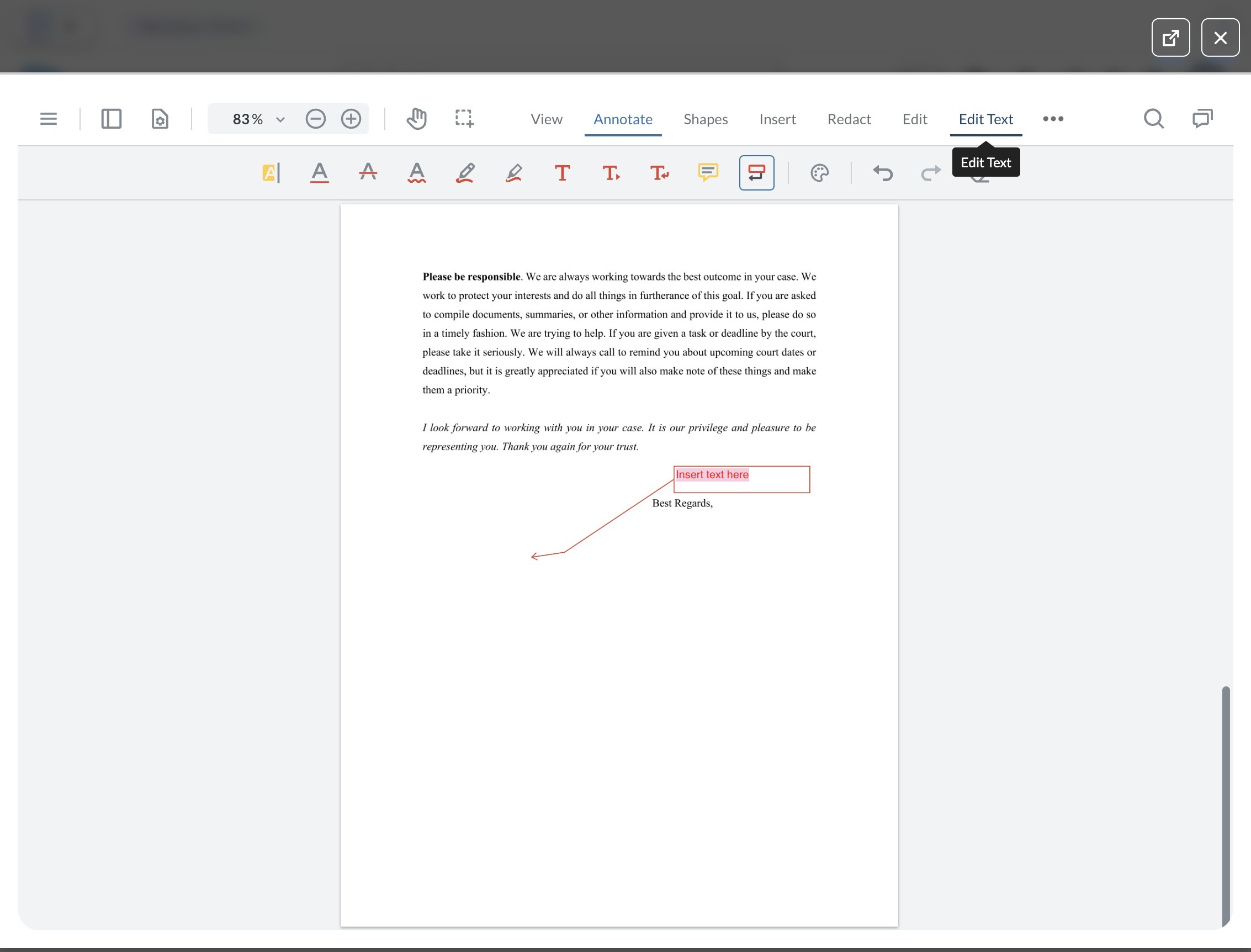
54. Press [[cmd]] + [[z]]
 />
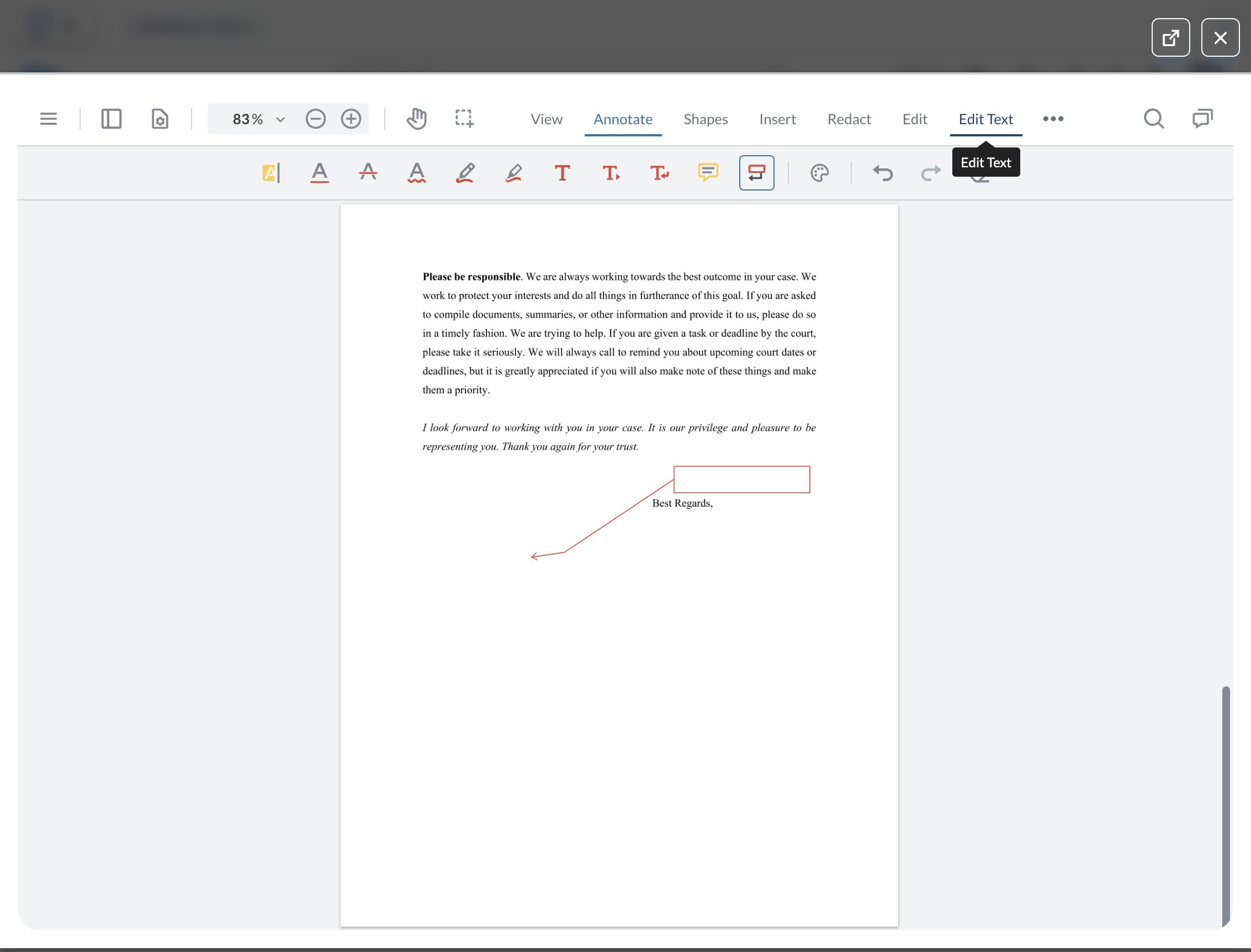
55. Press [[cmd]] + [[z]]
 />
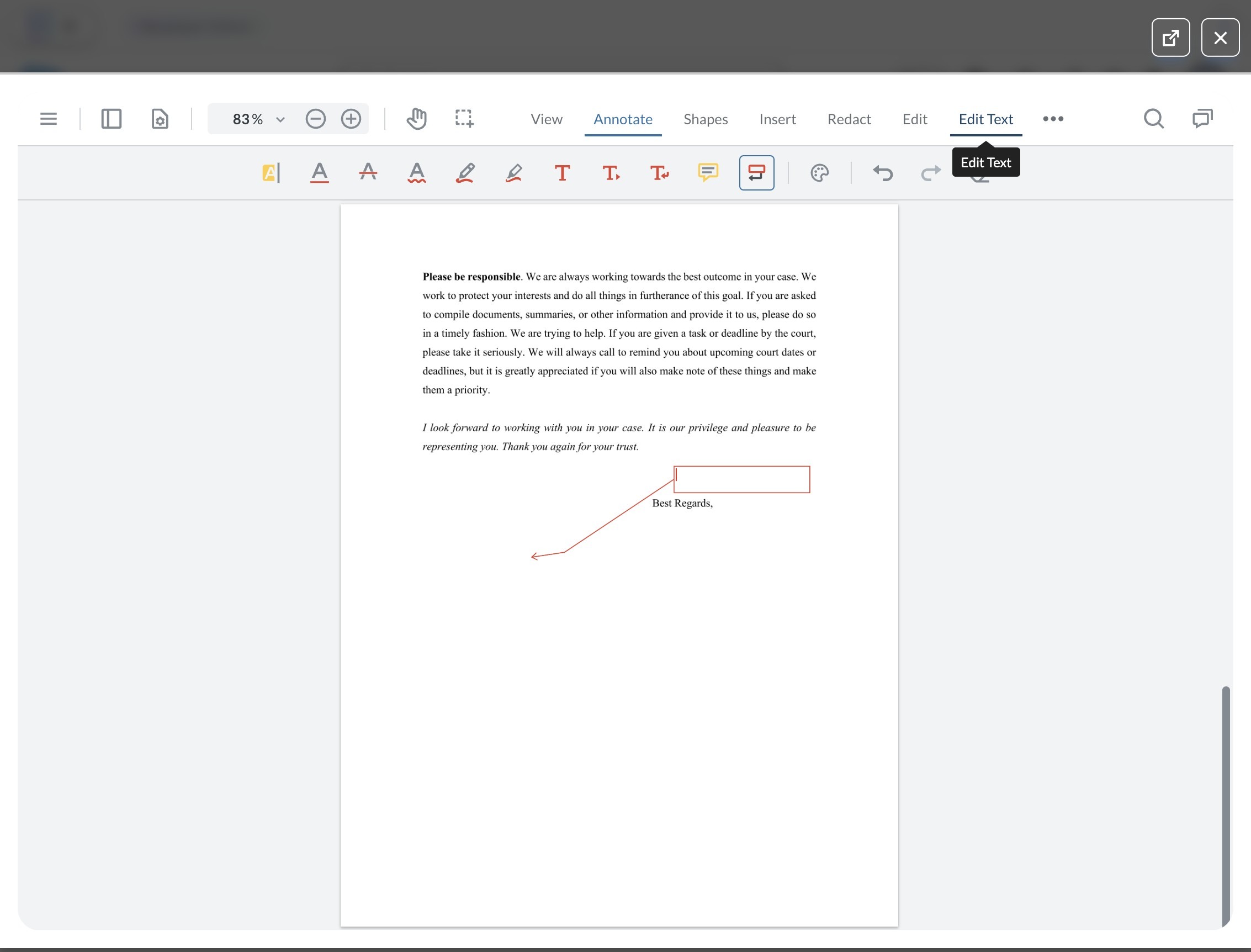
56. Press [[cmd]] + [[z]]
 />
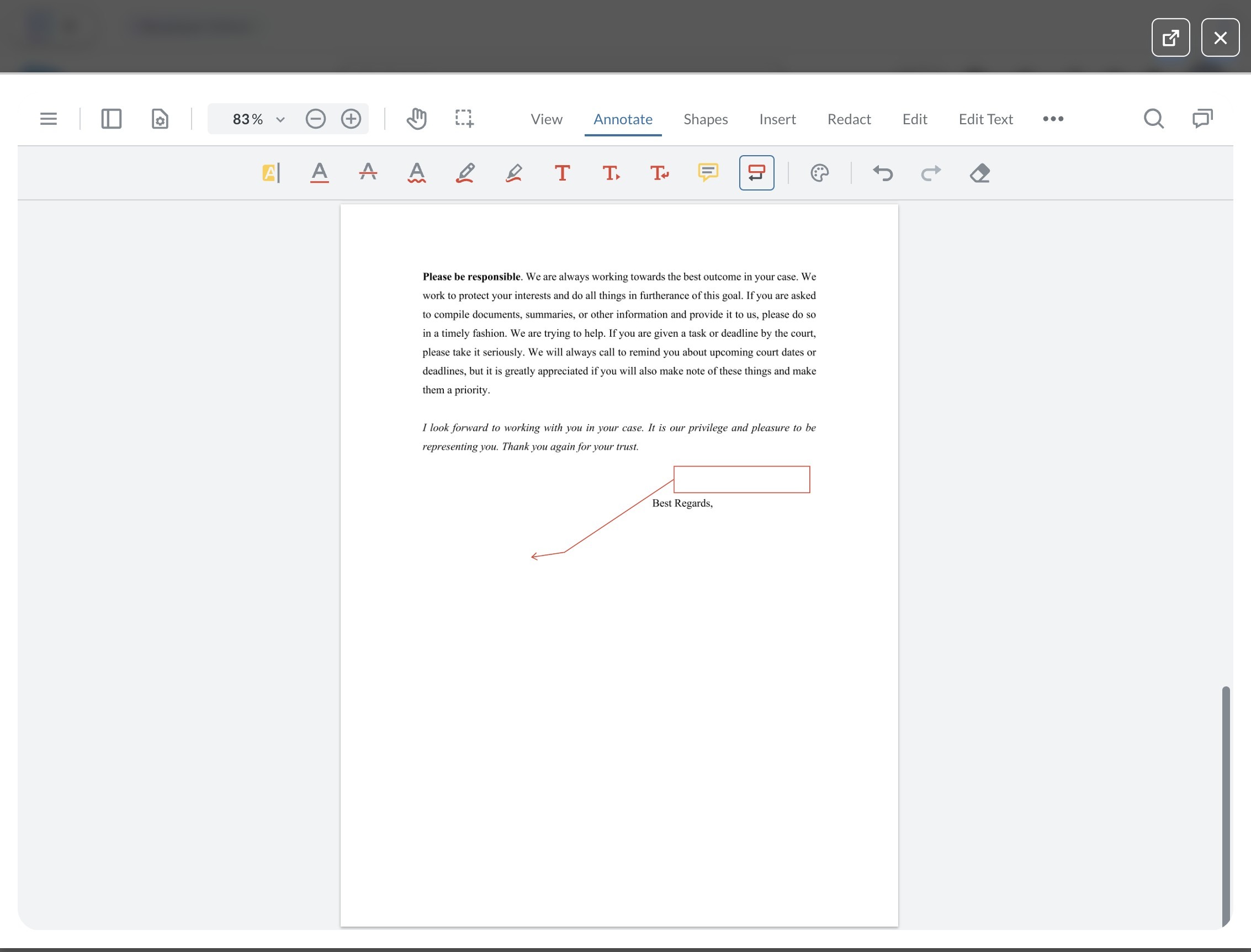
57. Press [[cmd]] + [[z]]
 />
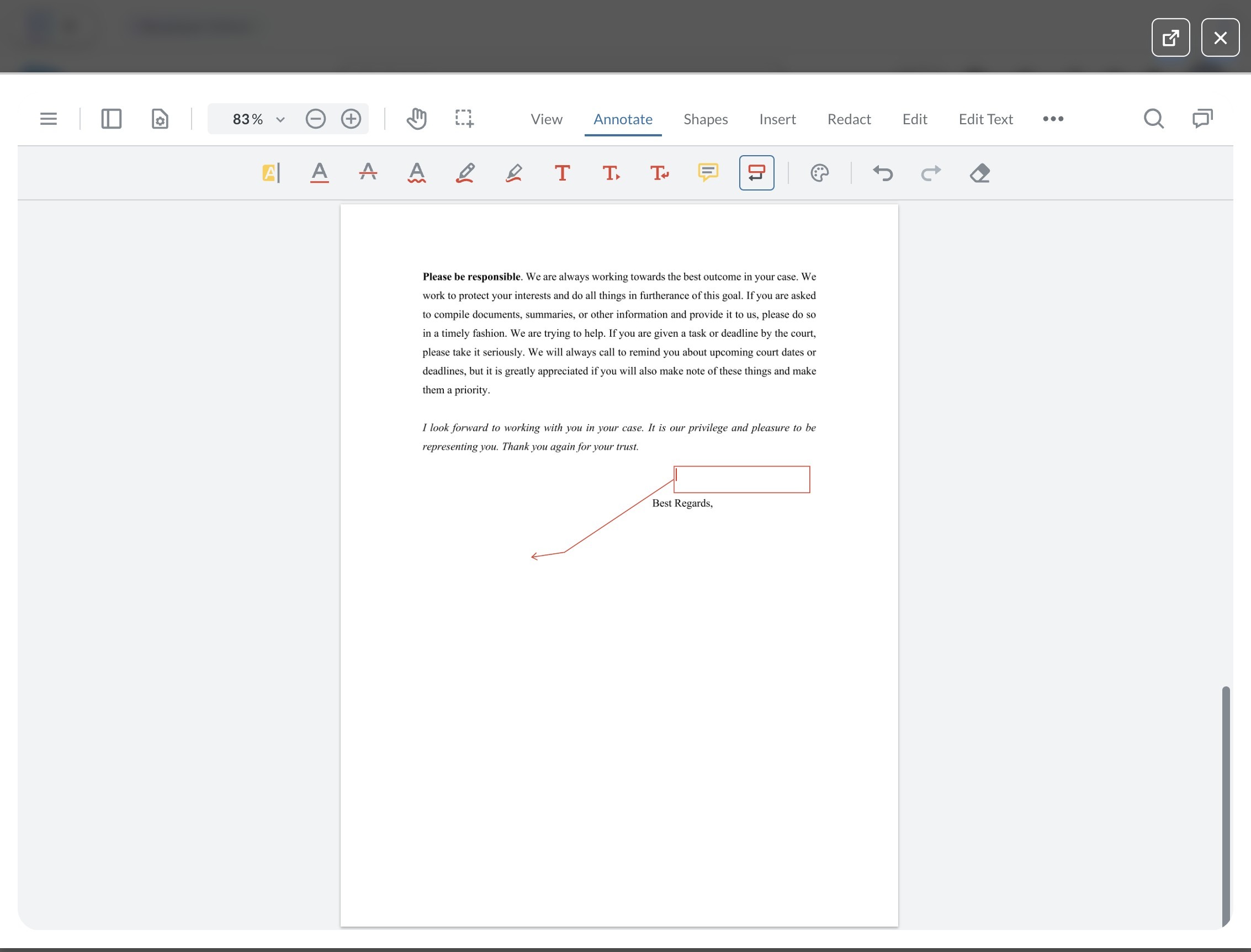
58. Press [[cmd]] + [[z]]
 />
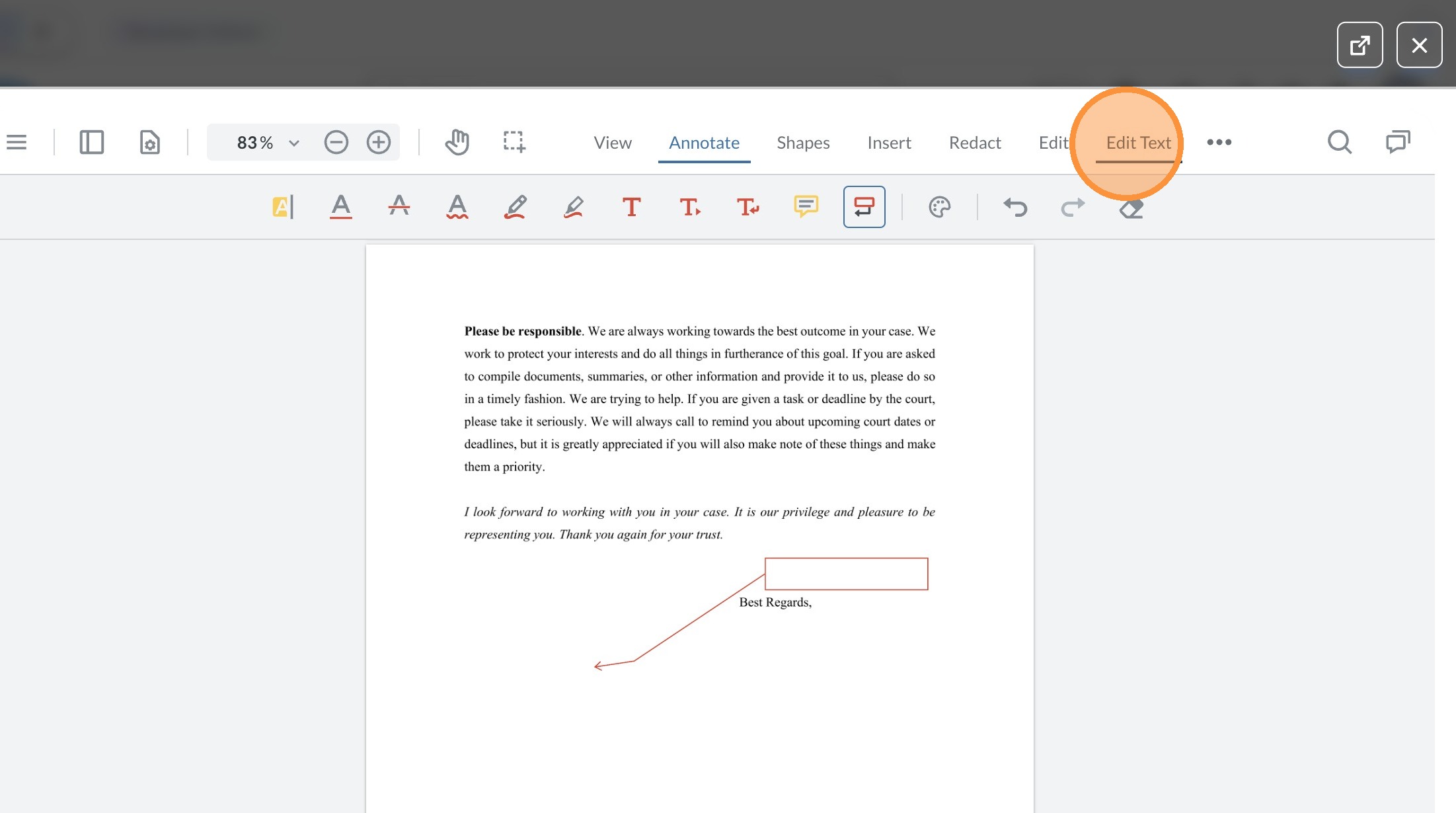
59. Click "Edit Text"
 />
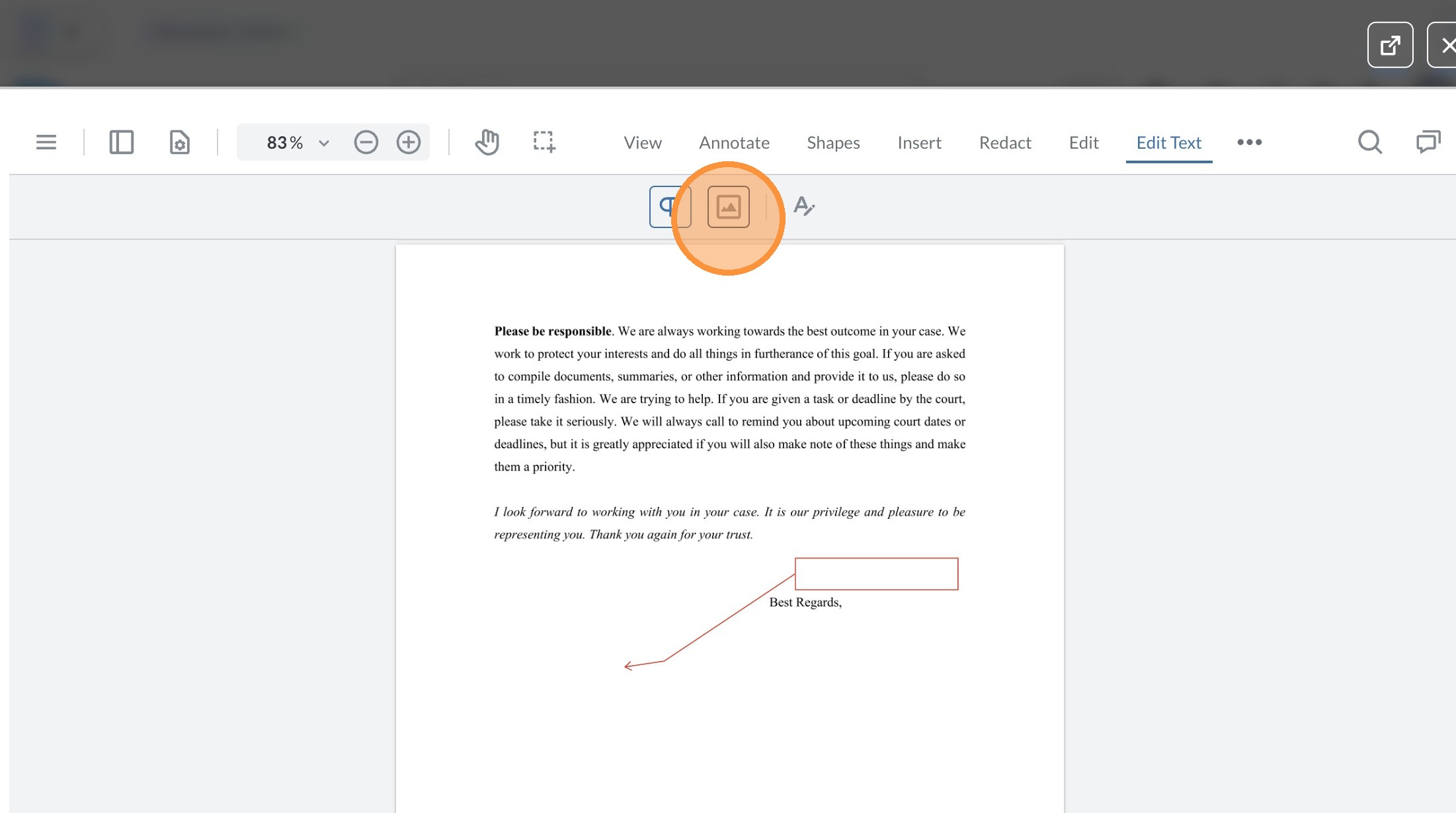
60. Click this button.
 />
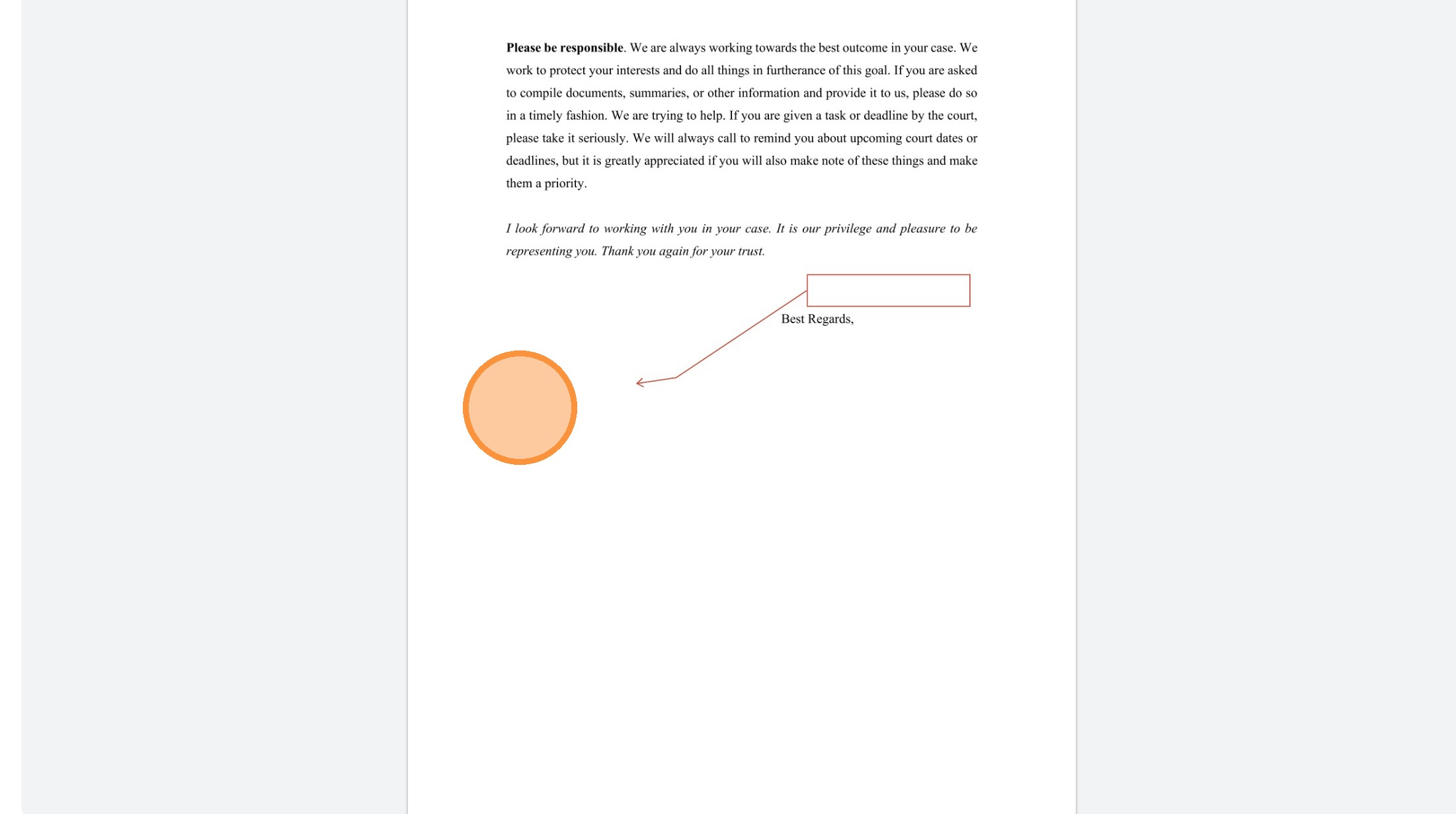
61. Click "Page 3"
 />