This guide provides essential steps for adding a lien in the LawAccounting/CaseQube system, crucial for managing personal injury cases. It clarifies the distinction between liens and expenses, emphasizing the importance of negotiating lien amounts post-settlement. By following this guide, users can ensure accurate documentation and management of liens, ultimately aiding in the financial resolution of cases. It's a valuable resource for legal professionals seeking to streamline their lien processes effectively.
1. Step 1: Access Personal Injury Lien Screen
- Log In
- Access LawAccounting/CaseQube using your secured credentials.
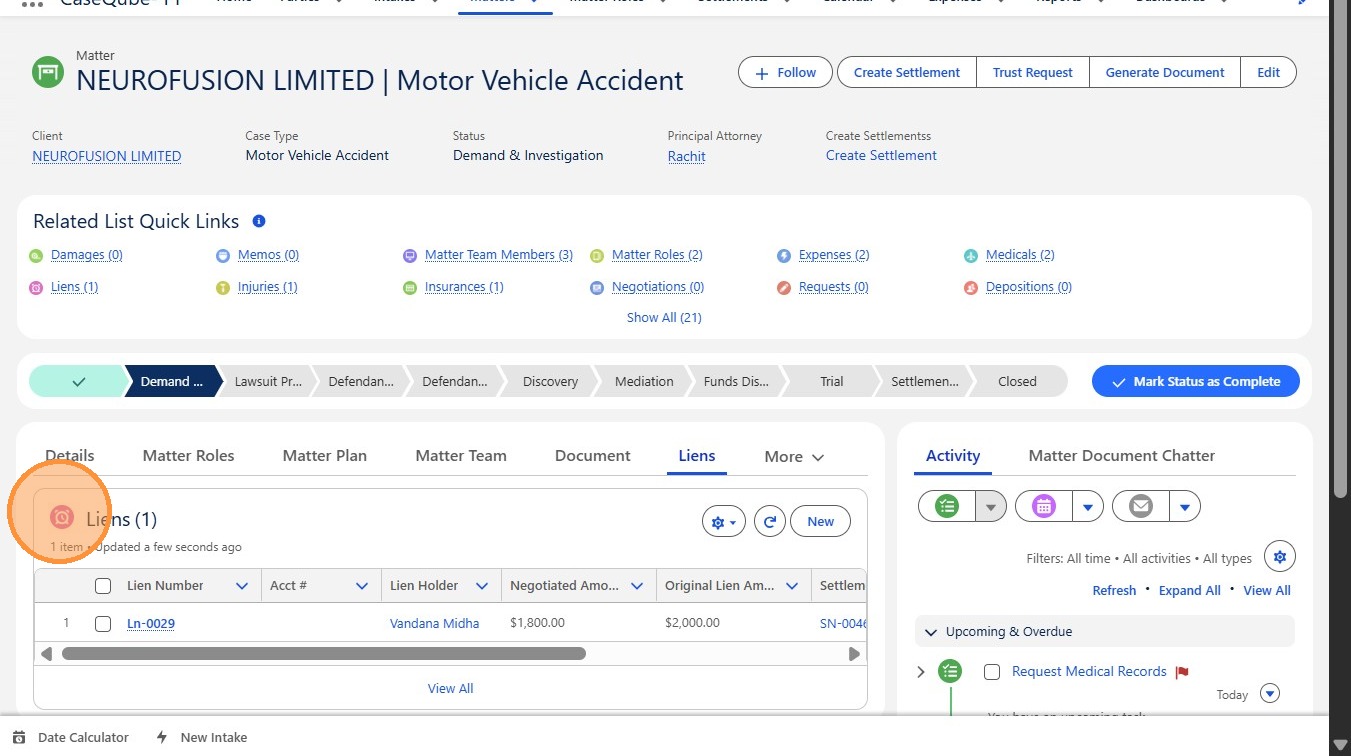
- Navigate to Matter Tab
- Select the Matter that you are using
- Navigate to Lien Screen
- Click More
- Click Lien
 />
2. Step 2: Understanding Liens
- Liens represent amounts owed to a third party that has a legal right to payment from the settlement.
Key Difference from Expenses
-
Liens are not firm costs
-
Attorneys often negotiate lien amounts down after settlement
The system should reflect the final negotiated lien amount.
 />
3. Step 3: Adding a Lien
- Click New
- Fill in New Lien Sheet
- Lien Type: The category of lien being asserted (e.g., medical, workers’ compensation, Medicare, child support).
- Lien Holder: The individual, organization, or agency claiming the lien.
- Lien Holder Type: The classification of the lien holder (e.g., medical provider, insurance carrier, government entity).
- Claim Number: The reference or identification number assigned to the lien by the lien holder.
- Original Lien Amount: The total amount initially claimed by the lien holder before any review or negotiation.
- Negotiated Amount Paid: The final amount paid to satisfy the lien after reductions or negotiations.
- Verified Lien Amount: The amount confirmed as valid after reviewing billing records, eligibility, and applicable laws.
- Lien Status: The current state of the lien (e.g., pending, verified, disputed, negotiated, satisfied).
- Date Lien Identified: The date the lien was first discovered or reported.
- Date Audit Requested: The date a formal audit or validation request was submitted to the lien holder.
- Additional Fields may be filled in but are not required
- When Finished Click Save
 />