Matter Roles represent all individuals or entities who have a potential role or relationship to a case, not just members of your firm. This is a step by step guide on how to properly assign a Matter Role in CaseQube
1. #### Step 1: Login
-
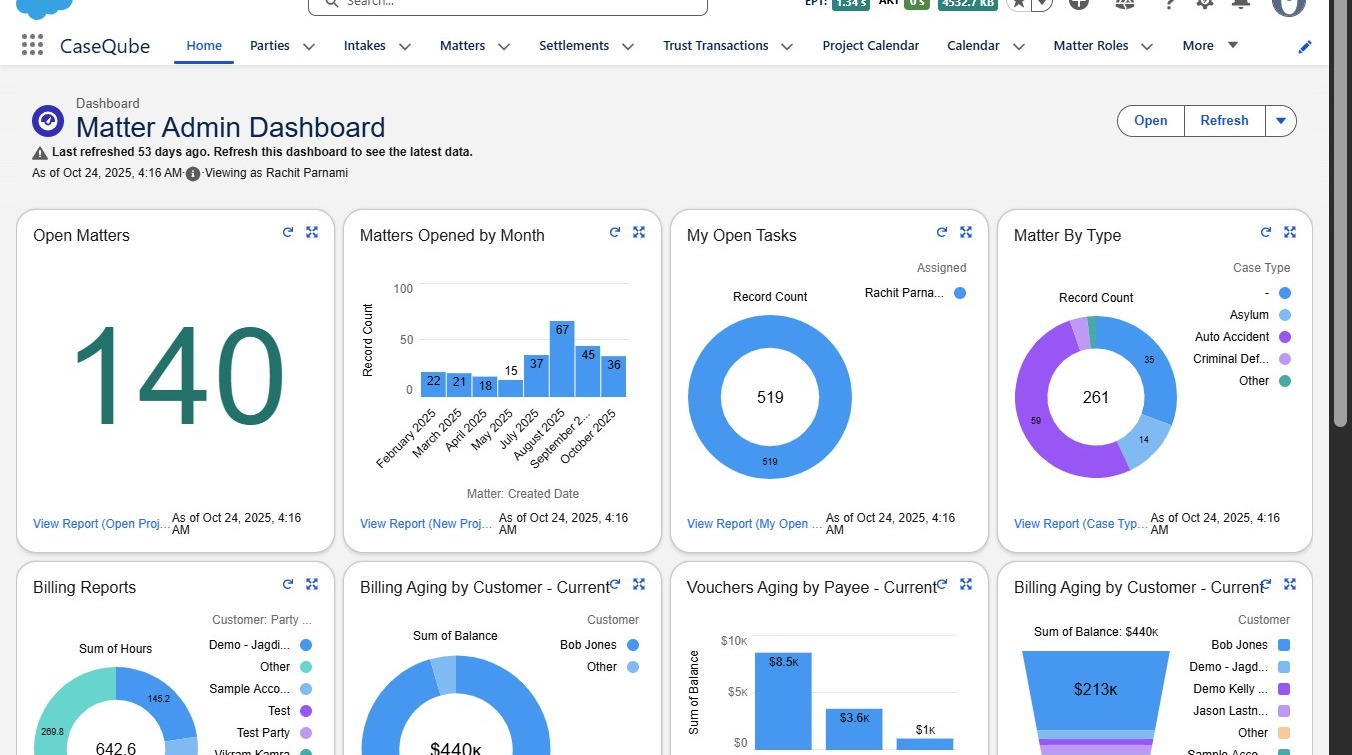
Log in to Salesforce using your secure credentials.
-
Navigate to the CaseQube Home Page.
 />
2. #### Step 2: Open Matter
-
Click the Matters tab.
-
Select the Matter (case) you are working on.
Click "Sophia Fallara | Domestic Violence"
 />
3. #### Step 3: Matter Role Tab
-
Click the Matter Role tab.
-
The Client’s information will automatically populate in the pre-filled fields.
Click "Matter Role Name"
 />
4. #### Step 4: Adding Roles
-
Click the Add Roles button.
-
Enter the Party and assign their Category.
-
If needed, assign a Sub-Role Category and add any comments.
 />
5. #### Step 5: Adding Additional Roles
-
If you have more Matter Roles to assign, click Add Rows.
-
Fill out the information for each new role just like you did in the previous step.
 />
6. #### Step 6: Save Matter Roles
-
Click the Save button.
-
Review your Matter Roles to ensure all information is correct and complete.
Click "Matter Role"
 />